Choose a scanner based on the size and condition of your receipts, and how many sheets you process at once. A compact USB scanner may suit a desk beside your laptop, while Wi-Fi gives you more flexibility over where to put it. Also check that the feeder can handle your receipts and that you can store business scans in a complete, auditable form.
Who is this relevant to?
For scanning individual receipts
You scan receipts as they come in and want to know whether unusual or thin slips will feed through properly. Canon lists receipts as a supported document type for the imageFORMULA R10; Epson lists receipts as a use for the ES-C320W.
For processing stacks of paper
You process receipts alongside invoices and want an automatic document feeder and duplex scanning, so you spend less time handling sheets individually. Brother lists these features for the ADS-1300 and ADS-1800W; ScanSnap lists them for the iX1300.
For building a digital archive
You want to be able to find your scans and, for business records, keep a complete and auditable copy. The Belastingdienst has requirements for invoices and receipts stored digitally. File organisation features can help you find documents, but they don’t replace the need to check them.
What should you look for when choosing?
Start with the feeder: check your receipts and work out whether you mainly scan individual sheets or process stacks regularly. Then compare the connectivity and the options for saving and finding your scans.
| What to consider |
What should you check? |
Who should pay particular attention? |
| Unusual receipts |
Compare the size and paper thickness with the specifications; check whether single-sheet feeding or an alternative paper path is available, and inspect the scan. |
If I scan individual, thin or unusual receipts, I want to know whether they’ll feed through clearly. Around 33% of consumers put feeding unusual receipts at the top of their list. |
| Batch processing |
Check the ADF capacity and the paper weight it’s based on, whether duplex scanning is available, and whether your mix of papers falls within the feeder specifications. |
If I regularly process receipts and invoices together, I want to avoid feeding sheets one at a time. Around 27% of consumers give batch processing top priority. |
| Placement and connectivity |
Decide where the scanner will go and what power supply and connection you need; also check software compatibility with your computer or mobile device. |
If my desk is short on space or I want to put the scanner elsewhere, connectivity matters a lot. Around 20% of consumers put workspace and connection first. |
| Finding your files |
Look at the file formats available, whether files can be searched and where they’re stored; compare business scans with the original. |
If I want to find scans later and use them in my business records, I need to be able to check and retain their contents. Around 20% of consumers start with file organisation and archiving. |
Common mistakes
-
Assuming an ADF that holds 20 sheets will handle a stack of till receipts without a problem
Capacity figures may be based on paper of a particular thickness. If you have a mixed stack of unusual receipts, check the feeder specifications first.
Compare your paper mix with the model specifications and feed unusual receipts individually to start with. Check the complete scan before putting the original away.
Feeding unusual receipts separately or scanning them again takes extra time.
-
Confusing a searchable PDF with a complete, auditable receipt archive
Searchability makes files easier to find, but it doesn’t confirm that all the information or authenticity features have been captured correctly. For business records, the Belastingdienst requires a correct and complete representation of the original.
Check the receipt details are visible and keep the files in line with the requirements for your business records.
-
Treating USB power, Wi-Fi and accessories as interchangeable features
The Canon R10 uses USB 2.0, the Brother ADS-1300 is powered via USB-C and the Epson ES-C320W has Wi-Fi. These are different connections and ways of using the scanner at your workspace.
Check which cables, power supply and software you need for the exact model, and whether any accessories, such as an output tray, are included.
Brands to compare
Canon
The imageFORMULA R10 is a portable scanner with an ADF and USB power, designed for receipts and individual A4 documents.
- Canon lists receipts as a supported document type and specifies duplex scanning and a 20-sheet ADF at 80 g/m².
- The stated paper weight for standard documents is 64–128 g/m². Compare this specification with your receipts; it doesn’t confirm that every receipt is suitable.
Epson
The ES-C320W combines Wi-Fi with a U-turn path and a switchable straight path for different paper routes.
- Epson lists receipts, invoices and various media among its uses.
- Epson’s claims about paper protection and space-saving don’t guarantee that every delicate receipt will feed through without needing to be checked.
Brother
The ADS-1300 is a compact scanner powered via USB-C; the ADS-1800W is a separate wireless model with a touchscreen.
- Brother specifies a 20-sheet ADF and duplex scanning for both models.
- The models differ in connectivity and controls. Compare these differences for your workspace rather than focusing only on the stated speed.
ScanSnap
According to ScanSnap, the iX1300 combines an ADF with a manual return feed, Wi-Fi and ScanSnap Home.
- ScanSnap lists searchable PDFs and file tags among its output options.
- These features don’t guarantee that OCR or expense details will be recognised accurately on every receipt; check the scan yourself.
Scanners at Joybuy
This selection includes sheet-fed scanners for digitising receipts and other documents, including models with an ADF and one that combines an ADF with a flatbed.
 No image available
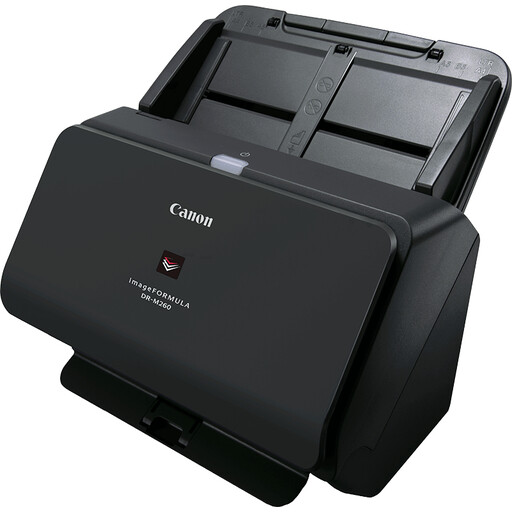
Canon imageFORMULA DR-M260, 600 x 600 DPI, A4, black
Suitable if you want to process individual documents using a sheet feeder; check that the specifications meet your needs for receipts.
The product description lists media from 27–413 g/m² and ultrasonic double-feed detection.
View at Joybuy
 No image available
Canon imageFORMULA DR-F120, flatbed and ADF, A4, black
Worth comparing if you want a flatbed as well as automatic feeding for delicate materials.
The product description lists a 50-sheet ADF, duplex scanning and output to editable PDF.
View at Joybuy
 No image available
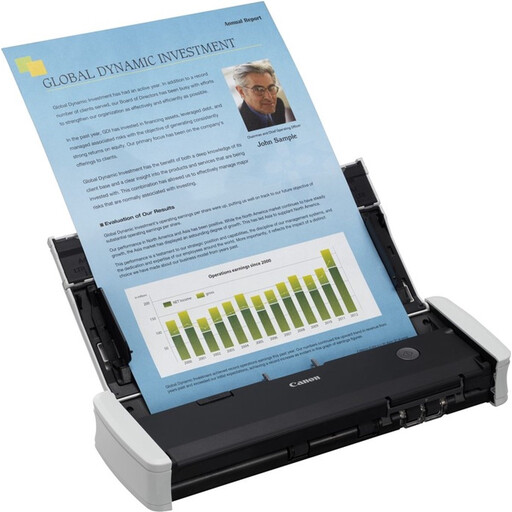
Canon imageFORMULA R10, 600 x 600 DPI, A4, white
Canon lists receipts as a supported document type, making this model worth comparing if you want to digitise individual expense receipts.
The ADF is rated for 20 sheets at 80 g/m² and the scanner supports duplex scanning. It connects via USB 2.0; don’t assume the stated capacity will apply to a mixed stack of receipts.
View at Joybuy
 No image available
Epson DS-C330, ADF and sheet-fed, 600 x 600 DPI, A4
The product description mentions receipts and invoices, and presents this compact model as suitable for workspaces with limited room.
The description lists a U-turn feed path and PDF, JPG and TIFF output formats.
View at Joybuy
 No image available
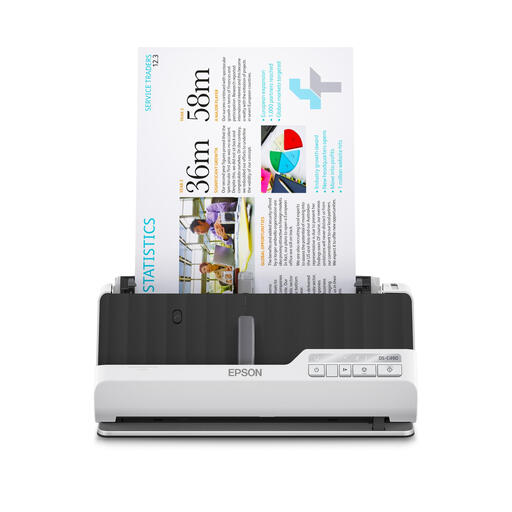
Epson DS-C490, ADF and sheet-fed, 600 x 600 DPI, A4
Worth comparing if you want to choose between a U-shaped and a straight paper path when feeding documents.
The product description lists automatic duplex scanning.
View at Joybuy
Frequently asked questions
Can I throw away a paper business receipt after scanning it?
Not automatically. The Belastingdienst says you can store invoices and receipts digitally if the scan is a correct and complete representation of the original and also captures its authenticity features. Your digital records must remain auditable. Only assume you can dispose of the paper once you’ve met the requirements for your records.
How long should I keep scanned business receipts?
The Belastingdienst generally specifies a retention period of 7 years and, in some cases, 10 years, including for invoices relating to immovable property. The applicable period depends on the records the receipt relates to; this isn’t a general retention period for personal receipts.
How can I stop receipts and files getting mixed up?
Start with a small test batch and check every scan before archiving the files. Then choose a permanent storage location and check that your model’s software offers the output you need, such as a searchable PDF. Organising your files doesn’t replace checking that each scan is complete.
Which connections and accessories should I check before buying?
Check the power supply and connection for the exact model, and see which accessories are included. Brother lists a USB-C power adapter and an optional output tray for the ADS-1300, so check whether they suit your setup and how you plan to use it.


