For occasional project receipts, a compact scanner that feeds sheets one at a time may be sufficient. If you regularly scan suitable piles of receipts and documents, a model with an automatic document feeder is more practical. Check that the receipt size and paper weight fall within the specifications, that the scanner works with your device, and that the extra feed capacity will genuinely help with this project.
Who is this buying guide for?
Scanning individual project receipts
You scan a receipt now and then and want to capture different sizes without needing a large, permanent workspace. Epson lists a range of paper weights for the ES-60W, while Canon mentions receipts as one use for the R10.
Processing piles of receipts
You collect receipts and other project documents to scan in batches. Feed capacity and duplex scanning may be important here; Canon and Brother specify a 20-sheet ADF for certain models.
Managing project files
You want to find your scans later and share them with the right people, so file formats and storage matter too. If receipts contain personal data, consider who has access to the files. The Dutch Data Protection Authority explains when information can be linked to an individual and what schools should bear in mind when handling pupils’ data.
What should you look for when choosing?
Single-sheet scanner
Choose this if: you mainly scan individual receipts occasionally and want to be able to put the scanner away or take it with you.
Bear in mind: you feed in each sheet separately; automatic feed mode is not the same as an ADF for a pile of sheets.
Compact scanner with ADF
Choose this if: you regularly scan small piles of suitable receipts and project documents.
Bear in mind: the stated capacity does not guarantee that every thin or crumpled receipt will feed properly.
Wi-Fi scanner with multiple paper paths
Choose this if: you want to use the scanner in different locations or feed in different types of material.
Bear in mind: extra connection and feeding options are only useful if they suit the way you work on your project.
| What to consider |
What should you check? |
Who is this important for? |
| Receipt size and paper weight |
Compare the smallest and thinnest receipt with the specifications for the exact model; try a test scan if needed. |
If I want to feed in unusual or thin receipts, I need to know whether they fall within the stated limits. Around 29% of consumers say reliable feeding is their top consideration. |
| Matching features to your project |
Work out how many scanning sessions you expect to have and which features you actually need. |
For a temporary project, I don’t want to choose features I’m unlikely to use. Around 23% of consumers give the suitability of a scanner for their project the greatest weight. |
| Batch processing |
Compare the size of your usual pile with the ADF capacity, and check whether you scan double-sided documents. |
If I’m scanning receipts and documents together, I don’t want to feed in every sheet separately. Around 18% of consumers make batch processing their top priority. |
| Portability and connection |
Check the power supply, connection, software compatibility and the space needed while feeding sheets. |
When working in different locations, I want to be able to use a scanner with the computer and power supply available. Around 18% of consumers prioritise this flexibility. |
| Finding and keeping files |
Check file formats, naming, storage location and who has access if scans contain personal data. |
If I need to find project receipts later or share them appropriately, I want to decide in advance how to store them. Around 12% of consumers say file management is their top consideration. |
Common buying pitfalls
-
Assuming a 20-sheet ADF will handle every receipt
Feed capacity and the paper weights a manufacturer specifies for standard documents are two different things. Thin or small receipts may therefore need extra care.
Compare the smallest and thinnest receipts you want to scan with the specifications for the exact model, and check that the scans are legible.
With loose or unusual receipts, feeding and checking each one individually may mean more work.
-
Confusing automatic feed mode with a batch ADF
Epson describes the ES-60W as having an automatic feed mode for continuous scanning; Canon and Brother explicitly give the sheet capacity of the ADF on certain models.
Check whether you need to feed in loose sheets one after another or can load a pile.
-
Forgetting to check which accessories you need
Brother lists a mains power adapter kit and an output tray as separate accessories for the ADS-1300.
Check what comes in the package you choose and whether it suits your preferred power supply and workspace.
-
Assuming a saved scan is automatically acceptable as evidence
The Tax and Customs Administration allows scanned receipts and invoices to be kept digitally for business records, subject to certain conditions; the digital copy must be accurate and complete.
Before saving the file, check that the entire receipt is legible and that no important details are missing.
Relevant brands to consider
Canon
The imageFORMULA R10 is designed for scanning receipts and small piles of documents alongside a computer.
- Canon specifies a 20-sheet ADF and duplex scanning for the R10, and lists receipts as one of its uses.
- The stated 64–128 g/m² applies to standard documents; don’t assume that every very thin receipt is suitable.
Epson
The ES-60W is designed for mobile scanning of individual sheets, while the ES-C320W offers Wi-Fi and different paper paths.
- Epson specifies battery power and a range of 35–270 g/m² for the ES-60W. For the ES-C320W, Epson lists receipts, a U-turn path and a straight paper path.
- These are features of specific models, not all Epson scanners. The ES-60W’s feed mode does not mean you can load a pile into an ADF.
Brother
The ADS-1300 is designed for small piles alongside a computer and is powered via USB-C.
- Brother specifies a 20-sheet ADF and duplex scanning for this model.
- A mains power adapter kit and an output tray are listed separately as accessories; check what’s included with the version you choose.
ScanSnap
The iX1400 is a desktop option for anyone who expects to keep scanning documents and receipts regularly after the project.
- ScanSnap lists a 50-page input capacity, a USB connection and the ability to create searchable PDFs.
- If you only have a few project receipts, you may not use the full feed capacity. Manufacturer specifications are not independent performance tests.
Joybuy products
This selection includes sheet-fed scanners for digitising project receipts and documents, from compact models for individual sheets to versions with automatic feeding.
 No image available
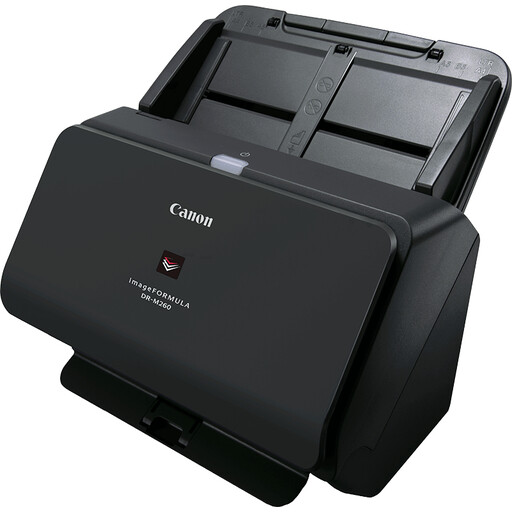
Canon imageFORMULA DR-M260
A sheet-fed scanner to consider if you want to digitise project documents; check that its feed suits the size of your receipts.
A4; 600 × 600 DPI.
Joybuy
 No image available
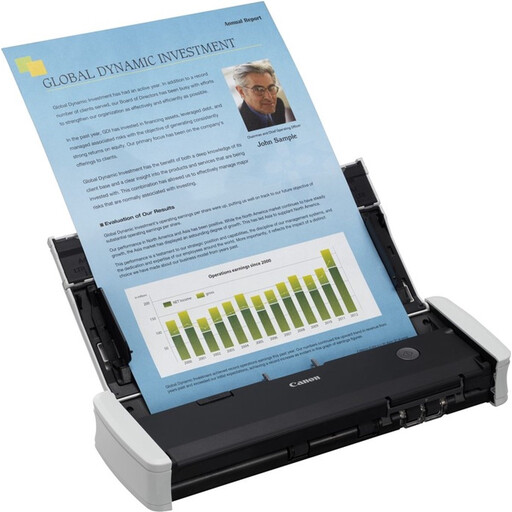
Canon imageFORMULA R10
The R10 is an option for receipts and small piles; Canon specifies an ADF and duplex scanning for this model.
A4; 20-sheet ADF; USB connection; duplex scanning. Canon specifies 64–128 g/m² for standard documents, which does not guarantee that every thin receipt is suitable.
Joybuy
 No image available
Epson DS-C330
An ADF and sheet-fed scanner to compare with the receipt sizes and feeding method your project requires.
A4; 600 × 600 DPI.
Joybuy
 No image available
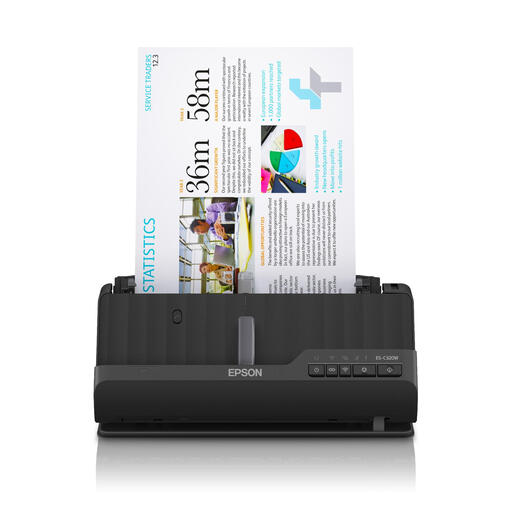
Epson ES-C320W
This model is worth considering if you want Wi-Fi and different paper paths for your project; Epson lists receipts as one of its uses.
A4; 600 × 600 DPI; Wi-Fi; U-turn and straight paper paths.
Joybuy
 No image available
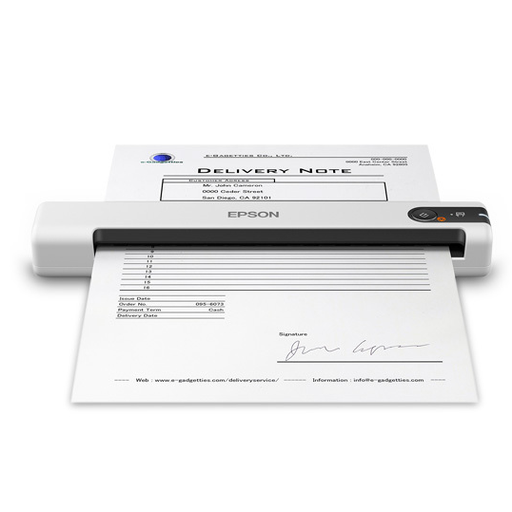
Epson WorkForce DS-70
A handheld scanner to consider if you’re looking for a compact model for individual sheets; check the feed and software compatibility for your receipts and device.
A4; 600 × 600 DPI.
Joybuy
Frequently asked questions
Do I need a scanner with an ADF for a few individual project receipts?
Not necessarily: you could consider a compact scanner for individual sheets, while an ADF is most useful if you regularly scan piles of suitable sheets. With either type, check that the size and paper weight of your receipts fall within the specifications.
Can I scan without a mains socket or a desktop computer?
It depends on the model. Epson specifies a battery and Wi-Fi for the ES-60W; Canon lists USB power for the R10, and Brother lists USB-C power for the ADS-1300. Also check that the software works with your device.
What should I check after scanning a receipt?
Check that the whole receipt is legible and that important details, such as the date and amount, are visible. A PDF or OCR feature doesn’t prove that all the details have been captured correctly; give the file a name and storage location that will make it easy to find later, too.
Does the tax retention requirement automatically apply to my school project?
No. Don’t assume that a business tax retention requirement applies just because you’re using expense receipts. If scans form part of business records, the Tax and Customs Administration allows them to be kept digitally under certain conditions: the copy must be accurate and complete. The retention period depends on the records in question.
When should I consider the GDPR when handling project receipts?
The GDPR is relevant when an organisation processes receipts containing information that can be linked to individuals, directly or indirectly. The Dutch Data Protection Authority outlines, among other things, schools’ responsibility to protect pupils’ personal data. Decide who will manage the project files and who is allowed to view them.


