What should you look for?
Start with the size of your usual batches and the information on the forms. Then decide whether you’ll scan on one computer, at a permanent shared station or at different locations. A network connection or scan destination does not, by itself, determine who can access members’ data.
| What to consider |
What should you check? |
Who is this important for? |
| Batch size |
Count the sheets in each session and compare the number with the input capacity of the exact model. |
For recurring batches, I want to stop less often to reload paper; around 28% of consumers prioritise suitable batch handling. |
| Front and back |
Check whether the model scans both sides automatically and test both sides using a representative form. |
If forms contain information on both sides, I don’t want to miss any data; around 22% of consumers prioritise capturing both sides in full. |
| Storage and access |
Agree in advance who can scan and view files, which destination is permitted, and how files will be secured and deleted. |
For members’ data, I want a destination with clearly managed access; around 22% of consumers prioritise storage they can manage. |
| Finding scans later |
Test file names, order and legibility. Check separately whether the software creates the searchable file format you need. |
When I need scans for administration later, I want to be able to find and check them; around 17% of consumers prioritise files that are easy to find. |
| Moving and connecting |
Check what power supply and cables are needed, and whether the scanner connects to the devices you use. |
If I scan small batches at different locations, I want to be able to carry and connect the device easily; around 11% of consumers prioritise portability. |
Joybuy products
This selection of Joybuy products includes compact USB scanners for mobile scanning, as well as models for a permanent workplace or larger scanning sessions. Check which scanning features, connections and file destinations suit your way of working for each model.
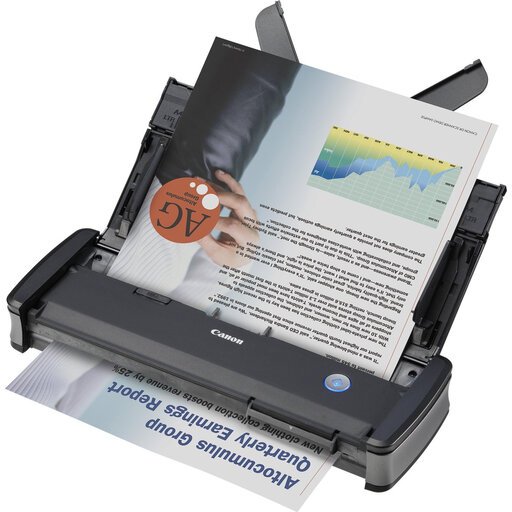 Image unavailable
Canon imageFORMULA P-215II
A compact, portable option for small scanning sessions at different locations.
The description lists a 20-sheet automatic feeder, duplex scanning and USB power.
Windows and Mac support are listed. The WU10 module for wireless scanning is optional; the scanner connects via USB.
View at Joybuy
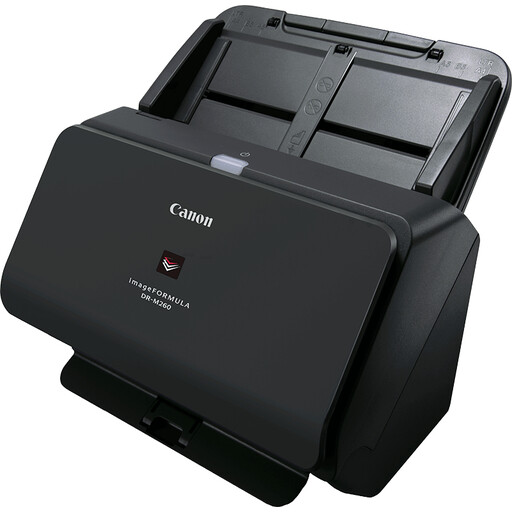 Image unavailable
Canon imageFORMULA DR-M260
A model worth comparing for regular batches at a permanent workplace.
The product description lists speeds of up to 60 ppm and double-feed detection.
Network and SharePoint support are listed; check which connection and destination suit your set-up.
View at Joybuy
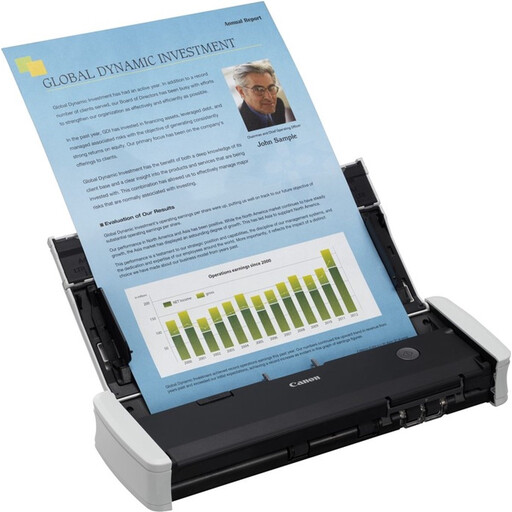 Image unavailable
Canon imageFORMULA R10
A compact option worth comparing if you scan in different locations and use a computer with USB.
The description lists a 20-sheet automatic feeder and duplex scanning.
According to the product description, the scanner works via a USB cable.
View at Joybuy
 Image unavailable
Epson DS-C330
A compact scanner worth comparing if desk space is limited.
The product description mentions a U-turn paper path and a USB connection to a computer.
Support for documents such as passports, booklets, receipts and invoices is listed.
View at Joybuy
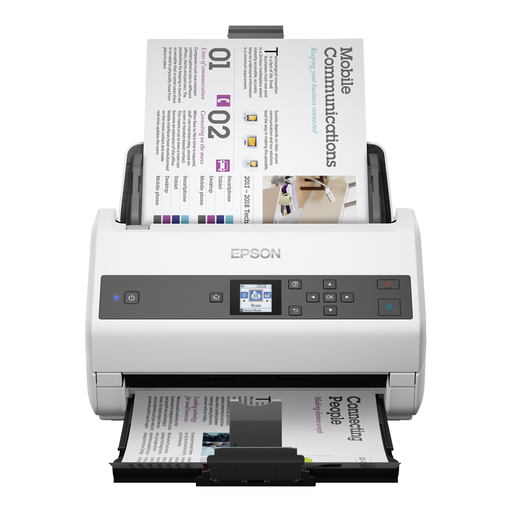 Image unavailable
Epson WorkForce DS-970
A model worth comparing for larger scanning sessions with forms that may contain information on both sides.
The product description lists a 100-sheet automatic document feeder and duplex scanning.
Cloud and computer scan destinations are mentioned. The network interface is described as optional.
View at Joybuy
Frequently asked questions
Do we need a duplex scanner for forms filled in on both sides?
Automatic duplex scanning can save you from feeding the front and back separately. Check this feature on the exact model and, after a test scan, make sure both sides are captured in the right order and are legible.
Can OCR transfer completed membership data without errors?
The OCR features listed by Canon and Epson for the models mentioned do not guarantee error-free processing of completed forms. Test the output you need with a representative set and check it against the original scans.
What should we check during set-up and maintenance?
Check the connection and software for the computer you use, set an approved scan destination and test the feeder with representative forms. If the feed rollers wear out, check that replacement rollers are compatible with the exact model before ordering.
Can a group in the Netherlands digitise membership forms and store them in the cloud?
Digitising and storing personal data requires an appropriate legal basis under the GDPR, suitable security and a retention period that fits the purpose. A scanner with a cloud feature does not provide separate permission to do this. If a cloud service processes personal data on behalf of the group, the Dutch Data Protection Authority says the group and the processor must set out the relevant arrangements in writing in a data processing agreement.
Is the same retention period right for every association?
No. According to the Dutch Data Protection Authority, the GDPR does not set a specific general retention period for personal data. The organisation must decide what is necessary for the purpose of processing and take any legal retention requirements into account.


