Who is this router advice for?

Designers working at the same time

If several people are on calls, uploading files and working on designs at the same time, check where the connection falls short and how many devices are active simultaneously. The Dutch Consumers’ Association recommends, among other things, placing your router or Wi-Fi modem outside a closed utility cupboard and measuring the difference.

Studios with shared files

If you use a wired computer or network storage, count the devices you want to connect and check the available LAN and WAN ports. The number and speed of the ports can affect how you connect your work equipment.

Studios with visitors

If you want to give visitors internet access without letting them access your internal work network, check how the guest network works on the exact model. The available settings and how you manage them can vary between models.

What should you look for when choosing?

One router connected to your existing modem

Best for: when one central point can reach your workstations and you need extra settings or Ethernet connections.

Trade-off: placement still matters; also check how the router works with your provider’s equipment.

Access point mode

Best for: when your provider’s router will continue to manage the network and you want to provide Wi-Fi from a better location.

Trade-off: check that your chosen model supports this mode; not all router features are automatically available in access point mode.

Multiple Wi-Fi access points or mesh

Best for: when measurements show that one well-positioned access point doesn’t reach every workstation.

Trade-off: extra access points mean more equipment and installation work; having several users in one room isn’t, by itself, a reason to choose a multi-point kit.

What to consider What to check before buying Who it matters to
Connection at workstations Measure the connection where you work, check which devices are active at the same time and try placing the router centrally, outside a closed utility cupboard. If I’m working alongside colleagues, I first want to know whether the connection is reliable at every workstation. Around 31% of consumers say simultaneous workstations are their main need.
Wired devices Count the LAN connections you need and check the speed and function of the WAN and LAN ports separately. If I have a wired computer or shared storage, I want to know whether the connections suit my setup. Around 25% of consumers give shared files top priority.
Guest access Check the guest network features on the exact model and, after installation, test whether a guest device can access internal devices. If visitors need Wi-Fi, I want to keep their access separate from the network used by work equipment. Around 25% of consumers put this separation first.
Installation and placement Check where the modem, connection point and possible router locations are; find out which provider settings you need and who is responsible for firmware updates. In a rented home, I want a manageable setup that can be placed somewhere suitable. Around 19% of consumers consider easy installation and placement most important.

Buying pitfalls

  • Assuming the combined Wi-Fi speed is the speed you’ll get at every workstation

    The advertised maximum speed isn’t the same as the measured speed at a workstation. Placement, obstacles and your available internet connection all play a part.

    Measure the connection where you work, and don’t compare the advertised maximum speed directly with a measurement taken in the studio.

  • Putting visitors on the same network as your work equipment

    Without the right settings, other people may be able to access devices on a shared network.

    Check the guest access features on the exact model and, after installation, test whether a guest device can access internal devices.

  • Buying an extra router without planning the connection and its management

    Your own router needs the right connection settings and requires attention to updates. Tweakers also notes that some advanced features on the Archer BE230 require a subscription.

    Ask for the connection details you need, decide whether you’ll use the device as a router or access point, and check which features are available without a subscription before buying.

    Some advanced features may require a subscription; remember to factor in the extra configuration work too.

Brands to consider

TP-Link

The Archer BE230 is a standalone router worth comparing if ports and one central Wi-Fi access point are important to you.

  • According to TP-Link’s Dutch product specifications, the Archer BE230 has one 2.5 Gbit/s WAN port, one 2.5 Gbit/s LAN port and three 1 Gbit/s LAN ports.
  • Tweakers rated this model positively for its range and handling of interference.
  • Tweakers gave its wireless throughput a less positive rating and notes that advanced features require a subscription. These findings apply to this model, not all TP-Link routers.

ASUS

The RT-BE58U is worth considering if you want to compare configuration options and a flexible port layout.

  • Tweakers rated the RT-BE58U positively for its Wi-Fi performance and configuration options.
  • Tweakers lists one 2.5 Gbit/s connection and four 1 Gbit/s connections.
  • Tweakers gave its handling of strong interference a less positive rating; this model doesn’t have a 6 GHz band. This isn’t a judgement on other ASUS models.

FRITZ!

The FRITZ!Box 4060 is worth comparing if guest access and its associated management features are important to you.

  • FRITZ! describes the 4060 as offering separate guest Wi-Fi access.
  • FRITZ! lists a 2.5-gigabit WAN connection and a five-year warranty for the Dutch product.
  • These product specifications aren’t an independent measurement of performance in a particular rented home.

Router and mesh options at Joybuy

These options include standalone routers and mesh kits for a shared studio. Before buying, check that the exact model is compatible with your provider’s connection and that compliance information is available for the version you’ve chosen.
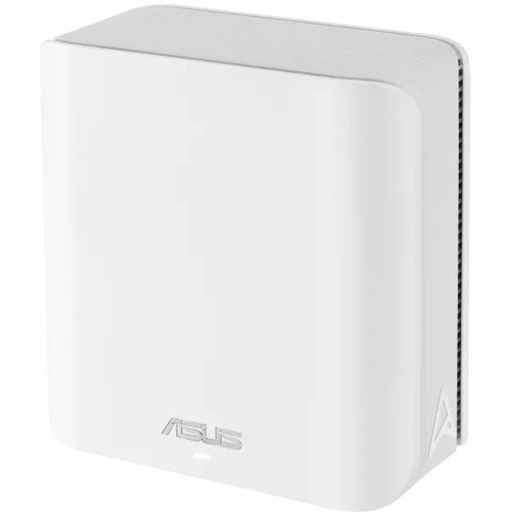
ASUS ZenWiFi BD4 Dual-Band Wi-Fi 7

ASUS ZenWiFi BD4 Dual-Band Wi-Fi 7

A mesh option to consider if you want to set up guest access or expand your Wi-Fi coverage later with other ASUS mesh systems.

Dual-band Wi-Fi 7; the product description mentions Multi-Link Operation and guest network management through the ASUS Router app.

View at Joybuy
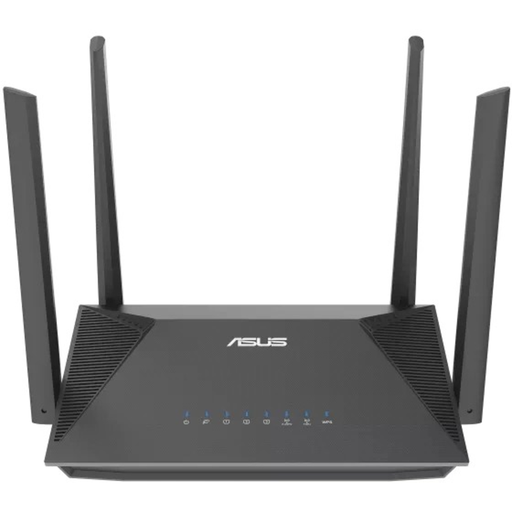
ASUS RT-AX52 AX1800 AiMesh router, dual-band

ASUS RT-AX52 AX1800 AiMesh

A standalone router to consider if you use several devices at once and may want to expand your network with ASUS AiMesh later.

Dual-band Wi-Fi 6; three Gigabit Ethernet ports. The product description mentions OFDMA and MU-MIMO.

View at Joybuy
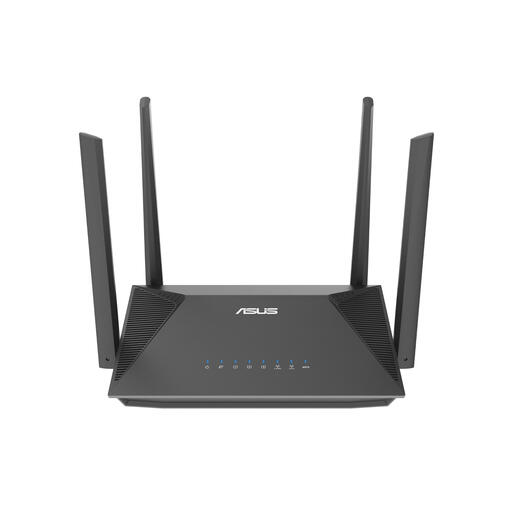
ASUS RT-AX52 Pro AX3000 dual-band router

ASUS RT-AX52 Pro AX3000

A standalone router to compare if several workstations connect at the same time and you want to connect your wired equipment.

Dual-band Wi-Fi 6; the product description mentions Gigabit Ethernet ports, MU-MIMO, OFDMA and AiMesh.

View at Joybuy
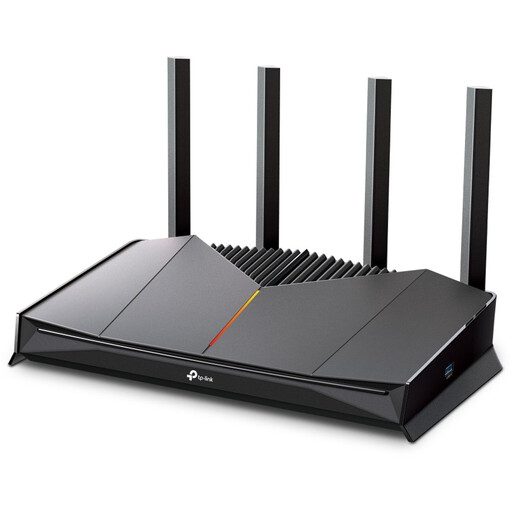
TP-Link Archer GE230 dual-band Wi-Fi 7 router

TP-Link Archer GE230

A standalone router to consider if you connect several wired devices and may want to expand your Wi-Fi coverage later.

Dual-band Wi-Fi 7; one 2.5 Gbit/s WAN port, one 2.5 Gbit/s LAN port and three Gigabit LAN ports. The product description mentions EasyMesh, MU-MIMO and OFDMA.

View at Joybuy
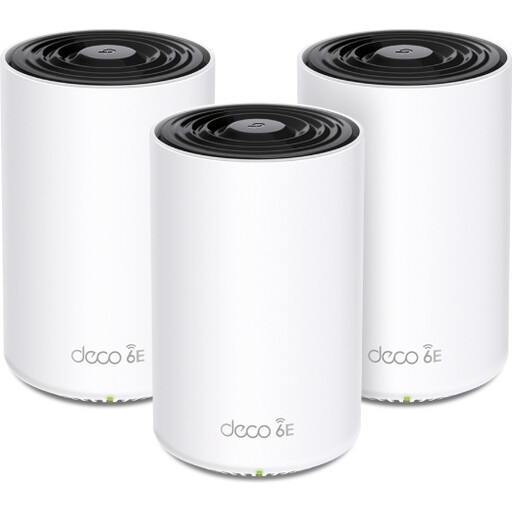
TP-Link Deco XE75 tri-band mesh kit with Wi-Fi 6E

TP-Link Deco XE75 Tri-band Mesh Wi-Fi 6E

A mesh kit to consider if measurements show that one well-positioned access point doesn’t reach your workstations and you want to offer guest access.

Tri-band Wi-Fi 6E; the product description lists three mesh units and three Gigabit Ethernet ports per unit, as well as guest access and QoS. A kit with several units requires extra equipment and installation work.

View at Joybuy

Frequently asked questions

Can I use my own router in the Netherlands instead of my internet provider’s?

Yes, you can choose your own router in the Netherlands. Check which settings your connection requires and how the router will work with your provider’s equipment.

Do I need a licence to use Wi-Fi in a shared studio?

In the Netherlands, Wi-Fi can be used for personal and business purposes without a licence on the designated frequencies and subject to the applicable conditions, according to the Dutch Authority for Digital Infrastructure. Check that your use complies with those conditions.

Should I buy a new router straight away if my Wi-Fi is slow?

No. First, try improving the placement and settings, then measure the connection where you work. The Dutch Consumers’ Association recommends placing your router or Wi-Fi modem outside a closed utility cupboard and measuring the difference.

How can I keep my own router secure?

Install available firmware updates and use suitable security settings with a strong password. If you have your own router, don’t assume your provider will manage updates automatically; check who is responsible for them.

What service and features should I check for a specific model?

Check whether the advanced features you want require a subscription and what warranty applies to the exact version. Tweakers notes that advanced features on the Archer BE230 require a subscription; FRITZ! lists a five-year warranty for the Dutch FRITZ!Box 4060.
