
Schedule manager who mainly prints text
You print digital schedules for several people and want clear text and a suitable paper tray, without paying for features you don’t need.


Do you mainly print digital text schedules? A black-and-white laser printer could be a good fit, provided its connectivity works with the studio’s devices and network. Choose colour if you need colour-coding on paper, and look for scanning or copying functions if you also handle paper originals. Compare consumables based on how often you print; manufacturers’ model specifications are not independent performance tests.
You print digital schedules for several people and want clear text and a suitable paper tray, without paying for features you don’t need.
Different people need to be able to print from their own devices. The model’s connections and the studio’s network setup determine whether this will work.
Whether you need colour-coding on paper, or need to scan and copy paper changes, will determine which printer features you need.
First, work out whether your schedules are mainly digital text. Then consider shared access, any paper documents you handle and how often you print.
| What to consider | What should you check? | Who is this most relevant to? |
|---|---|---|
| Clear text and paper handling | Check A4 support, automatic duplex printing and tray capacity. Also consider whether you really only print digital text. | If I mainly print text schedules, I want clear black-and-white pages and a paper tray that suits the number of copies. Around 33% of consumers prioritise clear text and suitable paper handling. |
| Access for multiple users | Compare Wi-Fi, Ethernet and supported mobile printing methods with the studio’s devices and network rules. | When different people print from their own devices, I want to know whether the model works with the studio network. Around 27% of consumers make shared access their main priority. |
| Colour and paper originals | Decide whether you need colour on paper, and check scanning, copying and document feeding as separate features. | If colour-coding matters or I need to handle paper changes, I want to assess colour and scanning or copying functions separately. Around 20% of consumers prioritise colour or paper originals. |
| Consumables and maintenance | Estimate how many pages you print each month and compare suitable ink or toner, and any separate drums, on the same basis. | For my own printing frequency, I want to factor in ongoing consumable costs. Around 20% of consumers make running costs their main priority. |
Running costs also depend on how much you print and the consumables you use. If you print infrequently, an inkjet printer may also use ink for cleaning.
Compare suitable refills and any separate drum based on a similar number of pages per month.
A listed connection does not automatically mean that all studio users’ devices can print over the local network.
Check the exact model’s connections and supported printing methods against the studio’s devices and network rules.
A duplex printing specification doesn’t tell you how a model scans paper documents.
Check printing, scanning and document feeding separately for the exact model.
A schedule may reveal information to people who don’t need to see it. The Dutch Data Protection Authority states that sharing staff data requires a lawful basis and a suitable purpose.
Make sure the content and access to printouts containing personal data are appropriate for the purpose and for the people who actually use the shared space.
The models listed range from black-and-white printers for text schedules to a black-and-white multifunction printer.
The models listed include a black-and-white laser printer and a colour inkjet printer.
The EcoTank ET-2950 is a colour inkjet printer with refillable tanks and multifunction features.
The HP LaserJet MFP M235sdw is a black-and-white multifunction printer.
These printer options are suited to shared schedules, with models for black-and-white or colour printing and handling paper documents.
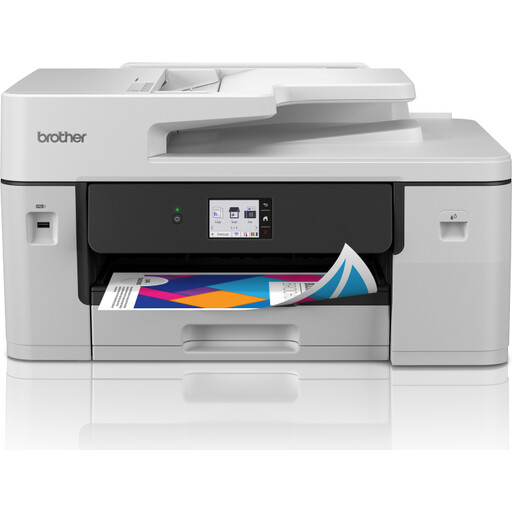 No image available
An option if you want to print schedules in colour on A3 and handle paper changes too.
The product name lists a multifunction inkjet printer, A3, Wi-Fi, 1200 x 4800 DPI and 31 ppm.
 No image available
An option to consider if colour printing on A4 and shared printing suit your schedules.
The product name lists a colour inkjet printer, A4, Wi-Fi and 4800 x 1200 DPI.
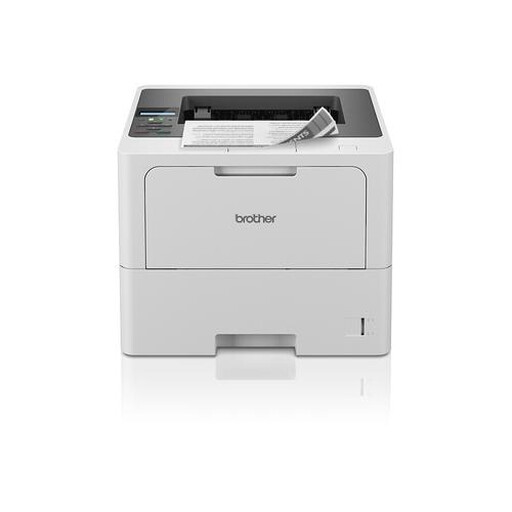 No image available
A model to consider if you mainly print digital text schedules in black and white; check that its connection works with the studio network.
The product name lists an A4 laser printer with Wi-Fi and 1200 x 1200 DPI.
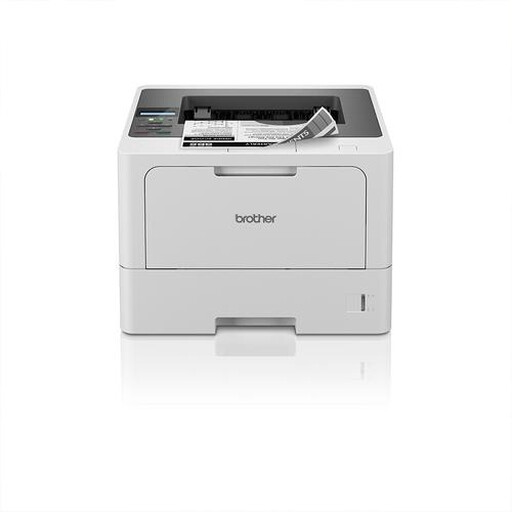 No image available
Suited to digital black-and-white schedules for shared use when scanning and copying aren’t needed.
Brother lists a 250-sheet paper tray, Wi-Fi, Ethernet and automatic duplex printing for this model.
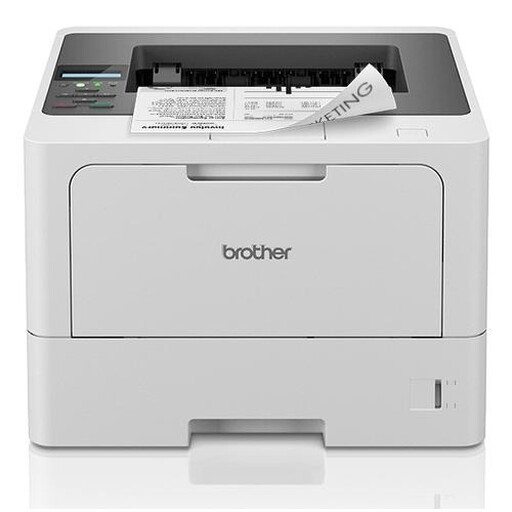 No image available
An option for digital black-and-white schedules; check which connections are available on this exact variant before you choose.
The product name lists an A4 laser printer with 1200 x 1200 DPI.
Not all printers require the same network setup. Check which connections and printing methods the exact model supports, and whether the studio has set up access for the relevant devices. Canon lists Ethernet, Wi-Fi, AirPrint and Mopria, among other features, for the i-SENSYS LBP122dw II; that support doesn’t automatically mean the local network is configured correctly.
If you choose an inkjet printer, factor in the possibility that it may use ink for cleaning. The Consumers’ Association explains that infrequent printing can lead to blockages and cleaning cycles. So compare your own printing habits and refill costs with those of a black-and-white laser printer if you don’t need colour.
No. According to Business.gov.nl, the statutory consumer guarantee does not apply to sales between businesses. When buying for business use, set out the warranty terms in the sales agreement. Consumers are entitled to a product that is fit for purpose; the Government of the Netherlands states that there is no fixed statutory warranty period in the Netherlands.
That depends on the information on the schedule and who can see it. The Dutch Data Protection Authority states that sharing staff data requires a lawful basis and a suitable purpose. So consider the content, the people concerned and who can access the area before putting up a schedule.