What should you look for?
Start with the storage location and access permissions. Then consider how much paper you process at a time and how much space the scanner takes up.
| Buying concern |
What should you check? |
Who is this for? |
| Confidential storage |
Check who can use scan profiles and storage locations. Test where the file ends up using a non-confidential document. |
I want to scan statements in a shared studio without other people there being able to open the files. The storage location and access permissions need to suit my workflow. Confidential storage is the top priority for around 36% of consumers with this buying concern. |
| Batch processing |
Compare how many sheets the automatic document feeder can hold and check that it supports the paper size and duplex scanning you need. |
If I regularly scan batches of double-sided statements, I want to reload less often and capture both sides in a single workflow. Batch processing is the main concern for around 29% of consumers with this buying concern. |
| Easy-to-find scans |
Check whether the required OCR software is included and whether the file names and storage locations suit your record-keeping. Compare a test scan with the paper original. |
I want to be able to find digitised statements later and check that each scan is complete. Easy retrieval is the top priority for around 21% of consumers with this buying concern. |
| Space and connections |
Compare the dimensions and check that the power supply, computer or network connection, and space for output paper all suit your workspace. |
With limited workspace, I want to be able to position or move the device without its connection getting in the way of my scanning workflow. Space and connections are the main concern for around 14% of consumers with this buying concern. |
Joybuy document feeder products
The Joybuy products below focus on sheet-fed and ADF scanning, with models for use via a connected computer and options for more compact workspaces. Check that each model’s connection and feeder capacity suit your scanning workflow.
 Image unavailable
Canon imageFORMULA DR-F120
Suitable for a computer-based scanning workflow when you want to feed documents through the ADF.
Flatbed and ADF scanner; 50-sheet ADF; duplex scanning; USB 2.0; scanning features for editable PDF and cloud files.
View at Joybuy
 Image unavailable
Epson DS-C330
A compact option for a workspace where documents are fed through a computer-based setup.
ADF and sheet-fed scanner; USB connection to a computer; U-shaped paper path and original document protection listed in the product description.
View at Joybuy
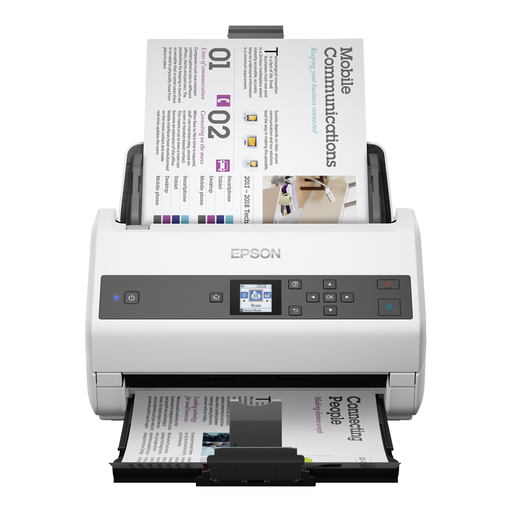 Image unavailable
Epson WorkForce DS-970
Suitable for batches and double-sided documents when scanning via a connected computer is your preferred workflow.
100-sheet ADF; duplex scanning in a single pass; connects to a computer via USB.
View at Joybuy
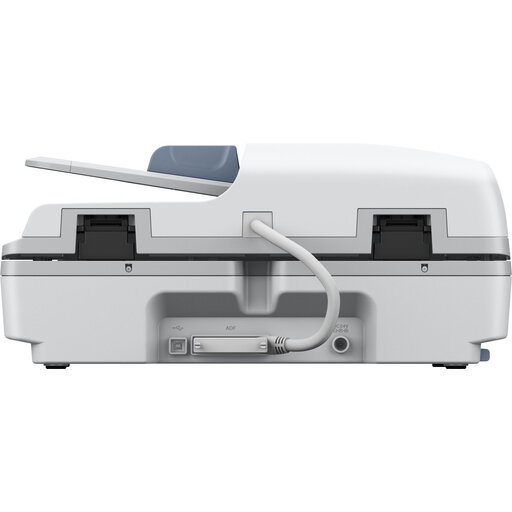 Image unavailable
Epson WorkForce DS-6500
Combines a flatbed with an ADF feeder. Check that this combination suits the documents and batches you want to digitise.
100-sheet ADF; duplex scanning in a single pass; USB connection; optional network interface; supports PDF, JPG and TIFF.
View at Joybuy
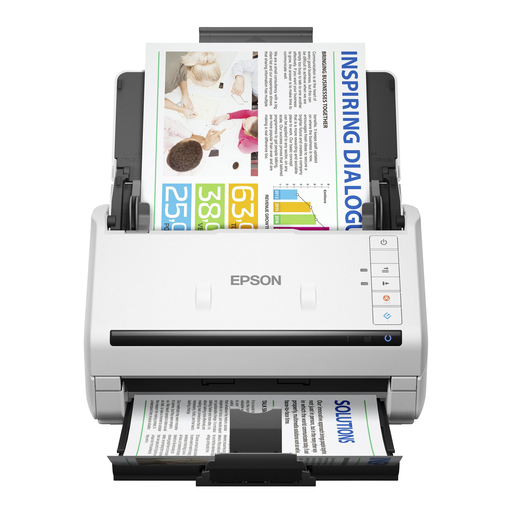 Image unavailable
Epson DS-770 II
Suitable for larger batches of double-sided documents when the scanner is connected to a computer.
100-sheet ADF; duplex scanning in a single pass; USB 3.0 connection.
View at Joybuy
Frequently asked questions
What should you check before scanning a batch of statements?
Check that the sheets are suitable for the feeder, whether you need both sides and whether the scan destination is correct. After a test scan, compare the number and order of the digital pages with the paper. The stated ADF capacity does not confirm that the scan is complete.
Is a wireless scanner automatically secure for bank statements?
No. A wireless connection does not automatically secure saved files. If an organisation processes personal data, it must choose appropriate security measures. The Dutch Data Protection Authority lists access protection, permissions and individual accounts as possible measures; not every example will suit every situation.
Do you need to keep business bank statements for seven years after scanning them?
Not automatically for every bank statement. The Dutch Tax Administration specifies a seven-year retention period for VAT records and ten years for information about immovable property. First establish whether and how the statements form part of the relevant records, and do not destroy a paper original simply because you have scanned it.
Can you throw away business invoices or receipts after scanning them?
The Dutch Tax Administration says this is possible subject to certain conditions: the digital copy must be accurate and complete, and authenticity features must be stored. This guidance applies specifically to invoices and receipts and should not automatically be applied to every bank statement.
What software and accessories should you check for each model?
Check which software and accessories are included with the exact model and what your workflow requires. For example, Brother lists a separate mains adapter and output tray as options for compact ADS models. Whether you need them depends on your setup.


