When choosing a shared editing workstation for students, start with the editing app, the resolution of your footage and how the team shares files. A compact Mac mini may suit an existing macOS setup and lighter projects; a configurable Windows tower gives you room to tailor components to a more demanding workflow, but always check the exact configuration. For Premiere, Adobe gives different recommendations for HD and 4K. These apply to that software and are not universal requirements for every editing app.
Who is this choice relevant to?
Team sharing project files
If you share editing sessions or media files, consistent project paths, the local cache and the network connection matter just as much as the desktop itself. Adobe outlines these considerations for its own collaboration workflow.
Editor working on a 4K reel
If you work with 4K footage or a more complex timeline, check the exact configuration against your editing app’s requirements rather than relying on the product range name. Adobe provides separate recommendations for Premiere.
Student working on an HD project
If you’re mainly working with HD footage, weigh the configuration you need against the space available and the screens and peripherals you already have. Adobe gives different recommendations for HD and 4K in Premiere.
What should you look for when choosing?
Compact macOS desktop
A good fit if: you use macOS and your chosen editing app, have suitable peripherals and want a compact workstation.
The trade-off: the entry-level Mac mini M6 configuration in the Netherlands has 16 GB of unified memory and a 256 GB SSD. Plan for storage for larger media files and check your app’s requirements.
Configurable Windows tower
A good fit if: you want to tailor the components to your editing app, source resolution and a more demanding timeline.
The trade-off: configurations vary by model. For Premiere on Windows, Adobe recommends 32 GB RAM or more for 4K. The word “workstation” in a product name alone doesn’t tell you whether a specific configuration meets that recommendation.
| Consideration | What to look for | Who is this important to? |
|---|
| Collaboration and shared files |
Check the network connection, consistent project paths and where the cache is stored. For Premiere Productions on shared storage, Adobe recommends keeping the media cache local to each workstation. |
When we’re working on the same media together, I want project files to stay accessible and the cache to be kept off shared storage. Around 33% of consumers prioritise reliable access to shared files. |
| Performance for your source resolution |
Note down the app, version and resolution. For Premiere on Windows, Adobe recommends 16 GB RAM for HD and 32 GB or more for 4K and above; Adobe also recommends 8 GB of GPU memory. |
When working with 4K footage, I want to check the components against the editing app before we choose a desktop. Around 27% of consumers prioritise a configuration suited to 4K editing. |
| Storage for media and cache |
Estimate the space needed for source footage and exports, and check SSD capacity, available ports and your plan for fast external or shared storage. Adobe recommends fast storage for video editing. |
When we’re managing files between editing sessions, I want enough space and a clear way to transfer media. Around 20% of consumers make storage and file transfer their top priority. |
| Complete workstation and service |
Make a list of the screen, keyboard, mouse, storage, software and service you need. Check what’s included with the exact configuration. |
For a new shared workstation, I want to know in advance what we already have and what else we need to edit. Around 20% of consumers prioritise the cost of a complete workstation. |
Common buying mistakes
-
Assuming every workstation is suitable for 4K
The Lenovo ThinkStation P3 configuration 30HTCTO1WWNL2 lists 32 GB RAM, but also integrated graphics and a 256 GB SSD. Some components therefore need to be checked separately against your editing app’s requirements.
Compare the complete configuration with the software requirements and the footage you’ll be editing, not just the product range name. For Premiere on Windows, Adobe recommends 32 GB RAM or more and 8 GB of GPU memory for 4K and above.
Upgrading the memory, graphics card or storage later could mean extra purchases and a fresh check of the configuration.
-
Putting all project files and the cache on shared storage
For Premiere Productions, Adobe advises against storing the media cache on shared storage. A fast desktop won’t automatically solve problems with shared media or an unsuitable storage setup.
Before buying, work out where your media, project files, cache and exports will be stored, and how many people will be working at the same time. For this Premiere workflow, keep the cache local to each workstation.
-
Assuming the desktop is the whole editing setup
According to Lenovo, a screen, keyboard and mouse are optional with the Lenovo configuration 30HTCTO1WWNL2.
Check what’s included in the exact order and take stock of what the shared workstation already has before you buy.
Brands to compare
Apple
The Mac mini M6 is a compact macOS option for a workstation with compatible software and peripherals.
- Apple lists a media engine that supports formats including H.264, HEVC and ProRes.
- The entry-level configuration listed has 16 GB of unified memory and a 256 GB SSD. These are manufacturer specifications, not the result of an independent performance test; check that the storage and app are right for your project.
Dell
The Pro Max Tower T2 is a configurable Windows tower for teams that want to tailor components to their editing workflow.
- Dell lists a range of processor and power supply options.
- Dell warns that your chosen configuration options may change other specifications. Assess the confirmed final configuration; the product range name alone does not prove it is suitable for 4K.
HP
The Z2 Tower G1i is a Windows workstation to consider if you’re looking for a specific configuration and on-site service.
- For configuration C69C6EA#ABH, HP lists 64 GB RAM, a 1 TB SSD, an NVIDIA RTX 2000 Ada with 16 GB and three years of on-site support.
- These details apply to the configuration listed and not automatically to every Z2.
Lenovo
The ThinkStation P3 Tower Gen 2 is a Windows option where the chosen model and any upgrades make all the difference.
- For configuration 30HTCTO1WWNL2, Lenovo lists 32 GB RAM.
- According to Lenovo, this configuration has integrated graphics and a 256 GB SSD; the screen, keyboard and mouse are optional. General claims about NVIDIA options across the range are not specifications for this configuration.
ASUS
ASUS describes its ProArt desktop ranges as being designed for creative workstations.
- ASUS describes the ProArt Mini PC and ProArt Station as creative desktops.
- The product range description doesn’t link a complete configuration to a specific model for this reel. So don’t infer a RAM capacity, GPU specification or suitability for this editing project from it.
Joybuy desktops for video editing
This Joybuy selection includes Windows desktops with configurations to check against HD or 4K editing requirements. For shared 4K projects, also check that the network connection suits your chosen workflow.
 No image available
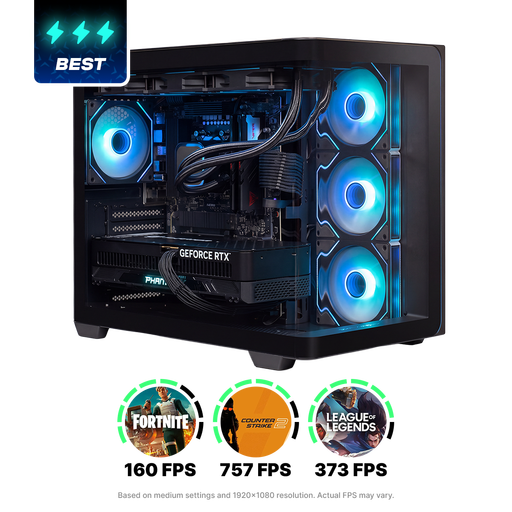
Gaming Desktop PC Ryzen 7 7800X3D, GeForce RTX 5080, 32 GB DDR5, 1 TB NVMe SSD
The 32 GB DDR5 matches Adobe’s RAM recommendation for Premiere on Windows for 4K and above; check the complete configuration against your workflow.
The product name lists a Ryzen 7 7800X3D, GeForce RTX 5080 and 1 TB NVMe SSD. The operating system is listed as Windows 11 Trial.
Joybuy
 No image available
Almighty Shark R900 Gaming Desktop PC, RTX 5090, Ryzen 9, 32 GB RAM, 2 TB SSD
The 32 GB RAM matches Adobe’s recommendation for Premiere on Windows for 4K and above; also check the other requirements of your editing app.
The product name lists an RTX 5090 and a 2 TB SSD. Check that the storage suits the amount of source footage and exports you have.
Joybuy
 No image available
ASUS ROG G700TF-07265F666W, Core Ultra 7 265F, 32 GB DDR5, RTX 5070 12 GB
The 32 GB DDR5 matches Adobe’s RAM recommendation for Premiere on Windows for 4K and above. For shared 4K Premiere workflows, Adobe recommends 10 Gb networking; the product information for this configuration lists Gigabit Ethernet.
The product name lists a 1 TB SSD and Windows 11 Home. Check that the network connection suits the number of users and the shared storage.
Joybuy
No image available
ASUS ROG G700TF-05225F170W, Core Ultra 5 225F, 32 GB DDR5, 1 TB PCIe 4.0 SSD, RTX 5070 12 GB
The 32 GB DDR5 matches Adobe’s RAM recommendation for Premiere on Windows for 4K and above. For shared 4K Premiere workflows, Adobe recommends 10 Gb networking; the product information for this configuration lists Gigabit LAN.
The product name lists Windows 11 Home and a 1 TB SSD. Match the storage and network connection to your project and working arrangements.
Joybuy
 No image available
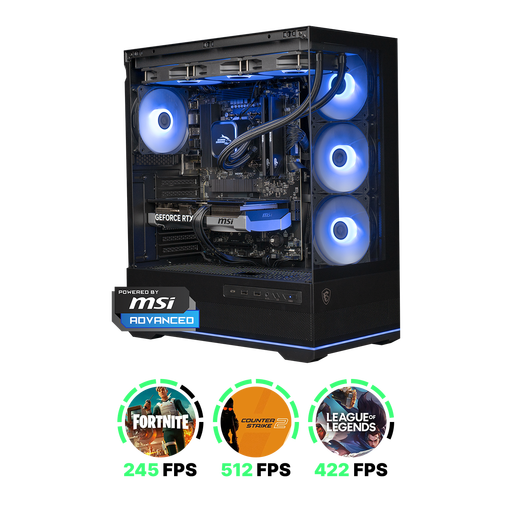
Shark Ultimator R700 Gaming PC, RTX 5070, Ryzen 7, 16 GB DDR5, 1 TB
The listed 16 GB DDR5 matches Adobe’s RAM recommendation for Premiere on Windows for HD, but falls short of its recommendation of 32 GB or more for 4K and above.
The product name lists an RTX 5070 and a 1 TB SSD. The product information states that the charger must be purchased separately.
Joybuy
Frequently asked questions
Does the media cache need to be on the same shared drive as the Premiere project?
No. For Premiere Productions on shared storage, Adobe recommends keeping the media cache on the system drive or on a fast SSD connected directly to each workstation. Adobe advises against storing the cache on shared storage. Also make sure team members can access the media they need using consistent paths.
Is 1 Gb Ethernet enough for shared 4K editing in Premiere?
Don’t assume that it is. Adobe recommends 10 Gb for a shared 4K network workflow and also advises checking the rest of your network and storage setup. Check the desktop’s connection, as well as the capacity of the connection and storage shared by the team.
What happens if a desktop develops a fault after the manufacturer’s warranty expires?
For a consumer purchase in the Netherlands, you have statutory rights in addition to any manufacturer’s warranty: the product must meet what you can reasonably expect of it. There is no fixed statutory warranty period, and the retailer is your point of contact if something goes wrong. If an educational institution is buying the desktop, check the applicable contract terms; this explanation from the Dutch government concerns consumer rights.
Can recognisable visitors or students appear in the showcase reel?
This depends on who films and publishes the footage and on the applicable legal basis. The Dutch Data Protection Authority says that an organisation needs a legal basis under the GDPR to film and publish recognisable event footage. Consent is often an obvious choice, but it isn’t the only possible legal basis. The regulator sets out specific requirements for consent and security when it comes to recognisable images of students. Before publishing, decide which circumstances apply to your reel.


