What should you consider when choosing?
First, check that your existing software works with the operating system you’re considering. Then decide whether you want to connect a separate screen or prefer an all-in-one setup with the computer and screen together.
| Consideration |
What should you check? |
Who is this important to? |
| Software and operating system |
Check that the operating system and version support the design and testing software you need. Figma describes its application as primarily browser-based and lists macOS and Windows among the supported systems. |
If you want to stick with your existing design workflow, start with the software you use every day. Around 31% of consumers give compatibility with their workflow top priority. |
| Memory and storage |
Compare the RAM and SSD in the exact configuration. Make sure they suit the programmes and files you use at the same time or store locally. |
If you keep your designs, references and communications open side by side, you’ll want to assess the specific configuration. Around 31% of consumers prioritise working with multiple windows and files. |
| Screen and shared desk |
Check the video outputs, the cables you’ll need and whether the screen can be positioned appropriately. Also discuss who will have access to the computer and files. |
If you share a workspace with others, the screen setup and file access may be your main considerations. Around 23% of consumers make workspace setup their biggest buying concern. |
| Complete setup and service |
Check which items are included in the configuration and whether you’ll need a screen, input devices or additional services. Establish whether the purchase is personal or for business. |
If you want to understand the full workspace setup and any services in advance, look beyond the computer itself. Around 15% of consumers prioritise the complete purchase and service. |
Joybuy products
This selection includes all-in-one computers and compact desktops for a workspace with a separate screen. It includes a Mac mini, Windows mini PCs and models with multiple display connections.
 Image unavailable
HP 24-cr0050nd All-in-One, 24 inch, 895R0EA#ABH
An all-in-one for anyone who wants to use the computer and screen together in one setup.
The listed configuration has a 23.8-inch FHD IPS anti-glare screen, Windows 11 Home, an AMD Ryzen 5 7520U, 8 GB of memory and a 512 GB SSD.
The webcam, microphone and speakers are integrated. The stand isn’t adjustable, and the power adapter must be purchased separately.
View at Joybuy
 Image unavailable
SOYO Y5Pro Mini PC
A compact Windows mini PC for a setup with a separate screen.
The listed configuration has Windows 11, 8 GB of DDR4 memory and a 256 GB SATA SSD.
The product information lists two HDMI outputs and video via Type-C. The processor designation in the product name is Intel Core i5 8250U/8350U.
View at Joybuy
 Image unavailable
Apple Mac mini M6, 12-core CPU and GPU, 24 GB, 512 GB SSD
A compact Mac mini for a macOS workspace with a screen chosen separately.
This configuration has an Apple M6 chip with a 12-core CPU and 12-core GPU, 24 GB of memory and a 512 GB SSD.
The listed connections include HDMI and Thunderbolt 4. The screen is separate from the Mac mini.
View at Joybuy
 Image unavailable
NVIDIA DGX Spark Founders Edition, GB10, 128 GB RAM, 4 TB SSD
A compact mini PC for anyone looking to assess the listed hardware configuration and connections for their workspace.
The product information lists an NVIDIA GB10 processor, NVIDIA DGX OS, 128 GB RAM and a 4 TB SSD.
The stated video outputs are HDMI and USB-C. The listed case dimensions are 15 × 15 × 5,05 cm.
View at Joybuy
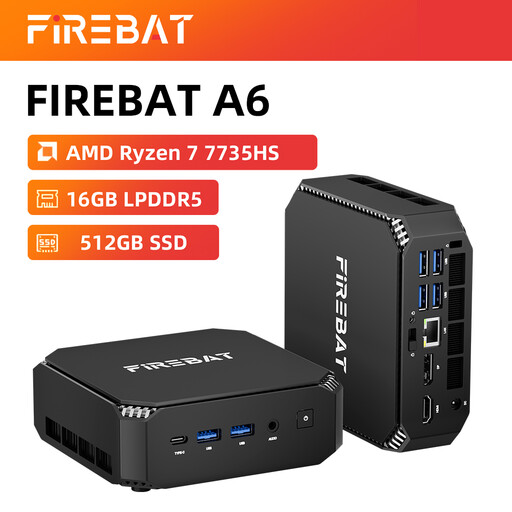 Image unavailable
FIREBAT A6, AMD Ryzen 7 7735HS, 16 GB, 512 GB SSD
A mini PC for a compact workspace where support for multiple screens matters.
The product name lists an AMD Ryzen 7 7735HS, Radeon 680M, 16 GB RAM and a 512 GB SSD.
The product name also lists support for three displays, two M.2 slots and Wi-Fi 6.
View at Joybuy
Frequently asked questions
Do you need a Mac to use Figma on a desktop computer?
No. Figma is primarily browser-based and supports full desktop operating systems such as macOS and Windows. Also check that your other design and testing software works on the system you choose.
What should you consider when choosing a screen for a shared workspace?
Check the connections and whether each user can position the screen appropriately. Arboportaal outlines requirements for display screen workstations, including specific rules for employees who work at a screen for more than two hours a day. The employer must assess which requirements apply in that workplace.
How should you manage access when colleagues use the same computer?
If the organisation processes personal data, the Dutch Data Protection Authority lists individual accounts, appropriate access rights, updates and backups as examples of security measures. The appropriate measures depend on the processing involved; this doesn’t point to any one particular PC model.
Does the same cooling-off period as for consumers automatically apply to an online business purchase?
No. According to Business.gov.nl, consumer law generally doesn’t apply to sales to businesses. Business customers have no statutory cooling-off period, and different warranty rules apply. For a personal purchase, the seller must respect the applicable consumer rights.
Do you need to maintain a desktop specially for a shared office?
Follow the instructions for the model you choose and keep its software up to date. The Dutch Data Protection Authority gives updating browsers and operating systems as an example of a security measure when personal data is processed.


