Who is this desktop guide for?

Journal writer using a shared PC

You write up and organise walks on a computer that other people use too. A suitable basic configuration, separate accounts and a recoverable copy of your work can help you set up a shared workspace. Microsoft Support explains how to use individual accounts and File History in Windows.

Walker who edits photos

You add or edit photos for your journal. Compare the requirements of your chosen photo-editing software with the memory, storage and screen of the specific desktop. Adobe provides requirements for each version of Photoshop.

Walking video creator

You also edit video footage. First, pin down the resolution, software version and configuration: Adobe gives different recommendations for HD and 4K media in Premiere.

What should you consider when choosing?

Mini desktop

A good fit when: space is limited in your shared workspace and you can use an existing screen and peripherals.

Bear in mind: the screen and the connections you need must be compatible with the model you choose.

All-in-one

A good fit when: you want an integrated screen and both users will find the computer and screen suitable.

Bear in mind: assess the screen and connections alongside the computer’s configuration. The form factor alone doesn’t tell you whether it’s suitable for photo editing.

Tower or larger desktop

A good fit when: you have enough space and want to compare configurations or upgrade options for larger media projects.

Bear in mind: check the upgrade options and graphics capabilities of each model. A larger case or powerful processor doesn’t prove that the software requirements are met.

Consideration What should you check? Who should give this more weight?
Performance for the task Make a note of the programmes you use and whether you edit text, photos or video. Adobe recommends 16 GB RAM or more for Photoshop 27.x; for Premiere 26.x, Adobe specifies 16 GB for HD and 32 GB or more for 4K. If I mainly write and only add photos occasionally, I want to match the configuration to my software. Around 36% of consumers prioritise performance suited to their needs.
Separate user accounts Check whether the operating system supports separate accounts, and decide who can install software and which files are shared. Microsoft Support explains how to set up separate accounts for people using a Windows PC. If several people use the same computer, I want to keep my documents and settings separate from theirs. Around 29% of consumers say this is their main concern.
Storage and file recovery Compare the SSD capacity with the size of your archive and how much you expect it to grow. Also plan a separate backup: Microsoft Support explains how File History works with an external drive or network location. If my walking journals and photos need to be kept safe, I want to know how to recover files and what’s included in the backup. Around 21% of consumers prioritise archiving and recovery.
Workspace setup Check what screen, keyboard, mouse and connections you already have. Check which items are included with each model. If I share the computer with someone else, I want it to fit the available workspace and work with our peripherals. Around 14% of consumers name workspace setup as their main concern.

Common buying mistakes

  • Choosing the most powerful video-editing setup before you know whether you’ll edit video

    Adobe’s recommendation of 32 GB RAM or more applies to 4K editing in the specified versions of Premiere, not to writing a journal.

    First, decide which software you’ll use and the resolution of your video, then compare the relevant current requirements.

  • Assuming a shared login or large SSD is enough to keep your archive safe

    User accounts keep users separate; File History uses a separate backup destination. One doesn’t replace the other.

    Set up separate accounts and a separate backup, then check that your journal folder is included.

  • Comparing a mini PC and an all-in-one based only on the computer itself

    A mini PC and an all-in-one don’t automatically include the same workspace equipment. The screen and peripherals you need may differ depending on your choice.

    Make a list of what you already have and check the connections and box contents for each model.

Brands to compare

Apple

Mac mini configurations for anyone considering a compact macOS desktop.

  • Apple lists the Mac mini with M6 as having a base configuration with 16 GB unified memory and a 256 GB SSD.
  • The M5 Pro has a different base configuration. Compare the model you choose with the requirements of your own software.

Lenovo

ThinkCentre neo 50q Gen 5 configurations for anyone looking for a compact Windows workspace.

  • Lenovo highlights the compact design and connectivity options of this product range.
  • The processor, RAM and Windows edition vary by model, so don’t assume that a compact size guarantees consistent photo-editing performance.

HP

ProDesk and ProStudio models to compare when looking at business desktops and all-in-ones.

  • HP describes flexible ports and optional expansion modules on certain models.
  • These options aren’t available on every model, so check the configuration and any accessories you need.

Dell

Dell Slim and Dell Pro desktops for a range of dedicated or shared workspaces.

  • The Dutch product range includes compact, slim and larger desktop form factors.
  • Configurations and included services vary. Check that the specific model meets your software’s requirements.

Joybuy desktops for a shared workspace

This Joybuy selection includes mini desktops and larger desktops to compare for a shared workspace. Check the software requirements, connections and peripherals you need for each model.
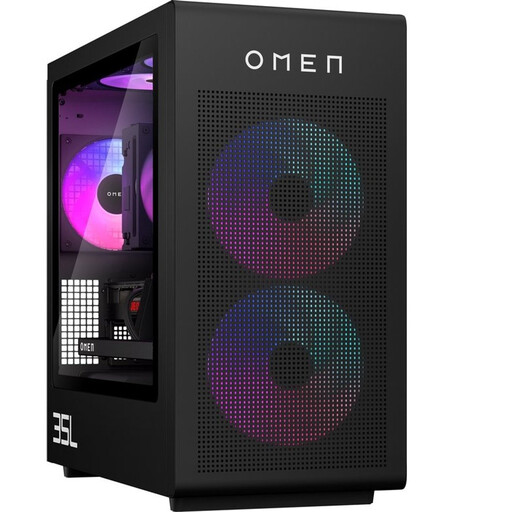
OMEN 35L Gaming Desktop GT16-0162nd D49NFEA#ABH

OMEN 35L Gaming Desktop GT16-0162nd D49NFEA#ABH

A larger desktop to compare if you have room for a dedicated workspace.

Leave at least 10 cm of clearance around it and don’t use the computer in an enclosed cabinet.

View at Joybuy

SOYO Y5Pro Mini PC with Intel Core i5 8250U/8350U, 8GB DDR4 and 256GB SATA SSD

SOYO Y5Pro Mini PC, Intel Core i5 8250U/8350U

A mini PC to compare if you’re looking for a compact computer for a shared workspace.

The product name lists 8 GB DDR4, 256 GB SATA SSD, Windows 11, BT5.2 and Wi-Fi 5. The processor listing gives two options, so check which model you’re choosing.

View at Joybuy

ACEMAGIC E3B Mini Desktop with AMD R5 7430U

ACEMAGIC E3B Mini Desktop, AMD R5 7430U

A mini desktop to compare if a compact computer suits your workspace.

The product name lists 16 GB LPDDR4X, a 512 GB M.2 2280 SATA SSD, HDMI 2.0, DP 1.4b, USB-C 4K and Windows 11 Pro.

View at Joybuy

Lenovo Yoga Mini 01IPH11 Copilot+ PC with Intel Core Ultra 5 325

Lenovo Yoga Mini 01IPH11 Copilot+ PC, Intel Core Ultra 5 325

A compact Lenovo desktop to compare for a shared workspace with multiple screens.

The product name lists 16 GB LPDDR5X, a 512 GB PCIe 4.0 SSD, Intel Graphics and Windows 11 Home.

View at Joybuy
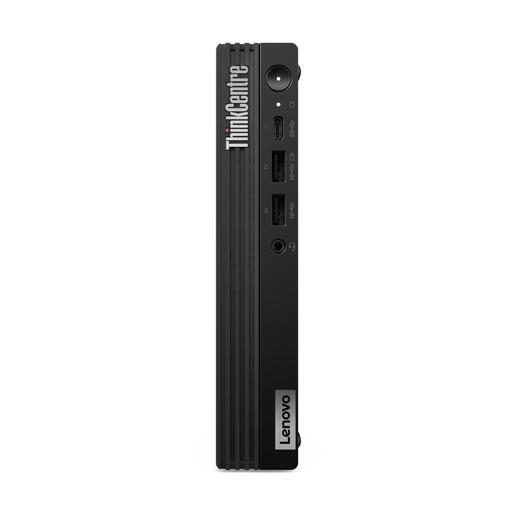
Lenovo ThinkCentre M70q Gen 5 with Intel Core i7-14700T

Lenovo ThinkCentre M70q Gen 5, Intel Core i7-14700T

A mini PC to compare if you’re looking for a compact desktop for a dedicated workspace.

The product name lists 16 GB DDR5-SDRAM, a 512 GB SSD and Windows 11 Pro. According to the product description, the power adapter is not included.

View at Joybuy

Frequently asked questions

How can you stop journal files getting mixed up on a shared PC?

On a shared Windows PC, use separate user accounts and decide which folder, if any, should be accessible to everyone. Microsoft Support explains how each account can have its own documents and settings.

Is the SSD in a desktop enough to keep your journal safe?

No. Local storage isn’t the same as a backup. Microsoft Support explains how File History can keep previous versions of files on an external drive or network location; check that your journal folder is included.

Do you need a desktop with 32 GB RAM for a walking journal?

Not for the journal itself. Adobe recommends 32 GB RAM or more for 4K video in the specified versions of Premiere on Windows, and recommends 16 GB or more for Photoshop 27.x. First check which software and media you’ll actually use.

What are your rights when you buy a desktop online in the Netherlands?

According to the Dutch Government, purchases made at a distance from a business generally come with a 14-day cooling-off period. You’re also entitled to a product that is fit for purpose; the Netherlands does not have a fixed statutory guarantee period of two years.

Can you include someone else’s photos in a public walking journal?

According to the Dutch Government, you need the creator’s permission to distribute or publish someone else’s copyrighted photos. This concerns publishing the material, not buying a desktop.
