What should you look for?
Compact QHD with an adjustable stand
A good fit if: desk space is limited and you usually work with an editor, terminal and documentation.
The trade-off: the smaller screen gives you less physical space to view everything at once; check that text is comfortable to read at your preferred scaling.
27-inch 4K with docking
A good fit if: you often want to arrange your terminal, editor, logs and documentation side by side, and have enough desk depth.
The trade-off: adjust the text scaling on each computer; a higher resolution does not automatically mean more lines will be comfortable to read.
3:2 screen with KVM
A good fit if: vertical space for code or terminal output matters, and you need two computers to share input devices.
The trade-off: check that the arm can be attached to the desk and that both computers have the video and USB connections you need.
27-inch QHD with a USB-C hub
A good fit if: USB-C, networking and adjustability matter more to you than 4K resolution.
The trade-off: the specified resolution is 2560 × 1440; check which video and charging features your laptop supports over USB-C.
For a shared development workspace, start with adjustability and readability, then consider desk space and the connections you actually need.
| What to consider |
What should you check? |
Who is this most important for? |
| Adjustability and reflections |
Check the height range, tilt and swivel, and assess reflections at the actual desk. If you are using a monitor arm, check that the mount is compatible too. |
If I share my workspace with others, I want to adjust the screen to suit my posture each time and check for distracting reflections. Around 31% of consumers put adjustability and reflections at the top of their list. |
| Readable code at a glance |
Try your preferred text size and window layout; compare screen size and aspect ratio from your usual viewing distance. |
If I want to view code, my terminal and test output at the same time, the text needs to remain readable at my chosen scale. Around 25% of consumers prioritise being able to see code and tests clearly. |
| Switching between computers |
Check the video output, USB connection and charging requirements for each computer, and confirm that the specific monitor has KVM. |
If I switch between two computers, I want to know whether I can keep using my input devices without having to unplug and reconnect everything each time. Around 25% of consumers make switching between computers their top priority. |
| Size on the desk |
Measure the available width and depth, including the stand or arm; also consider whether others need to view the screen alongside you. |
If desk space is limited, I want to have room for my keyboard and other work essentials. Around 19% of consumers give the available desk space the most weight. |
Joybuy monitors for this workspace
These Joybuy product picks suit different needs for viewing code, screen size and sharing a workspace.
 No image available
MSI Modern MD272UPHG, 27-inch 4K UHD
The 27-inch 4K version is a good fit if you want to arrange several work windows side by side; adjust the text scaling to suit your viewing distance.
27 inches; 3840 × 2160 pixels; 4K Ultra HD.
Joybuy
 No image available
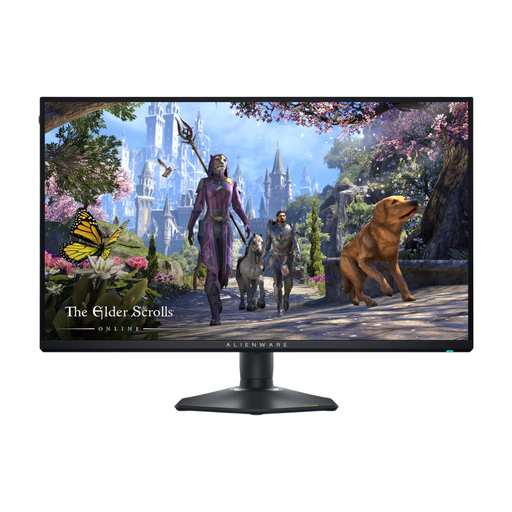
Alienware AW2725QF, 27-inch 4K UHD
The 27-inch 4K version may suit you if you want to arrange code and test output on a larger screen; adjust the text scaling to suit your setup.
27 inches; 3840 × 2160 pixels; 4K Ultra HD. The listed USB-C Power Delivery is 15 W; check that this meets your laptop's charging needs.
Joybuy
 No image available
Dell Pro Plus P2425D, 24-inch QHD
A more compact QHD screen may be a good fit if desk space is limited; check that your preferred text size is readable for all users.
24 inches; 2560 × 1440 pixels; Quad HD.
Joybuy
 No image available
iiyama ProLite 34-inch UWQHD curved monitor with USB-C docking and KVM
The listed KVM and USB-C docking may be useful if you share computers and input devices; check the connections on both systems.
34 inches; 3440 × 1440 pixels; UWQHD; curved screen; LAN; KVM switch; stand with 15 cm height adjustment.
Joybuy
 No image available
ASUS ProArt Display PA24ACRV, 23.8-inch QHD
The compact QHD screen may suit a smaller desk and users who take turns; check the adjustment options and USB-C compatibility for your setup.
23.8 inches; 2560 × 1440 pixels; Quad HD.
Joybuy
Frequently asked questions
Is an adjustable monitor a legal requirement at every shared workspace in the Netherlands?
Not as a general requirement for every private buyer. Arboportaal outlines regulations for employers and screen workstations: for employees who work at a screen for more than two hours a day, requirements include laptop use, adjustability and avoiding reflections. The portal also notes that, under certain conditions, the rules may be departed from if safety and health are maintained.
How do you set up a monitor when several people use the same desk?
Readjust the screen position whenever you take over, and check for reflections from the user's seated position. Adjust the lighting and contrast to suit the workspace, and break up long periods of screen work with other tasks or a rest; a monitor does not replace those breaks. Arboportaal outlines the relevant considerations for screen work.
Will one USB-C cable automatically handle video, a keyboard and laptop charging?
No. Check the functions supported by each laptop, cable and monitor. Make sure the laptop's USB-C port supports video and data, and that its charging power meets your needs. For example, BenQ specifies DisplayPort Alt Mode, data and 90 W Power Delivery over USB-C for the RD280UA.
Do you always have to pay for faults yourself after two years in the Netherlands?
No, the legal guarantee is not automatically limited to two years. ACM ConsuWijzer distinguishes between the legal guarantee and a commercial manufacturer's or seller's warranty. If a product breaks under normal use sooner than you could reasonably expect, the seller is responsible for providing an appropriate remedy free of charge, subject to the applicable conditions.


