
A studio with busy shared evenings
You want several workstations to be online at the same time. Check your existing internet connection, where the workstations are located and how many wired connections are available.


Start by considering the studio layout and how many workstations will be online at the same time in the evenings. One router may be enough for a compact space; choose multiple Wi-Fi points if workstations are spread out and one point doesn’t provide sufficient coverage. If visitors and network devices need to be managed separately, consider a business-managed setup. Also check the connection type and the number of available LAN ports: stated Wi-Fi speeds and coverage areas aren’t measurements taken in your studio.
You want several workstations to be online at the same time. Check your existing internet connection, where the workstations are located and how many wired connections are available.
You want to identify where the Wi-Fi signal is weak and whether you need multiple Wi-Fi points. The available cable routes between points may also affect your choice.
You want to give visitors internet access without automatically giving them access to your work network. Guest access and network management settings are important here.
First, check how the studio connects to the internet. Then choose based on how the workstations are spread out, whether visitors need separate access and how you want to manage the network.
| What to consider | What to check before buying | Who is this important for? |
|---|---|---|
| Simultaneous use | Work out how many devices will be online at the same time, and compare your internet speed separately from the stated Wi-Fi speed. | If I’m working online with several designers during a busy evening, I want to know whether the connection and router can handle it. Around 28% of consumers say simultaneous use is their top priority. |
| Coverage across different rooms | Check where the signal is weak and whether Wi-Fi points can be connected by cable. | If workstations are in separate rooms, I want to know where coverage is lacking and whether a cable route is possible. Around 22% of consumers put coverage first. |
| Visitor access | Check the exact model to see what access its guest network provides and how to configure isolation. | If the studio welcomes visitors, I want to keep their internet access separate from the work network. Around 22% of consumers say separating visitor access is their top priority. |
| Wired connections | Count the LAN ports you need and allow for a connection to an additional Wi-Fi point or backhaul. | For fixed workstations and network devices, I want to know in advance how many LAN connections will be left free. Around 17% of consumers prioritise wired connections. |
| Connection and management | Check whether the studio uses DSL or connects through an existing modem, and plan how you’ll manage passwords and updates. | If I connect my own router, I want to make sure it works with the existing connection and that managing it will be straightforward. Around 11% of consumers say connection and management are their top priority. |
A product specification isn’t a measurement of your internet connection or the performance at every workstation. The Dutch Consumers’ Association also notes that the Wi-Fi version alone doesn’t tell you everything about performance.
Check simultaneous usage and the speed of your internet connection separately. Assess coverage in the areas where you work in the studio.
Multiple Wi-Fi points will only help if they’re in suitable locations and reach the workstations that currently have poor coverage.
Check the space and available cables before choosing a system. For Ethernet backhaul, follow the connection instructions for the router or access point mode you’ve chosen.
A wired connection may require extra cabling or a switch.
Guest access and isolation features vary by model and may need to be configured. The presence of a guest network doesn’t automatically mean the separation you want is active.
Check the exact device to see what visitors can access, then test after installation to make sure they can’t access work devices.
A built-in DSL connection and using a router with an existing LAN network are different ways to connect. DSL compatibility doesn’t mean the device will connect directly to every cable or fibre connection.
Ask your provider for the connection settings and check which device handles the modem and router functions.
The Deco and Omada product ranges offer different ways to set up Wi-Fi and manage your network.
The RT-AX86U Pro is an example of a standalone Wi-Fi router with a guest network and AiMesh support.
The FRITZ!Box 7690 may suit you if you need an integrated DSL modem or want to use a router with an existing LAN connection.
UniFi may suit studios that want to configure and manage guest access and multiple network devices separately.
This selection includes Wi-Fi routers and mesh products for shared workspaces, from a single router to multiple Wi-Fi points and a router with network management features.
 No image available
Worth considering if you need guest access or wired backhaul.
Wi-Fi 7; one node included. The product information lists wired backhaul and a guest network as features.
 No image available
A standalone router to consider if all your workstations are within range of a single Wi-Fi point.
Wi-Fi 6; three Gigabit Ethernet ports. The product description mentions AiMesh expansion, OFDMA and MU-MIMO.
 No image available
A mesh system to consider if your workstations are spread out and one Wi-Fi point isn’t enough.
Three units; three Gigabit Ethernet ports per unit. The product information lists guest access, QoS, OFDMA and MU-MIMO.
 No image available
A mesh option to consider if you want to use multiple units together.
Dual-band Wi-Fi 7; the product description lists mesh expansion with a single SSID and control via the HUAWEI SmartLife app.
 No image available
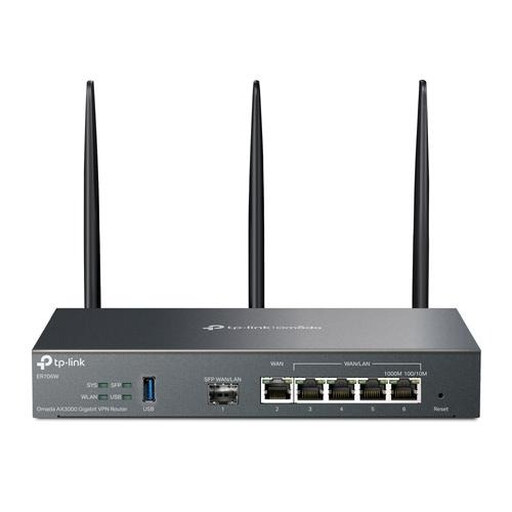
A business router to consider if visitor access and network traffic need to be managed separately.
Gigabit Ethernet ports. TP-Link lists bandwidth management and guest authentication; these features need to be configured to suit your setup.
Yes. According to the Netherlands Authority for Consumers and Markets, you can choose your own modem or router as long as the device is secure. Your provider must give you the necessary settings. First check how you’ll connect, and ask for the settings before replacing your existing device.
TP-Link says to set up the Deco units in the app first. In router mode, connect the satellite to the LAN port on the main Deco or to a switch connected to it. Watch out for TP-Link’s warning about network loops. Access point mode offers different connection options.
The National Cyber Security Centre advises, among other things, changing the administrator password, choosing appropriate Wi-Fi security, updating devices regularly and segmenting the network where necessary. A router won’t automatically be set up according to this advice when you buy it.
Multiple Wi-Fi points may require additional units, cables or a switch. A business setup may need separate access points and extra configuration. So first count the workstations, ports and Wi-Fi points you’ll need, then check which components are included in your chosen setup.