
Timeline editor
You want to see audio clips, tracks and editing windows at the same time, and value horizontal screen space over a compact setup. Adobe describes different views for editing audio and multitrack mixes.


An ultrawide screen is a good fit for shared audio editing if you mainly want to see more of your timeline and have several windows open side by side, and you have enough desk space. A 27-inch USB-C hub monitor may suit a more compact workspace and a compatible laptop better. With either option, check the connections, whether you can switch between computers, and the adjustment options for each user.
You want to see audio clips, tracks and editing windows at the same time, and value horizontal screen space over a compact setup. Adobe describes different views for editing audio and multitrack mixes.
You share a desk with others and want to know how to connect your display, USB devices and, where applicable, laptop power. A USB-C hub is not automatically a KVM switch that lets you share peripherals between computers.
You want to be able to readjust the screen comfortably whenever users swap over, so you’re looking at height, positioning and reflections. The rules for screen work in the Netherlands apply to employees only in certain circumstances; Arboportaal explains the relevant conditions and considerations.
| What to consider | What should you check? | Who is this most relevant to? |
|---|---|---|
| Viewing your timeline and tracks | LG lists a resolution of 3440 × 1440 pixels for the 34U650A-B; Dell lists 2560 × 1440 pixels for the P2725DE. Compare the aspect ratio with the window layout in your audio software, and measure the available desk width. | If I want to see tracks and other windows side by side while editing, screen width matters to me. Around 36% of consumers prioritise viewing their timeline. |
| Connecting and switching | Check that your laptop supports USB-C video, data transfer and the power delivery you need. Dell lists USB-C power delivery of up to 90 W for the P2725DE and P2725QE. If you use two computers, check separately how you can switch your keyboard and mouse between them. | If I want to connect my laptop and peripherals quickly at a shared workstation, I need to know which features both the computer and monitor support. Around 29% of consumers give connecting and switching top priority. |
| Adjustability and reflections | Check the height adjustment and the monitor’s position relative to windows and light sources. Arboportaal outlines the applicable workplace requirements for employees who work at a screen for more than two hours a day. | When several people use the monitor, I want to be able to adjust the screen height and viewing position for each user. Around 21% of consumers consider adjustability their main concern. |
| Power consumption and aftercare | Compare the EU energy label for the specific models, and check how any extra warranty adds to your statutory rights. The Dutch government states that the Netherlands has no fixed statutory warranty period. | When weighing up the purchase price, power consumption and aftercare together, I want to know what a model and any additional cover really offer. Around 14% of consumers prioritise total costs and aftercare. |
A hub connection doesn’t automatically mean you can switch your keyboard and mouse between two computers.
If you want to share peripherals between two computers, check whether the exact monitor model has KVM or USB switching.
The Dell P2725DE and P2725QE have different stated resolutions: Dell lists 2560 × 1440 and 3840 × 2160 pixels respectively.
Check the full model code and its specifications before choosing a version.
A 34-inch screen needs desk space, and a shared setup must remain practical for every user.
Measure the space available and check the screen’s adjustment options or how it can be positioned.
An extra warranty and your statutory rights are not the same; the terms of the additional cover determine what it provides.
Read the terms before deciding whether an extra warranty is right for you.
The P2725DE and P2725QE models reviewed are 27-inch USB-C hub monitors, with QHD and 4K resolutions respectively.
The LG 34U650A-B is a 34-inch 21:9 monitor reviewed for those who value horizontal screen space.
The Business Monitor 27B1U3900/00 reviewed is a 27-inch 4K monitor with a USB-C dock.
The Joybuy products below focus on ultrawide screen space for viewing timelines and windows. There’s also a monitor arm for positioning a screen.
 No image available
A 34-inch ultrawide screen for viewing your timeline and windows side by side.
21:9, 3440 × 1440 pixels, VA panel, 1800R curvature and 120 Hz.
 No image available
This ultrawide monitor suits a shared workspace where screen space and sharing peripherals matter.
3440 × 1440 pixels, IPS panel, USB hub and KVM switch. The description states USB-C power delivery of up to 90 W for a compatible laptop that supports USB Power Delivery and DisplayPort Alt Mode.
 No image available
An ultrawide monitor for a shared workspace where horizontal screen space and connectivity matter.
3440 × 1440 pixels, IPS panel, USB-C power delivery of up to 90 W for compatible laptops, RJ45, integrated webcam and KVM switch.
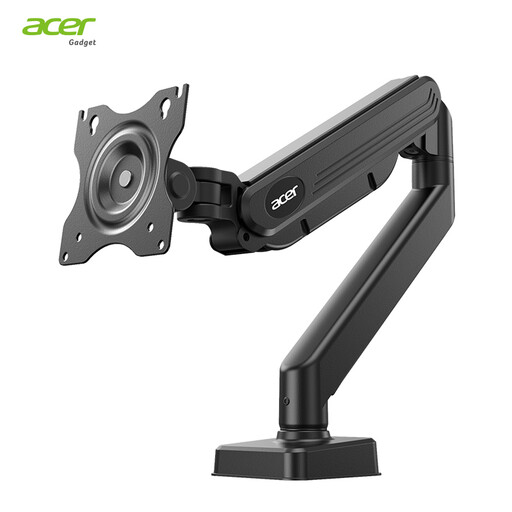 No image available
This is a monitor arm, not a monitor. It’s useful if you want to adjust a screen’s position in a shared workspace.
For screens measuring 17–34 inches and weighing up to 9 kg; VESA 75 × 75 and 100 × 100 mm. The product name specifies height, tilt and swivel adjustment, plus clamp or grommet mounting.
 No image available
A 34-inch curved monitor for those who want to combine a wide screen with a shared workspace.
The description lists an integrated KVM switch and USB hub. The two stated modes are WUHD 5120 × 2160 at 120 Hz and WFHD 2560 × 1080 at 240 Hz.
Start with the window layout you use. According to LG, the LG 34U650A-B has a resolution of 3440 × 1440 pixels; according to Dell, the Dell P2725DE reviewed has a resolution of 2560 × 1440 pixels. More horizontal pixels don’t automatically save you time or improve audio quality.
Not necessarily. Philips specifies a compatible laptop. Check that your laptop and cable each support video, USB data and the power delivery you need.
Adjust the screen height for each user and check for incoming light and reflections. For employees who work at a screen for more than two hours a day, Arboportaal outlines workplace setup requirements.
A paid extra warranty is separate from your statutory rights. The Dutch government states that there is no fixed statutory warranty period in the Netherlands; read the terms of any additional cover to see what it offers.
Yes. According to the European Commission, computer monitors are covered by EU energy labelling rules for electronic displays. Use the label to compare specific models; it doesn’t require consumers to buy a particular energy class.