
Search interface testers
You want to view the filter controls and results alongside test cases or checks. The space you need for your windows and how easy they are to read will determine whether a compact second screen is enough.


A compact Full HD screen may be enough if you mainly use your second screen for test notes or a separate window. A 27-inch QHD monitor gives you more room for an active search interface or several windows. Before buying, check that your computer can drive two screens independently, and that the connections, scaling settings and desk space suit your setup.
You want to view the filter controls and results alongside test cases or checks. The space you need for your windows and how easy they are to read will determine whether a compact second screen is enough.
You want to connect two separate displays and may also want to charge your laptop at the same workstation. So check the video output, available ports and cable compatibility.
You regularly switch between the search interface and test information, and want to position each screen to suit how you use it. TNO recommends positioning screens according to how much you use each one.
Start by considering which windows you want to keep readable at the same time. Then work out which connections and screen arrangement you need.
| What to consider | What to look for | Who it matters to |
|---|---|---|
| Readable space for windows | Open the search interface and your usual test window at your preferred text size, then compare resolution, screen size and desk space. | I want to see the search interface and test information clearly at the same time. Around 33% of consumers mainly need space for these windows. |
| Connecting two screens | Check that your computer, any dock, monitor and cable support two separate screens. Also check for video over USB-C and charging power if you want to charge your laptop through the monitor. | I want to connect two separate screens and possibly charge my laptop through the monitor. Around 27% of consumers mainly prioritise compatible connections. |
| Positioning screens for extended use | Check the adjustment options on the exact model and whether both screens can be positioned at a comfortable distance and height. | I want to position both screens comfortably during longer testing sessions. Around 20% of consumers mainly need a practical screen setup. |
| Compact size without unnecessary features | Decide which windows you’ll use on the second screen. Choose hub or 4K features only if they suit your equipment and working style. | I want a second screen that does the job without taking up too much space or adding unnecessary features. Around 20% of consumers mainly prioritise a compact, practical choice. |
A USB-C port on its own doesn’t confirm that your computer can transmit video, charge your laptop or drive two separate screens.
Check the documentation for your computer, monitor and cable, and map out your intended connection setup in advance.
Depending on the connections you already have, you may need a suitable cable, adapter or dock.
A higher resolution can affect scaling settings and the size of the text on screen. Resolution alone won’t tell you how easy your search interface is to read.
Assess the interface using the text size and scaling settings you actually use.
The right setup depends on whether you mainly work on one screen or use both equally. TNO recommends placing the active screen directly in front of you when your usage varies. If you use both equally, TNO recommends a shallow V-shape, with the join between the screens directly in front of you.
Decide which screen you use most and position them accordingly.
A manufacturer’s warranty doesn’t replace your right to a product that meets legal standards. The Dutch government states that there is no fixed statutory warranty period of exactly two years in the Netherlands.
Check what any additional warranty covers, and contact the seller if the product is faulty.
An additional paid warranty may cost extra, so check what cover it provides.
The models mentioned range from a more compact Full HD screen to a 27-inch QHD monitor.
The Dell P2725DE is a 27-inch QHD hub monitor for a workstation where laptop charging and a network connection could come in handy.
LG describes the LG 27UP850K-W as a 27-inch 4K monitor for anyone who wants to view more detail.
The ThinkVision T27QD-40 is a QHD docking monitor with a DisplayPort output for a possible daisy-chain setup.
This selection includes monitors for using a second screen to test search filters, with compact Full HD, QHD, 4K and ultrawide options.
 No image available
This ultrawide WQHD monitor could suit you if you want to view several windows side by side.
34.1 inches; WQHD; HDMI and DisplayPort inputs.
The product description lists USB-C for video, data and up to 90 W power delivery. Charging requires a compatible laptop that supports USB Power Delivery and DisplayPort Alt Mode.
 No image available
This 27-inch option could suit you if you want to view more detail and your computer and scaling settings can support it.
3840 × 2160; 60 Hz; 4 ms; HDMI and DisplayPort.
The product name specifies a height-adjustable stand.
 No image available
This model could suit you if you want to view several windows or fine details on one screen and need features for multiple devices.
27 inches; 3840 × 2160; HDMI, DisplayPort and USB-C.
The product description lists KVM, PIP/PBP and USB-C power delivery up to 98 W. Check that the connections are compatible with your devices.
 No image available
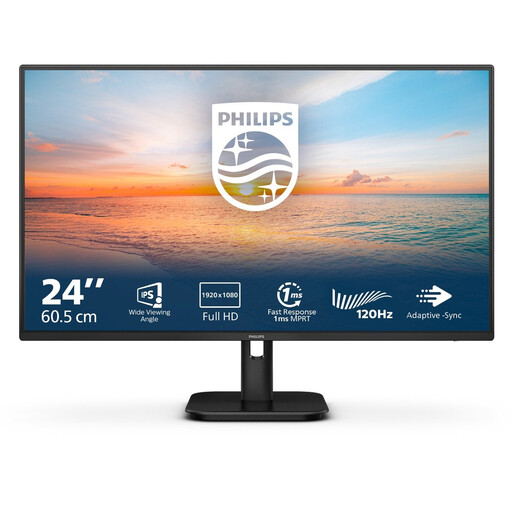
This more compact Full HD model could suit you if your second screen mainly displays a separate window.
1920 × 1080; 100 Hz; built-in speakers; HDMI and VGA.
Check which input matches your computer’s available video output.
 No image available
This QHD monitor could suit you if you want to pair an active test display with laptop charging or a network connection through the monitor.
2560 × 1440; HDMI and DisplayPort; RJ45.
The product description lists USB-C for video, data and up to 90 W power delivery. Check that your laptop and cable support the required features.
No, not automatically. Check whether your computer or dock supports the screens you want to use independently, and which ports are available. Microsoft Support explains how to identify connected displays and arrange them in Windows. If your laptop has a built-in screen, one external monitor may already be your second display.
TNO recommends placing the active screen directly in front of you, with the less frequently used screen beside it and angled slightly towards you. If you use both screens equally, TNO recommends a shallow V-shape, with the join between the screens directly in front of you.
When you buy from a business at a distance, you generally have 14 days to change your mind, subject to statutory exceptions. You’re also entitled to a product that meets legal standards in the Netherlands. The Dutch government states that there is no fixed statutory warranty period of exactly two years. If the product is faulty, contact the seller.
Employers have obligations relating to working with screens. Arboportaal lists, among other things, alternating screen work with other tasks or breaks, and requirements for setting up a workstation when an employee works with a screen for more than two hours a day. This isn’t a general purchasing requirement for every private buyer; whether it applies depends on the working context.
If you want to compare energy use, check the label for the exact version. The European Commission says that EU energy labelling and ecodesign rules also cover computer monitors, so don’t estimate energy use based on screen size alone.