Start by deciding whether you’ll use the screen at one fixed workstation or need to take it with you. Then consider how much space you need for sources and teaching materials. A fixed QHD monitor, a 4K screen and a portable monitor each offer different benefits. Manufacturers provide model specifications, but these don’t necessarily tell you how easy your documents will be to read. So check the video connection, cable, laptop compatibility and how adjustable the setup is too.
Who might benefit from a second screen when preparing history lessons?
Researching sources at a fixed desk
You want to keep a historical source in view while editing a lesson document or presentation, and mainly need extra screen space that’s easy to read. Docentenplein describes how teachers work with multiple sources and resources when preparing lessons.
Laptop user with a fixed workstation
You regularly connect your laptop and want to know whether a standard video connection will do, or whether a USB-C hub would be useful. The right choice also depends on your laptop’s ports and capabilities.
Teacher working in different locations
You prepare lessons in more than one location and need to balance portability with screen size and adjustability. A portable screen is easier to take with you, but you’ll need to position it appropriately in each place.
What should you look for in a second screen for lesson preparation?
Fixed QHD monitor
A good fit if: you want to view sources alongside your lesson document at one desk and already have a suitable video connection or dock.
Bear in mind: check the connection and whether your laptop also needs a separate power supply.
QHD monitor with USB-C hub
A good fit if: you want to combine display, peripherals and possibly charging through one monitor at a fixed workstation.
Bear in mind: check that your laptop and cable support the display, charging and any second-screen features you need.
Fixed 4K monitor
A good fit if: you want to view detailed images or fine source material at a fixed workstation.
Bear in mind: more pixels don’t guarantee that small text will be comfortable to read without adjustment; check the scaling settings.
Portable second screen
A good fit if: you prepare lessons in different places and want to take extra screen space with you.
Bear in mind: a portable screen offers less physical screen space than the 27-inch desktop models reviewed, and isn’t necessarily height-adjustable.
| What to consider |
What should you look for? |
Who is this important for? |
| Sources and teaching materials |
Compare the screen size and resolution with your own source files; adjust the text scaling if needed. |
I want to be able to read a historical source alongside my lesson document without constantly switching windows. Around 40% of consumers put source readability first. |
| Connection and power |
Check your laptop’s port, cable, charging requirements and support for the number of external screens you want to use. |
If I often connect my laptop at one workstation, I want to know in advance whether display and charging will work together. Around 30% of consumers prioritise connection reliability. |
| Adjustability |
Check for height adjustment or a suitable mounting option, and make sure you can position the screen comfortably. |
For longer preparation sessions, I want to be able to position the screen to suit my fixed workstation. Around 20% of consumers make adjustability their top priority when choosing. |
| Taking it between locations |
Check the dimensions, weight and required cables, as well as how you’ll set up the screen at each workstation. |
If I prepare lessons in different places, I want to be able to take extra screen space with me. Around 10% of consumers prioritise portability. |
Common pitfalls when choosing a second screen
-
Assuming every USB-C port supports display and charging
A monitor with a USB-C hub won’t necessarily offer every feature through every laptop port or cable.
Check your laptop’s video specifications, the cable and the charging feature you need separately.
-
Assuming a portable screen is a straightforward replacement for an adjustable desktop monitor
According to ASUS, the ZenScreen MB16AHG doesn’t have built-in height adjustment. You may need to give extra thought to positioning it at each workstation.
Check whether you can position the screen securely and comfortably in the places where you work.
-
Assuming higher resolution automatically means more readable text
Readability doesn’t depend on pixel count alone. Windows has separate scaling settings.
View your own documents at the intended screen size and check the text scaling before you decide.
-
Confusing the manufacturer’s warranty with all your legal rights
In the Netherlands, there is no fixed statutory warranty period. The Dutch government states that the seller must provide a solution if a product is faulty.
Compare any additional cover with the rights you already have when buying as a consumer.
Brands to consider
Dell
The Pro Plus P2725D and P2725DE illustrate the difference between a fixed QHD monitor and a QHD model with a USB-C hub.
- Dell lists both models as 27-inch QHD monitors, and specifies 90 W USB-C power delivery for the P2725DE.
- The P2725DE’s hub features aren’t automatically available on the P2725D. Check your laptop’s connection.
Lenovo
The ThinkVision T27h-30 is a fixed QHD option worth comparing if you’re looking for USB-C docking, ethernet and a DisplayPort output.
- Lenovo specifies several adjustment options, including a 155 mm height range.
- Check that your laptop and the other connections in your setup support the features you need.
Philips
The 27E1N1900AE/00 is a fixed 27-inch 4K option for viewing detailed sources.
- Philips specifies 3840 × 2160 pixels, IPS and a height-adjustable stand.
- The resolution alone doesn’t determine how readable your files will be; check the text scaling too.
HP
The Series 5 Pro 527pu is a fixed QHD monitor with USB-C docking to consider for a laptop workstation.
- HP specifies a 27-inch QHD screen, a DisplayPort output and 100 W USB-C power delivery for the 527pu.
- Features listed for selected models in the series don’t automatically apply to the 527pu.
ASUS
The ZenScreen MB16AHG is a portable option for preparing lessons in different locations.
- ASUS specifies Full HD, two USB-C video inputs and mini-HDMI.
- ASUS doesn’t list height adjustment for this model. A USB-C connection doesn’t guarantee that every laptop will work with a single cable.
Joybuy products for different workstations
This selection includes fixed 4K and QHD monitors for a desk, plus a portable monitor for preparing lessons in different locations.
 Image unavailable
INNOCN CB27U1 27-inch 4K UHD monitor
A fixed 4K monitor to consider if you want to view sources and teaching materials side by side at one desk.
27 inches; 3840 × 2160; IPS; 120 Hz; HDR500; FreeSync; PIP and PBP; USB-C with 90 W PD; HDMI and DisplayPort connections; height-adjustable.
View at Joybuy
 Image unavailable
Dell Pro Plus P2725D 27-inch QHD monitor
A fixed QHD option for anyone who wants to keep source material and a lesson document separate on a desk.
27 inches; 2560 × 1440 pixels; HDMI, DisplayPort and USB-C connections; height, tilt, swivel and pivot adjustment.
View at Joybuy
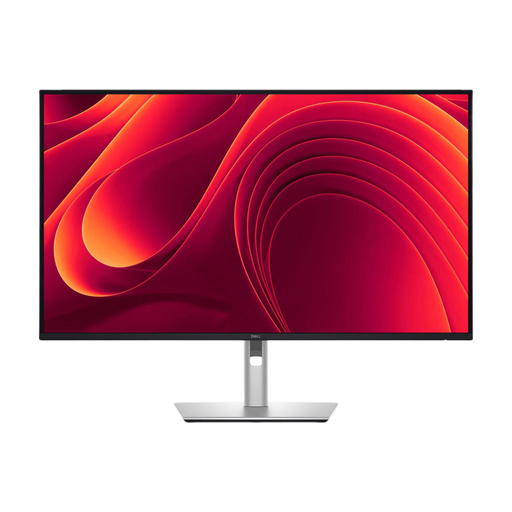 Image unavailable
Dell Pro Plus P3225DE 31.5-inch QHD monitor
A fixed QHD monitor to consider if you want to combine USB-C power delivery and connectivity at a laptop workstation.
31.5 inches; 2560 × 1440 pixels; USB-C with 90 W power delivery; RJ45 connection; height-adjustable stand.
View at Joybuy
 Image unavailable
iiyama G-MASTER 45-inch Dual QHD monitor
A wide screen to consider if you want to arrange several sources alongside a lesson document.
5120 × 1440 pixels; USB-C dock; KVM; RJ45 connection; height-adjustable stand.
View at Joybuy
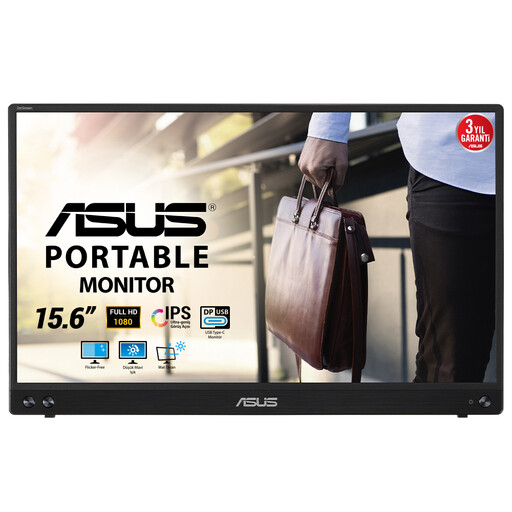 Image unavailable
ASUS MB16ACV portable 15.6-inch Full HD monitor
A portable option to consider if you want to take extra screen space between different workstations.
15.6 inches; 1920 × 1080 pixels; 0.83 kg; 10.5 mm thick; USB-C hybrid signal and USB Type-A support.
Check that your device’s video output supports the connection method you choose.
View at Joybuy
Frequently asked questions about a second screen for lesson preparation
How do you use two screens in Windows to view a source and lesson document?
Connect the screen and arrange the displays in Windows settings. Choose an extended display to show different windows on each screen, and check the text scaling for each display.
Can your MacBook drive another external display?
First check the exact Mac model. According to Apple, the number of supported displays depends on the model, resolution and refresh rate. Check these details before planning a setup with multiple external displays.
What can you do if a portable screen sits too low?
Check whether you can position the screen securely at a suitable height. Arboportaal recommends placing the screen directly in front of you and setting up your workstation to suit you; ASUS doesn’t list built-in height adjustment for the ZenScreen MB16AHG.
Does a 4K monitor automatically make text easier to read?
No. A higher resolution doesn’t guarantee that small text will be comfortable to read without adjustment. View your own documents at the chosen screen size and check the scaling settings if needed.
Do you need an extended warranty if the product has a manufacturer’s warranty?
Not to get your statutory rights: these already apply when you buy as a consumer. According to the Dutch government, there is no fixed statutory warranty period in the Netherlands, and the seller must provide a solution if a product is faulty. Consider any additional cover in terms of the rights it actually adds.


