
Tester working with a test window and logs
Wants to operate the application on one screen and view code, logs or measurement data on the other.


Choose a second screen based on what you want to assess alongside the test itself: an extra workspace, behaviour at different display scaling settings, or how fast movement is displayed. A work monitor can give you space for test and diagnostic windows; for scaling tests, you’ll need to be able to use different settings on each screen. MDN Web Docs describes collision detection as application logic, so a high refresh rate doesn’t prove that the logic is working correctly.
Wants to operate the application on one screen and view code, logs or measurement data on the other.
Wants to see how an application responds when moved between two screens with different scaling factors. Microsoft Learn describes this as a relevant scenario for high-DPI Windows apps.
Assesses how fast movement is displayed as well as the collision logic; a higher refresh rate is only relevant to this visual aspect.
Choose this if: you want to view the test and code, logs or measurement data at the same time.
Bear in mind: two matching screens won’t automatically test how an application handles different scaling factors.
Choose this if: you specifically want to see what happens when you move an application between screens with different scaling settings.
Bear in mind: the result also depends on the application’s DPI support; set the scaling for each screen deliberately.
Choose this if: you’re also testing fast-moving game visuals.
Bear in mind: check that your graphics card and connection support the resolution and refresh rate you want.
| Consideration | What to look for | Who is this important for? |
|---|---|---|
| Workspace for testing and diagnostics | Measure the available desk width and compare screen size, resolution and adjustability. | If I want to view the test and diagnostic windows at the same time, usable space across both screens is my priority. Around 36% of consumers say having workspace for several tasks at once is their main purchasing need. |
| Connections for two screens | Check the video outputs on your computer or dock and the inputs on both monitors. | I want to know in advance whether my computer can run the setup I want, rather than relying on the monitor’s connections alone. Around 29% of consumers prioritise connection compatibility. |
| Different resolutions and scaling | Note the resolution and scaling for each screen, and test the application while moving it between them. | If I want to investigate DPI behaviour, I need screens with different settings and a way to record those differences. Around 21% of consumers say this is their main purchasing need. |
| Displaying fast movement | First decide whether moving images are part of the test; then check the refresh rate in Hz at the resolution and connection you plan to use. | I assess fast movement on screen as well as the test logic, so a high refresh rate is relevant to how the image is displayed. Around 14% of consumers prioritise this. |
The monitor displays the result; collision detection happens in the application. A higher refresh rate is no substitute for testing the software logic.
Only pay extra for a higher refresh rate if assessing fast movement is also one of your testing goals.
The monitor’s specifications alone won’t tell you which video outputs your computer or dock supports.
Before buying, check the outputs on your computer or dock and the supported dual-screen setup. Depending on the connections, you may need a dock or a different connection.
Matching settings won’t automatically test how an application responds to different DPI scaling.
If this behaviour matters for the application, include a separate test with different scaling settings.
Dell Netherlands describes the Pro 27 Plus QHD USB-C Hub Monitor P2725DE as a work monitor for working with multiple windows.
According to Philips Netherlands, the Philips 1000 Series includes the 27E1N1600AE/00, a QHD work monitor with USB-C.
The LG UltraGear 27GR83Q-B is a gaming-focused alternative if your testing also covers how fast movement is displayed.
These Joybuy options are portable monitors that give you an extra screen alongside a laptop. Check that your computer supports the dual-screen setup you want; for a test with different scaling settings, you’ll need to be able to adjust the settings for each screen.
 No image available
Designed as an extra screen for a laptop; the product name lists compatibility with laptops from 13–17.3 inches.
Full HD; USB-C connection.
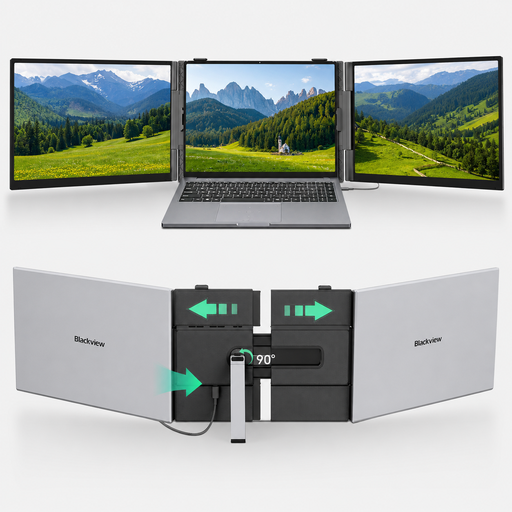 No image available
A portable extra monitor for use with a laptop; the product name also mentions phones, Switch and PS5.
USB-C; the title lists a one-cable setup, 4.5 mm thickness and 1.2 kg weight. A single-cable connection only works with devices that support this feature.
 No image available
A portable extra monitor for laptop work or gaming; the product name also mentions a built-in kickstand.
FHD IPS, 16:10, 144Hz; two USB-C ports and Mini HDMI.
 No image available
A portable extra monitor for laptop work or gaming; the product name mentions a built-in kickstand.
2.5K IPS, 144Hz, 16:10; two USB-C ports and Mini HDMI.
 No image available
A portable second monitor to use alongside a laptop screen; the product name describes it as a dual-screen laptop display extender.
16:10 IPS; Type-C and Mini-HDMI. According to the product information, one cable for power and video only works with supported devices.
No, not if you’re specifically investigating behaviour at different display scaling settings. Record the settings for each screen; the result also depends on the application’s DPI support.
First check the connection, then use the Windows display settings to identify the screens and detect them if needed. Arrange them to match their physical positions, then test whether the pointer moves between them as expected, as Microsoft Support recommends.
No. The application handles collision detection; a higher refresh rate is a choice for displaying movement. Test the collision logic separately.
Statutory consumer rights apply in addition to any manufacturer’s warranty. If the monitor doesn’t meet what you can reasonably expect from it, contact the retailer, according to ACM ConsuWijzer.
For a standard online consumer purchase, you generally have a statutory 14-day cooling-off period from delivery. Check the conditions for trying and returning the product, as there are exceptions. This consumer right doesn’t automatically apply to a business purchase; ACM ConsuWijzer explains the cooling-off period.