
Editor checking colour
You mainly want to see how the polder footage, skies and subtle colour gradations look. Match the display to your output colour space and editing software settings.


Let the role of your second screen guide what you look for: for colour grading, its colour mode should match your film’s output, while timelines and tools benefit most from usable workspace and a practical setup. Match SDR/Rec.709 or HDR to your actual output, and check that your computer, cable and monitor work together to support the video connection you need and, if required, laptop charging.
You mainly want to see how the polder footage, skies and subtle colour gradations look. Match the display to your output colour space and editing software settings.
You want to spread the preview, timeline and tools across two screens. Look for a workable screen layout, a good fit alongside your current display and enough desk space.
You want to connect a second screen to your laptop and are considering USB-C for video, data and possibly power. The monitor, computer and cable must all support the necessary functions.
A good fit if: you use the second screen to check a film that will be delivered in SDR/Rec.709.
Bear in mind: a colour mode or stated colour gamut does not, on its own, guarantee accurate display; your workflow and screen settings matter too.
A good fit if: your existing screen is used for checking the picture and you want extra room for your timeline, panels or scopes.
Bear in mind: screen size, resolution and adjustability should suit your desk and the way you arrange your windows.
A good fit if: your film will actually be delivered in HDR or your workflow requires additional colour capabilities.
Bear in mind: an HDR label or professional positioning does not prove that a particular screen is suitable as an HDR reference display.
Start with your film’s output, then decide whether you need colour checking, extra workspace or specific connections for your setup.
For consumers considering a second monitor for this polder film, the percentages below relate to their main purchasing priority.
| What to consider | What should you check? | Who should give this more weight? |
|---|---|---|
| Colour to match your film’s output | First decide between SDR/Rec.709 and HDR, then compare the colour modes, calibration options and editing software settings. | If I’m checking skies and colour gradations on my second screen, I want the display to match my output. Around 36% of consumers say colour checking is their main purchasing priority. |
| Room for your timeline and tools | Compare screen size, resolution, adjustability and the window layout you use in your editing software. | If I want to see the preview, timeline and tools at the same time, I’m mainly looking for a practical layout alongside my current screen. Around 29% of consumers prioritise this extra editing space. |
| Connection to your computer | Check your computer’s video output, the monitor connection and cable options, as well as the USB-C power required and supplied. | If you work on a laptop, you’ll want to know whether video and, if needed, charging can use the same connection. For around 21% of consumers, ease of connection is the main priority. |
| Fit and running costs | Measure the space available on your desk and compare the product information and applicable energy label for the exact models. | If I’m putting two screens side by side, I want the monitor to fit comfortably on my desk and to be able to compare its energy information. Around 14% of consumers give this consideration priority. |
An HDR label alone cannot tell you whether a particular screen is suitable for your HDR output or as a reference display.
First decide on your output format, then look into your workflow requirements and the features of the exact model.
Your computer and cable must support the necessary video function; for laptop charging, the power supplied must also be sufficient. BenQ lists DisplayPort Alt Mode and 65 W Power Delivery for the PD2705U.
Before buying, compare the connection options and charging requirements of your computer, cable and monitor.
If the combination doesn’t work as intended, you may need a separate cable, adapter or laptop charger.
A stated colour gamut alone doesn’t tell you how accurately your film will be displayed or how the entire workflow is configured.
Compare the colour modes and calibration options, and match the screen to your film’s output colour space.
BenQ lists features for the PD2705U that suit a second screen for checking SDR colour, including Rec.709 and USB-C.
The ProArt PA279CRV is a 27-inch 4K model with a Rec.709 preset, designed for a colour-focused editing setup.
The LG 27UP850K-W is a 27-inch 4K monitor with USB-C and an adjustable stand.
According to Dell, the UltraSharp U2723QE combines a 27-inch 4K screen with a USB-C hub.
EIZO positions the ColorEdge CS2740 for video editing, post-production and colour grading.
This selection of Joybuy products includes monitors for colour-focused work, extra editing space and laptop connections. Match the specifications to your film’s output and your existing computer.
 Image unavailable
An option if you want to combine 4K resolution and USB-C power delivery for editing.
Listed as a 26.5-inch OLED screen with 3840 × 2160 pixels and 120 Hz. The stated connections include HDMI, DisplayPort and USB-C with up to 98 W Power Delivery. An HDR True Black 400 label alone does not prove that this model is suitable as an HDR reference monitor.
 Image unavailable
A good fit for an editing setup where you want 4K workspace and an adjustable stand.
Listed as a 27-inch IPS screen with 3840 × 2160 pixels and 120 Hz. Specifications include USB-C with 90 W Power Delivery, height adjustment, PIP/PBP, 100% sRGB and 99% Adobe RGB. An HDR500 label does not automatically make the model suitable as an HDR reference monitor.
 Image unavailable
An option for colour-focused SDR/Rec.709 work and a larger monitor alongside your existing screen.
Listed as a 31.5-inch 4K screen with 99% Rec.709 colour coverage. Connections include USB-C with 90 W Power Delivery; the description also mentions a KVM function.
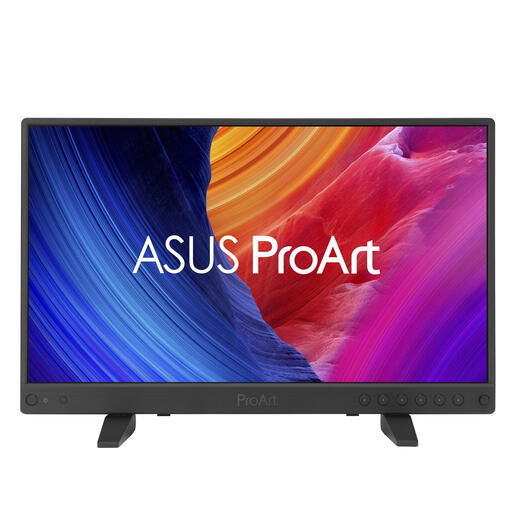 Image unavailable
A compact second-screen option if SDR/Rec.709 colour checking is an important part of your workflow.
Listed as a 15.6-inch 4K screen with 100% Rec.709. The product description mentions factory calibration with Calman verification and connections including 12G-SDI, USB-C with DisplayPort Alt Mode and HDMI.
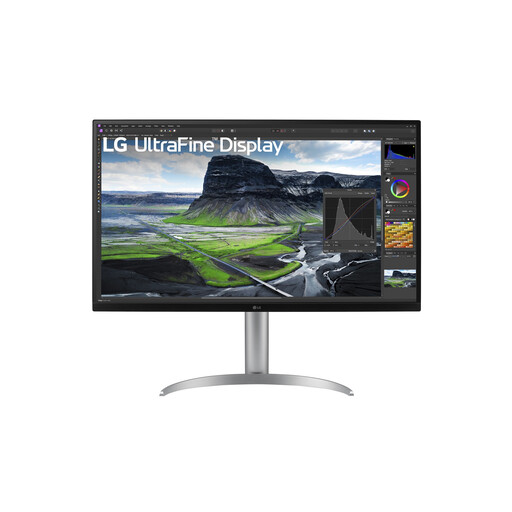 Image unavailable
A good fit if you want extra editing space alongside a USB-C connection and an adjustable stand.
Listed as a 31.5-inch 4K screen with 3840 × 2160 pixels, 95% DCI-P3 and hardware calibration. The description mentions USB-C with 90 W Power Delivery and a stand with height adjustment and pivot.
No. A Rec.709 mode alone isn’t enough to assess the entire colour workflow. Also check that your film will be delivered in SDR/Rec.709 and that colour management and screen settings match. Adobe describes Rec.709 as the standard SDR preset in Premiere’s colour workflow.
Only if your computer and cable support video over the USB-C connection you’re using and the power supplied is sufficient. BenQ specifies DisplayPort Alt Mode and 65 W Power Delivery for the PD2705U; you should also check your laptop’s requirements.
Set the screens up as separate workspaces in your operating system and arrange them to match their physical positions. Microsoft explains how to identify and rearrange connected screens in Windows; the exact steps depend on your operating system.
Start with your film’s output format. For SDR/Rec.709, compare colour modes and settings suited to that workflow. Look into HDR features only if your film will actually be delivered in HDR, and then check the requirements of the exact model.