
Editor with a crowded timeline
You want to spread clips, tools and the preview across two screens. In that case, screen layout and computer compatibility matter more than extra pixels on each screen.


If you’ll mainly use your second screen for your timeline and windows, compare screen space and resolution. If you want to assess a preview image on it, also look at colour modes and colour matching. Before choosing, check that your computer supports two external displays and that the connections and any laptop charging requirements suit your setup. A 4K model has more pixels than a QHD model, but that doesn’t automatically make it the best choice for a second workspace.
You want to spread clips, tools and the preview across two screens. In that case, screen layout and computer compatibility matter more than extra pixels on each screen.
You want to assess the colours in your holiday footage and are paying attention to colour modes and differences between your two screens. Factory settings alone don’t guarantee that both displays will look the same.
You want to combine video, data and power through a suitable connection. Check that your laptop port supports video and that its charging capacity is suitable for your laptop.
First decide whether your second screen is mainly for extra space to work on your edit or for assessing the video image. Then compare the connection with your computer and workflow.
| What to consider | What should you look for? | Who should prioritise this? |
|---|---|---|
| Workspace across two screens | Check how many external displays your computer supports and whether your editing software can show a separate preview. | If you want to see your timeline and preview at the same time, extra workspace comes first; around 33% of consumers make this their top priority. |
| Colour assessment | Compare the colour modes and match both screens to your video workflow; stated colour gamuts don’t guarantee the same display. | If you assess scenes side by side on two screens, you’ll want to minimise colour differences; around 25% of consumers prioritise colour assessment. |
| Detail in the preview | Compare the resolution with your footage and the screen’s intended use: the QHD option listed has 2560 × 1440 pixels, while the 4K models listed have 3840 × 2160. | If you mainly want to view detail in a 4K preview, resolution is your first consideration; around 25% of consumers prioritise image detail. |
| Connection and laptop charging | Check that your computer port supports video and compare the required charging power with the monitor and laptop specifications. | For consumers who want to combine video and laptop power through one suitable cable, the connection matters most; around 17% make this their top priority. |
The number of displays you can connect and the video connections available depend on your computer.
Check the specifications for your exact computer and the connections on both screens before placing your order.
The Creative Pro PD2705U is a 27-inch 4K option to compare if you’re looking for a Rec.709 mode and USB-C.
The ProArt PA278CV is a 27-inch QHD option; the separate PA279CRV is a 27-inch 4K option.
The UltraFine 27UP850K-W is a 27-inch 4K option to compare if you also want to consider USB-C power delivery.
The UltraSharp U2723QE is a 27-inch 4K option with a hub and multiple connections.
These monitors offer a range of sizes and resolutions to compare as a second workspace for your editing software, or for keeping your timeline and windows in view.
 Image unavailable
An option to compare if you want a 27-inch second screen with 4K resolution for your editing work.
3840 × 2160 pixels.
 Image unavailable
Compare this wide second workspace if you want to arrange your timeline and several windows side by side.
The product name lists a KVM switch, USB-C dock, RJ45 connection and height-adjustable stand.
 Image unavailable
Compare the 34-inch size and wide resolution if you’re looking for space to keep your timeline and windows side by side.
3440 × 1440 pixels.
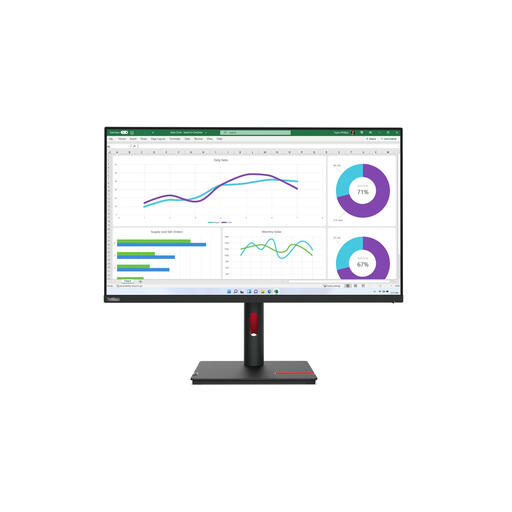 Image unavailable
A larger QHD screen to compare if you’re mainly looking for a second workspace for your timeline and windows.
2560 × 1440 pixels. According to the product description, the charger is not included and must be purchased separately.
 Image unavailable
Compare the wide screen format if you want to place your timeline and windows on a second workspace at the same time.
3440 × 1440 pixels.
No, it depends on the Mac model. Apple Support recommends checking the display support and ports on your exact computer, as well as which cables or adapters you’ll need.
You can arrange the screens to match their position on your desk. If you only want the programme preview on the second screen, use your editing software’s output settings. Microsoft Support explains display arrangement in Windows; Adobe explains how to use Mercury Transmit under Playback in Premiere to output to a second screen.
If you assess colours on both screens, matching them can help reduce differences. Dell Support points out that monitors can differ in colour temperature when placed side by side and may not always be perfectly matched. If you only use the second screen for your timeline, a close match is less important when choosing a monitor.
If a product doesn’t meet the legal requirements, the seller must offer a solution when a claim under the statutory guarantee is justified, according to the Rijksoverheid; there is no fixed statutory guarantee period. ACM ConsuWijzer says that online purchases generally come with a 14-day cooling-off period after delivery, although you should check for exceptions that apply to your specific purchase.