
Tileset creator short on workspace
Would you like to keep your canvas visible while you work alongside references, layers or a separate tilemap app? Aseprite describes tilemaps and multiple windows as part of a multi-window workflow.


Start by deciding how you’ll divide up your tasks: keep your drawing window on one screen and use the other for references, a tilemap or other windows. Then choose based on the space you have, how closely you need the colours to match and which connections your computer actually supports. A second monitor doesn’t guarantee that your drawing software can move windows onto it.
Would you like to keep your canvas visible while you work alongside references, layers or a separate tilemap app? Aseprite describes tilemaps and multiple windows as part of a multi-window workflow.
If you assess the same digital assets on two screens, consider both the colour specifications and how closely the displays match. EIZO highlights colour differences between monitors as something to bear in mind when working with graphics.
If you want to connect an extra screen to a laptop, check the video and charging capabilities of the specific USB-C ports. A USB-C port on a monitor doesn’t, by itself, guarantee that every laptop supports video.
First decide which windows you want to see at the same time, then check that your workspace and computer can support the screen setup you have in mind.
| What to consider | What should you check? | Who is this important for? |
|---|---|---|
| Workspace | Think about which windows you need beside your canvas, measure your desk and try out the layout in your own software. | If I want to keep my drawing window beside references or a tilemap, usable screen space is a major consideration for me. Around 36% of consumers put workspace first. |
| Colour assessment | Compare the sRGB specification and colour modes of the exact model; match the two screens if needed. | If I assess the same assets on two displays, I want to allow for differences between screens and colour settings. Around 29% of consumers put colour assessment first. |
| Connectivity | Check your computer’s video outputs and the monitor’s inputs; also check power delivery and daisy-chaining requirements if you need them. | If I want to connect my laptop with as few cables as possible, I check that the chosen port supports video and, if needed, sufficient power delivery. Around 21% of consumers consider simple connectivity the most important factor. |
| Positioning | Measure the available space and check the exact model’s dimensions, including its stand, adjustability and any VESA mount size. | If I want to put two screens side by side, they need to fit on my desk and be easy to position comfortably. Around 14% of consumers focus mainly on positioning and adjustability. |
The layout you want depends partly on your software and operating system, not just on the monitor.
Try your specific Aseprite or other tileset workflow with a second screen before choosing a monitor specifically for this feature.
Video, power delivery and daisy-chaining capabilities depend on the ports and support offered by your computer and monitor.
Check what both devices can do, and whether your laptop supports the video connection and power delivery you need.
Some setups may also require a suitable cable or dock.
A stated coverage or calibration figure describes one model; it doesn’t guarantee that it will match your existing display.
Compare the screens in suitable colour modes and decide whether your assets need any further matching.
Matching colours individually may take extra time or equipment.
BenQ describes the PD2705Q as a QHD model for colour-focused work, with sRGB specifications and USB-C.
ASUS describes the ProArt PA278QV as a QHD option for colour-focused work, with an adjustable stand and conventional video inputs.
Philips describes the 27E1N5600AE/00 as a QHD option for connecting a compatible laptop to a second screen via USB-C.
Dell describes the UltraSharp U2724D as a QHD option where adjustability and the stated refresh rate may be worth considering.
EIZO describes the FlexScan EV2740X as a 27-inch 4K office and docking option for those who value resolution and connectivity.
These monitors suit different second-screen needs, including a USB-C laptop connection, colour assessment and extra workspace.
 No image available
May suit you if you want to use a laptop as the source for a second screen; check your laptop’s video and charging support.
27 inches; 3840 × 2160 (4K UHD).
 No image available
May suit you if colour assessment matters; compare its colour settings with those of your existing screen too.
27 inches; QHD 2K; the product name lists 99% sRGB and 99% Adobe RGB (1931).
 No image available
May suit you if you’re looking for a larger work area alongside your existing screen; measure your available desk space first.
31.5 inches; 2560 × 1440 (QHD).
 No image available
May suit you if you’re looking for a QHD screen for colour-focused work; check that its connections match your computer.
27 inches; 2560 × 1440 (QHD).
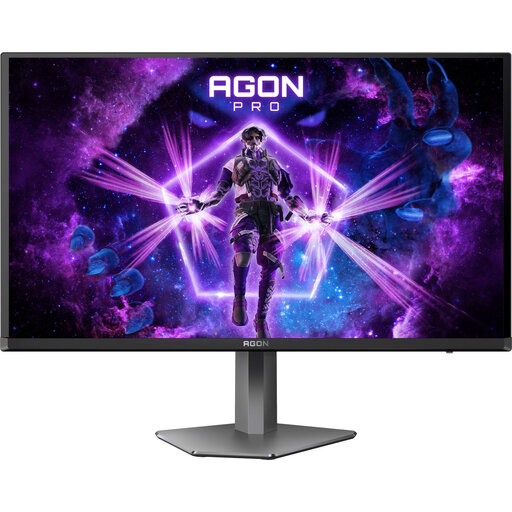 No image available
May suit you if you’re looking for a second QHD screen; check which video inputs are available on your computer.
27 inches; 2560 × 1440 (QHD).
Don’t assume that you can. Aseprite documents a preview window and a multi-window mode, but that doesn’t confirm that the layout you want will work with your setup and operating system. Try the layout before choosing a monitor specifically for that purpose.
Use Windows display settings to identify the screens and arrange them in the correct physical order. Then check that the selected display mode suits the windows you want to use separately.
No, this doesn’t work with every laptop and monitor. Daisy-chaining requires the computer and the relevant screens to support the chosen video connection; BenQ lists additional requirements for the inputs and outputs, and for Macs. Check the specifications of your devices.
No, an sRGB specification for one model doesn’t guarantee that it will match your existing screen. Compare both displays in suitable colour modes and decide whether your assets need any further matching.
For a qualifying online purchase from a business, the Dutch government generally provides a 14-day cooling-off period, according to the Rijksoverheid. A product must also be fit for purpose under normal use; if it has a fault, the retailer is your point of contact for the statutory guarantee, as ACM ConsuWijzer explains. A manufacturer’s guarantee doesn’t replace these statutory rights.