Keep your sprite editor and timeline on your main screen, and use the second screen for a preview or reference images, for example. A 27-inch QHD monitor with stated sRGB coverage is a good fit if you want more room for windows and sRGB colour settings. 4K is most relevant if you also work with larger images or view a 4K preview, while a monitor with a hub prioritises convenient connectivity. Before buying, check that your computer supports two screens at your preferred resolution: a higher monitor resolution does not automatically determine how pixel art is scaled.
Who would benefit from a second screen?
Sprite animator with a busy timeline
If you want to see your canvas, timeline and preview or reference images at the same time, a second screen gives you room to arrange windows side by side. Godot Engine explains how to set different output resolutions, while Aseprite documents how to create 2D animations for games.
Creator who fine-tunes colours
If you create illustrations or other game assets as well as sprites, you can compare stated colour spaces and colour settings. BenQ, ASUS and LG publish specifications for their individual monitors, but these manufacturer claims are not a measurement of how your screen setup performs.
Laptop user setting up two screens
If you want to use a laptop with two external screens, check the ports, cables and support for your exact computer model. Microsoft Support and Apple Support explain how to use multiple displays with their respective systems.
What should guide your choice?
27-inch QHD creator monitor
Choose this if: you mainly want a spacious preview, reference images or editor windows on the second screen, and stated sRGB coverage matters to you. BenQ lists a resolution of 2560 × 1440 pixels and 100% sRGB for the PD2705Q, as does ASUS for the PA278CV.
Trade-off: the 27-inch QHD models mentioned have fewer pixels than the 4K option. That alone does not determine how well sprites are displayed.
27-inch 4K monitor
Choose this if: you also want to view larger images or a 4K preview alongside your sprite work. LG lists a resolution of 3840 × 2160 pixels for the 27UP850K-W.
Trade-off: extra pixels do not automatically make sprites sharper. Check the display scaling and the readability of your windows, and assess sprites at their intended output size.
Hub monitor for a two-screen setup
Choose this if: ports and easy device connections are high priorities. Dell describes the U2724DE as a QHD monitor with a Thunderbolt 4 hub.
Trade-off: a hub does not guarantee that your computer can drive two screens in your preferred configuration. Check that your computer, cable and monitor are all compatible.
| What to consider |
What to look for when buying |
Who is this important for? |
| Room for work windows |
Try your window layout and display scaling; compare the screen size and resolution of the exact models. |
If I want to see my editor, timeline and preview at the same time, usable screen space is my main priority. Around 36% of consumers prioritise this workspace above all else. |
| Colour display |
Compare the stated colour spaces and colour modes of the models you are considering. |
If I also want to fine-tune the colours in my artwork, I look at colour settings and stated colour space. Around 29% of consumers prioritise colour display. |
| Connecting two screens |
Check the ports, compatible cables and number of external screens supported by your computer model. |
If I want to use two screens with my own computer, the whole connection setup needs to work. Around 21% of consumers make two-screen connectivity their top priority. |
| Positioning at your workspace |
Measure the space available on your desk and check the height, swivel and tilt adjustments of the exact model. |
If I want to set up two screens on my desk, finding a position that works for me is most important. Around 14% of consumers choose mainly based on positioning. |
Common buying mistakes
-
Assuming USB-C will automatically support two screens
The number of screens supported and the ports you need also depend on your computer model.
Before buying, check your computer’s display support and connections, as well as the cables your setup requires.
-
Confusing a 4K panel with correct sprite scaling
How a sprite appears also depends on the zoom and output settings. Aseprite documents separate zoom levels.
Test your sprite at its intended output size, and choose 4K for the extra screen resolution you will actually use.
-
Assuming the manufacturer’s warranty covers all your legal rights
ACM ConsuWijzer distinguishes between warranties offered and the legal rights consumers already have.
Read the terms of any additional cover and compare them with your existing rights before choosing it.
Monitor brands to consider
BenQ
The PD2705Q is a 27-inch QHD option for creators looking for stated sRGB coverage, colour modes and USB-C in one screen.
- BenQ lists 100% sRGB, an animation mode, USB-C with 65 W and DisplayPort MST output for the PD2705Q.
- The stated refresh rate is 60 Hz. These are manufacturer specifications for this model, not an independent assessment.
ASUS
According to ASUS, the ProArt PA278CV combines a 27-inch QHD screen with stated sRGB coverage, USB-C and an adjustable stand.
- ASUS lists 100% sRGB, USB-C with 65 W and a maximum refresh rate of 75 Hz for this model.
- The stated daisy-chain support does not guarantee that your computer supports your preferred two-screen setup.
LG
The 27UP850K-W is a 27-inch 4K option for anyone who also wants to view artwork at a higher screen resolution.
- LG lists a resolution of 3840 × 2160 pixels and typical DCI-P3 coverage of 95% for this model.
- DCI-P3 is a different stated colour space from sRGB, so these figures do not provide a direct comparison for sprite work.
Dell
The U2724DE is a 27-inch QHD hub monitor for a workspace where connectivity is a high priority.
- Dell lists a resolution of 2560 × 1440 pixels at up to 120 Hz and a Thunderbolt 4 hub for this model.
- These features do not indicate whether your computer supports two screens in your preferred configuration.
Monitors at Joybuy
This selection includes 27- and 32-inch monitors with various stated resolutions, intended as a second screen alongside your sprite editor. Check that each model’s dimensions and connections suit your workspace and computer.
 No image available
AOC Gaming Q27G42XNE 27-inch QHD monitor
A good fit if you are looking for a 27-inch QHD screen to give you extra room for work windows.
2560 × 1440 pixels; 180 Hz; 1 ms; 2 × HDMI 2.0 and 1 × DisplayPort 1.4, according to the product name.
View at Joybuy
 No image available
CRUA CR320QB 32-inch curved 4K monitor
A good fit if you are looking for a larger second screen with 4K resolution; check that its size and curve suit your desk.
32 inches; 3840 × 2160 pixels; 3000R curve; VA panel, according to the product name.
View at Joybuy
 No image available
Philips 27E1N1800AE/00 27-inch 4K UHD IPS monitor
A good fit if you are looking for a 27-inch 4K screen and want to adjust the monitor’s position.
3840 × 2160 pixels; 60 Hz; 4 ms; HDMI, DisplayPort and a height-adjustable stand, according to the product name.
View at Joybuy
 No image available
MSI Modern MD272UPHG 27-inch 4K monitor
A good fit if you are looking for a 27-inch 4K screen for a second work window or artwork.
3840 × 2160 pixels; 4K UHD; black, according to the product name.
View at Joybuy
 No image available
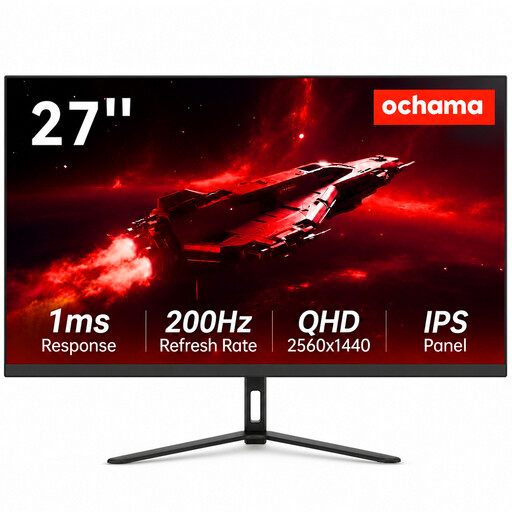
Ochama 27-inch gaming and office monitor
A good fit if you are considering a 27-inch monitor for work and gaming as a second screen.
The product name lists 2K Ultra HD and a refresh rate of 200 Hz.
View at Joybuy
Frequently asked questions
Does 4K automatically make a scaled-up sprite look sharper?
No. View the sprite at its intended output size too, and check your software’s zoom or scaling settings. Aseprite documents separate zoom levels, so screen resolution and sprite display are different considerations.
How can I check whether my computer supports two screens?
Check your computer model’s specifications for the number of external screens it supports and the available video outputs. Make sure the cables you need are compatible too; USB-C or a hub on its own does not confirm that the full setup will work.
Do I need to use the same settings on both screens to compare colours?
Check the colour modes on both screens and assess them together in your own setup. A manufacturer’s specifications for one monitor do not prove that two screens will look identical.
How do I set up a second screen in Windows or on a Mac?
Use connections and cables that are compatible with your computer. In Windows, you can arrange the screens to match their actual positions; on a Mac, first check how many external screens your specific model supports.


