If you usually study at the same desk, a fixed monitor is a sensible choice. Compare its resolution, scaling settings and adjustability with your workspace. Choose a USB-C hub monitor if your laptop supports video and, where needed, power over that connection, or a portable screen if you often move between study spaces. The choice is about connections and how you’ll use it, not a proven difference in learning outcomes.
Who is a second monitor suitable for?
Regular regex learner
You want to keep documentation or examples on one screen while viewing code and test results on the other. A fixed monitor with an adjustable stand could suit a dedicated study space; Dell, for example, describes these adjustment options for the P2425.
Laptop user who wants a single cable
You connect your laptop regularly and want to know in advance whether a single USB-C connection can carry video, data and, where needed, power. Dell and Philips describe these features for specific models; what’s supported depends on both the monitor and the computer port.
Study in different places
You want to take a second screen with you and may be happy to accept a smaller display area and less scope to adjust its height. ASUS specifies the ZenScreen MB16ACV as a portable 15.6-inch model with a kickstand, but no height adjustment.
What should you look for when choosing?
First decide whether you need a fixed or portable setup. Then check that your laptop’s connection and your preferred screen layout will work with the model you choose.
| What to consider |
What should you check? |
Who is this important for? |
| Readable workspace |
Compare screen size, resolution, aspect ratio and scaling settings. Check whether your preferred windows will fit side by side. |
If I want to see explanations, code and test results at the same time, I look for a layout that fits my desk. Around 36% of consumers put a readable workspace first. |
| Connections |
Check your laptop’s video output and the monitor’s input. For USB-C, specifically check video support and the power output you need. |
If I want to connect my laptop quickly, I want to know whether the screen will extend my display over the chosen cable and, if needed, supply power too. Around 29% of consumers prioritise connections and ease of use. |
| Positioning and comfort |
Check the height and swivel adjustments, the stand’s footprint and the space available next to your existing screen. |
If I set up two screens in a dedicated study space, I want to position them comfortably without losing sight of the desk space available. Around 21% of consumers put positioning and adjustability first. |
| Portability |
Compare the dimensions and stated weight, the power required and the video connection. |
If I study in different places, being able to take a screen with me matters more than having a large fixed display. Around 14% of consumers make portability their top priority. |
Pitfalls to avoid when buying
-
Assuming every USB-C port supports video and powers your laptop
This varies between monitor models and computer ports. Dell specifies that the P2425 has a USB-C downstream port for data, while the P2425DE has a different hub configuration.
Check the function of the monitor port for the exact model, and confirm that your laptop can output video and receive enough power through the connection you plan to use.
Depending on your existing equipment, you may need a separate video cable, adapter or power solution.
-
Treating a product description as the full specification
A brief mention of USB-C doesn’t automatically tell you whether the port supports video, data or laptop power. Check important port features with the manufacturer and compare them with the specifications for the version on offer.
Before ordering, verify the exact model and the features that are essential for your connection.
-
Looking only at resolution
How you position two screens and the space available on your desk matter too. According to ASUS, the ZenScreen MB16ACV has no built-in height adjustment, while the Dell P2425 is adjustable.
Measure the available space and compare the adjustment options with those of your existing screen before choosing a size.
If a screen can’t be adjusted to the right height, you may need a suitable riser or mounting solution.
Relevant brands for different screen setups
Dell
Dell offers models for a fixed workspace, including a 16:10 monitor and a separate QHD USB-C hub monitor.
- Dell states that the P2425 has a resolution of 1920 × 1200 and an adjustable stand.
- According to Dell, the P2425’s USB-C downstream port is for data only; the P2425DE is a different model with its own connection options.
Philips
The 24E1N5300AE/00 is a 23.8-inch Full HD model with USB-C for compatible devices.
- Philips lists video, data and power over USB-C for compatible devices.
- Check the port functions and power specifications for your laptop. Full HD has a different pixel layout from the QHD and WUXGA models mentioned.
ASUS
The ZenScreen MB16ACV is a portable option if you want to use a second screen in different study spaces.
- ASUS specifies a 15.6-inch Full HD screen with USB-C DP Alt Mode and a kickstand.
- According to ASUS, this model has no height adjustment. Also check that your computer port supports the video function you need.
LG
The 27UP850K-W is a larger, fixed 27-inch 4K option.
- LG lists a resolution of 3840 × 2160, USB-C and an adjustable stand.
- A larger screen takes up more desk space; adjust the scaling settings to suit your reading preferences.
Lenovo
The ThinkVision T24d-30 is a fixed 24-inch WUXGA option with an adjustable stand.
- Lenovo lists height, tilt, swivel and pivot adjustments, as well as HDMI and DisplayPort.
- The listed USB-A ports don’t mean that the screen supports USB-C video or laptop power.
Joybuy products for a second screen
These product picks include portable screens for studying in different places and fixed monitors for a desk setup.
 No image available
TECLAST V16Q portable monitor
A portable option if you want to use a second screen in different study spaces.
16 inches, 2.5K, 144 Hz, IPS and a 16:10 aspect ratio. The product description lists two USB-C ports, mini-HDMI and a built-in kickstand; check whether your computer supports video over USB-C.
View at Joybuy
 No image available
UPERFECT 15.6-inch portable touchscreen monitor
A portable second-monitor option if you want a touchscreen and need to take a screen between different places.
Full HD (1920 × 1080), touchscreen, USB-C and mini-HDMI. The product description lists a protective case with a built-in stand; check whether your computer’s USB-C port supports video.
View at Joybuy
 No image available
Philips 27E1N1800AE/00 27-inch 4K monitor
A fixed desk option if you want a larger 27-inch screen alongside your laptop.
4K (3840 × 2160), IPS, HDMI and DisplayPort. The product description lists a height-adjustable stand; check the scaling settings and the space available on your desk.
View at Joybuy
 No image available
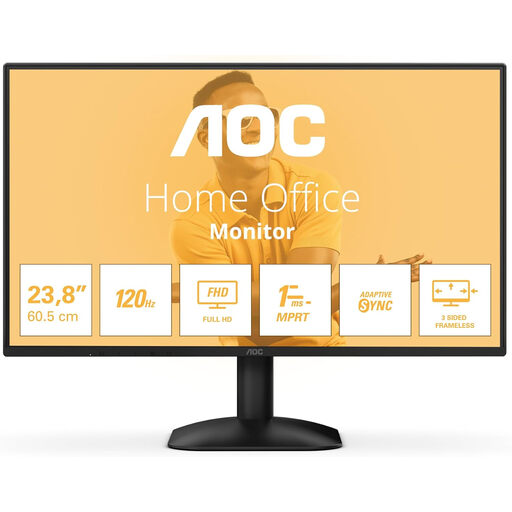
AOC 24B31H 24-inch Full HD monitor
A fixed second-monitor option if your laptop or computer has a suitable HDMI or DisplayPort output.
24 inches, 1920 × 1080, 16:9 aspect ratio, HDMI and DisplayPort.
View at Joybuy
 No image available
ASUS ProArt Display PA24ACRV 23.8-inch QHD monitor
A fixed monitor option if you’re looking for QHD resolution and USB-C features for a desk setup.
2560 × 1440, 75 Hz, HDMI, DisplayPort and USB-C for video, data and power; the product description lists 90 W power delivery. For direct USB-C video, your computer port must support video.
View at Joybuy
Frequently asked questions
How do you set up the second screen as an extended display rather than a copy?
Set your display mode to Extend. Microsoft Support explains how to arrange screens in Windows display settings; if you run into problems, check the cable and connection too.
Will every USB-C connection work directly with a portable monitor?
No. The computer port must support the required video function. ASUS distinguishes USB-C with DP Alt Mode for direct video from a data connection that may require a driver; check the specifications for both your computer and the screen.
Can you connect two external monitors to your Mac?
It depends on the Mac model. Apple Support recommends checking how many displays the device supports and which video ports, cables or adapters you need. Using a laptop screen plus one external monitor is a different setup from using two external screens.
What if your monitor breaks unexpectedly early during normal use?
ACM ConsuWijzer explains that you have statutory rights in the Netherlands if a product doesn’t meet the expectations you were entitled to have. If a monitor breaks too soon during normal use, the seller must resolve the issue free of charge under the applicable terms. There isn’t one fixed statutory warranty period for every monitor.
What rules apply to screen positioning when working with a display?
There are requirements for employees who work with displays, subject to certain conditions. Arboportaal lists, among other things, a separate display and keyboard and a height-adjustable display for more than two hours of screen work per day. Employers also have a duty of care for people working from home, according to the Dutch government. These aren’t general legal purchasing requirements for everyone learning regex at home in their own time.


