If you’re using your new screen to assess print colours, look at the required colour space and make sure it fits your calibration and print workflow. For digital illustration or reference images, a practical second screen may be a better fit. Also check that your computer can run both screens at your preferred resolution, which connections are available and how much space the setup will take up.
Who might benefit from a second monitor for illustration?
Illustrator working for print
You want to assess flower and landscape colours with the final printed result in mind. Screen calibration and the output profile both matter. Adobe describes them as part of colour management for print, while EIZO lists design and illustration among the intended uses for the ColorEdge CS2740.
Illustrator using a screen for references
You mainly use the second screen for reference photos, layers or palettes alongside your panorama. In that case, consider how the two screens will be arranged and which connections your computer has. Microsoft Support explains how to arrange displays in Windows.
Illustrator working from a laptop
You want to illustrate on the extra screen too, and need a connection that suits your laptop’s video output and charging requirements. BenQ lists USB-C with DisplayPort Alt Mode and 65 W Power Delivery for the PD2705U; check that your laptop supports these features.
What should you look for when buying?
Colour-focused screen for print work
A good fit if: you’re creating your tulip panorama mainly for print and want to assess colours as part of a suitable print workflow.
Bear in mind: calibration, ambient light and your printer and paper profiles still matter. Check the printer’s requirements too.
Creative 4K screen for digital work
A good fit if: you want to view fine detail on the extra screen and USB-C for video and possibly laptop charging would be useful.
Bear in mind: check whether your laptop supports video over USB-C and how much charging power it needs.
Practical screen for references and palettes
A good fit if: your existing screen is used to assess colour and you’d like more space for reference photos or tools.
Bear in mind: check that the output, cable and desk setup are suitable. 4K and IPS alone don’t guarantee professional colour accuracy.
| What to consider |
What should you check? |
Who is this important for? |
| Colour for output |
First, decide whether you’re working for the web, an online print service or a specific printer. Then check the relevant colour space, colour mode and calibration options. |
If I’m assessing tulip colours for a print, I want to know that the screen and output workflow are aligned; around 40% of consumers make output colour their top priority. |
| Space and detail |
Decide which screen will display the canvas, then compare the resolution, screen size and space for windows alongside the illustration. |
With a wide panorama, I want to view the canvas while keeping references or tools open; around 30% of consumers prioritise workspace and detail. |
| Connecting your computer |
Check the video output, support for a second external screen and the cable. For USB-C, also check that video signal and the required charging power are supported. |
When I’m working on a laptop, I want to know in advance whether the connection can handle the extra screen and, if needed, charging; around 20% of consumers prioritise connectivity. |
| Positioning two screens |
Measure the available width and depth. Check the stand and height adjustment, and, if you’re using a monitor arm, the VESA size for the exact model. |
When two screens sit side by side, I want to be able to position them comfortably and make them fit; around 10% of consumers consider the physical setup their main concern. |
Common buying mistakes
-
Assuming a wide colour gamut guarantees a print match
A monitor’s specifications alone can’t tell you what the final print will look like. Adobe explains that calibration, ambient light, paper and colour management all affect how predictable the printed result will be.
Start with the output requirements, then check the colour space, calibration and profiles that suit your printer or print service.
-
Assuming every USB-C port supports video and provides enough power for your laptop
A monitor’s capabilities don’t automatically confirm that your laptop supports the same video and power features.
Compare your laptop’s requirements with the details for the exact monitor model, and check which cable you’ll need.
-
Choosing a second 4K screen without planning your setup
Two screens, their stands and your viewing positions all need to fit on your desk.
Measure your workspace and check the model’s dimensions, adjustability and any VESA mounting options before you buy.
Brands to consider
EIZO
The ColorEdge CS2740 is a 27-inch 4K option for uses including design and illustration. It’s worth considering if colour management for print is a priority.
- EIZO lists over 99% Adobe RGB coverage and hardware calibration support for this model.
- You’ll still need a suitable printer and paper workflow to assess prints.
ASUS
According to ASUS, the ProArt PA279CRV combines 27-inch 4K resolution with specified coverage for sRGB, Adobe RGB and DCI-P3, making it an option if you’re considering different creative output formats.
- ASUS lists 100% sRGB, 99% Adobe RGB, 99% DCI-P3 and 96 W USB-C Power Delivery for this model.
- These are the model’s stated specifications, not independent measurements. Also check that your laptop supports USB-C and needs this level of charging power.
BenQ
The Creative Pro PD2705U is a 27-inch 4K design monitor with colour modes and USB-C.
- BenQ lists factory calibration and USB-C with 65 W power delivery for the PD2705U.
- BenQ’s listings don’t always show the same sRGB percentages. Check the documentation for the exact model, and treat the manufacturer’s figures as distinct from independent colour measurements.
LG
The UltraFine 27UP850K-W is a 27-inch 4K IPS option with USB-C and an adjustable stand.
- LG lists 95% DCI-P3 as a typical value and mentions hardware calibration options.
- These details alone don’t confirm compatibility with a particular print workflow or laptop.
Philips
The 27E1N1800AE/00 is a 27-inch 4K IPS option if you’re mainly looking for a separate work and reference screen.
- Philips lists a resolution of 3840 × 2160 pixels and a height-adjustable stand.
- This product information doesn’t prove professional colour accuracy. If print colour is your priority, don’t judge the model on the terms 4K and IPS alone.
Joybuy product picks for illustration and a second screen
These picks include colour-focused screens for illustration and 4K models that can provide extra canvas space or room for references. Choose according to your intended output, connections and available desk space.
 Image unavailable
Dell UltraSharp U3226Q 32-inch 4K UHD 120Hz QD-OLED monitor
A good fit if you’re looking for a large second screen for illustration.
32 inches, 4K UHD, 120 Hz and QD-OLED.
For predictable print colours, calibration, ambient light, paper and colour management all remain important.
View at Joybuy
 Image unavailable
Philips 27E1N1800AE/00 27-inch 4K UHD IPS monitor
A good fit if you’re looking for a second screen for references, tools or extra workspace.
27 inches, 3840 × 2160 pixels and IPS; Philips lists a height-adjustable stand for this model.
Check that the connections and desk setup suit your computer and workspace.
View at Joybuy
 Image unavailable
MSI Modern MD272UPHG 27-inch 4K UHD monitor
A good fit if you’re looking for a 4K screen for illustration alongside an existing monitor.
27 inches and 3840 × 2160 pixels.
For predictable print colours, calibration, ambient light, paper and colour management all remain important.
View at Joybuy
 Image unavailable
INNOCN CB27U1 27-inch 4K UHD monitor
A good fit if you’re looking for an adjustable screen for a colour-focused illustration workspace.
3840 × 2160 pixels, IPS, USB-C with 90 W Power Delivery and height adjustment.
For predictable print colours, calibration, ambient light, paper and colour management all remain important.
View at Joybuy
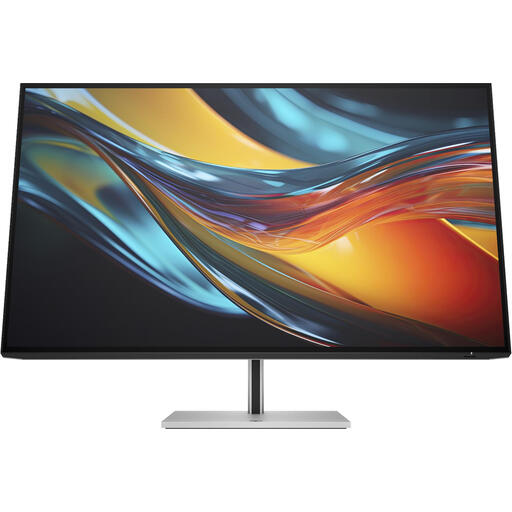 Image unavailable
HP Series 7 Pro 732pk 31.5-inch 4K Thunderbolt 4 monitor
A good fit if you’re looking for a larger canvas and use a laptop setup with Thunderbolt 4.
31.5 inches, 4K and Thunderbolt 4.
Check that the connection and required features are compatible with your laptop.
View at Joybuy
Frequently asked questions
Which colour profile is right for a tulip illustration intended for print?
Match the document profile to the required output. Adobe lists sRGB for uses including the web and many online print services, and Adobe RGB as a possible option for printing saturated natural colours on suitable printers. Ask your printer for its file submission requirements.
How do you set up a second screen in Windows?
Connect the screen, then arrange the detected displays in the display settings. Microsoft Support also explains how to detect a screen that hasn’t been recognised. You can then set the resolution and scaling for that screen.
Is factory calibration enough to assess print colours?
Not always. Adobe explains that calibration, ambient light, paper and colour management in the print workflow all affect how predictable the result will be.
What warranty and cancellation period apply to an online purchase in the Netherlands?
For a consumer purchase, statutory rights apply for as long as the product is expected to meet reasonable expectations; a manufacturer’s warranty doesn’t replace these rights. For a standard online product purchase, you generally have a statutory cancellation period of up to 14 days after delivery, subject to legal exceptions. ACM ConsuWijzer explains these consumer rights.
Where can you take an old monitor?
According to the Dutch Government, when you buy a similar new electrical appliance, the retailer must take back your old one free of charge. You can also use a local council collection point; arrangements for online delivery may vary.


