
Illustrator who needs references alongside the canvas
You want to draw a tram-lined street while keeping photos, sketches or palettes visible on a second screen. Start by choosing a practical workspace and a layout that suits your desk.


When you want references and palettes alongside your canvas, workspace, adjustability and a connection that suits your computer matter more than a wide colour gamut. To assess fine tram tracks and façade details, compare QHD with 4K: BenQ specifies 2560 × 1440 pixels for the PD2705Q, while ASUS and LG list 3840 × 2160 pixels for the 27-inch models mentioned here. For colour-critical prints, profiles, calibration, ambient light and paper matter too. Adobe notes that a colour gamut specification alone does not guarantee a match between screen and print.
You want to draw a tram-lined street while keeping photos, sketches or palettes visible on a second screen. Start by choosing a practical workspace and a layout that suits your desk.
You need to assess fine rails, overhead wires and small architectural features. Compare the resolution with legible interface settings and the space you have on your desk.
You want to judge colours for print. A consistent workflow using profiles and calibration is more important than a wide colour gamut specification alone.
Choose this if: you mainly want extra canvas space, reference images or palettes alongside your main screen, and QHD is enough for your workflow. BenQ specifies 2560 × 1440 pixels for the PD2705Q.
Trade-off: this model has fewer pixels than the 27-inch 4K options mentioned here.
Choose this if: you want to inspect small details on the second screen and your computer, text scaling and desk setup can accommodate it. ASUS and LG specify 3840 × 2160 pixels at 27 inches for the models mentioned here.
Trade-off: more pixels are no substitute for colour management. Check your video output, cable and whether your laptop needs charging too.
Choose this if: you print illustrations with colour accuracy in mind and use profiles, calibration and proofs. EIZO lists, among other features, more than 99% AdobeRGB coverage and hardware calibration for the CS2740.
Trade-off: a wide colour gamut does not guarantee a match with paper. Ambient light and print settings matter too.
| Consideration | What to look for when buying | Which consumers |
|---|---|---|
| Colour for digital illustration | Intended output, available colour mode and how you set up both screens. | I want to assess the colours in my digital tram illustration and find a colour mode that suits my output. Around 29% of consumers put colour reproduction for digital illustrations at the top of their list. |
| Fine details and workspace | Screen size, resolution, text scaling and the position you want it in alongside your existing screen. | If I want to inspect fine rails and small façade details, I look at both resolution and legible interface elements on my desk. Around 23% of consumers prioritise fine details and workspace. |
| Connecting a second screen | Computer model, supported external displays, video output, cable and any USB-C charging power required. | I want to use two screens with my computer without connection problems, so I check what my specific model supports. Around 18% of consumers put a working connection at the top of their list. |
| Colour for print | Printer requirements, necessary profiles, calibration options and the ability to assess a proof. | When I want to print my illustration with colour accuracy in mind, I want to know in advance how the screen settings and print workflow work together. Around 18% of consumers prioritise colour for print. |
| Positioning alongside your main screen | Stand dimensions, adjustability, swivel and tilt options, and distracting reflections. | I want to position my second screen comfortably alongside my main screen, taking into account the available desk space and viewing angle. Around 12% of consumers put physical setup at the top of their list. |
Paper, lighting and colour management all affect how a print looks. A monitor’s colour gamut specification cannot predict the result on its own.
First decide on your intended output workflow, then consider whether the specific model’s colour gamut matters for it.
Calibration, profiles and proofs can take extra time.
The monitor connection alone does not tell you which displays your computer supports or how much charging power your laptop needs.
Before buying, check your computer model, video output, cable and required Power Delivery.
Depending on the connection, you may need a different cable, an adapter or a separate laptop power supply.
A high resolution will not fix an awkward viewing angle, reflections or interface elements that are hard to read.
Consider desk space, adjustability and text scaling alongside the resolution.
The PD2705Q is a 27-inch QHD option for illustration work, with a specified sRGB mode.
According to ASUS, the ProArt PA279CRV combines 27-inch 4K resolution with colour presets.
The 27UP850K-W is a 27-inch 4K option with USB-C for a laptop setup.
The ColorEdge CS2740 is a 27-inch 4K option for colour-managed illustration or print work.
The UltraSharp U2723QE is a 27-inch 4K hub option to compare for connectivity and ergonomics.
Here you’ll find monitors for use as a second screen for illustration work, from QHD and 4K models to a portable Full HD monitor.
 No image available
This QHD monitor could suit you if you want to view references or palettes on a second screen. Check that the resolution works for your workspace.
27 inches; 2560 × 1440 pixels; HDMI 2.0; DisplayPort 1.4.
 No image available
This monitor could suit you if you want to view fine illustration details on a second screen. Also check that the text scaling and desk setup feel comfortable.
27 inches; 4K; IPS.
 No image available
This 4K monitor could suit you if you want to assess fine lines and details on a second screen. Bear in mind the space you’ll need alongside your main screen.
27 inches; 3840 × 2160 pixels; IPS.
 No image available
This monitor could suit you if you want to show fine details on a second screen. Check the connections on both the monitor and your computer before choosing a cable.
27 inches; 3840 × 2160 pixels; IPS.
 No image available
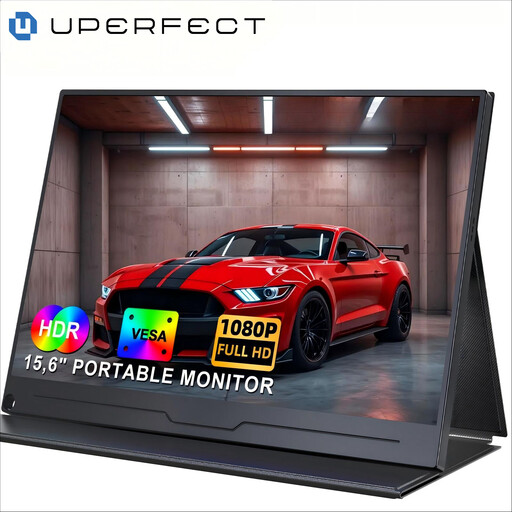
This portable screen could suit you if you’re looking for a smaller second display. Check which video connections are supported by your computer and the screen before you buy.
15.6 inches; 1920 × 1080 pixels; IPS.
No, you don’t need the same model to gain extra workspace. If you also use the second screen for colour-critical work, check the colour settings on each screen separately.
Connect the screen using a video connection supported by your computer, then arrange the displays in your display settings. Apple Support notes that the number of external displays depends on the Mac model, resolution and refresh rate, so check the specifications for your own computer.
No, a wide colour gamut alone is not enough for colour-critical print work. According to Adobe, calibration, ambient light, profiles and paper all matter too. Tailor your workflow to the print you want to produce.