
Illustrator checking colours
You want to assess façade colours on your second screen. A suitable colour mode and the right screen profile are important; calibration may also be relevant if you print your work.


Start by thinking about what you need your second screen for. Choose colour management and a suitable colour space if you want to assess colours; if you want to view façade details and reference images side by side, focus on screen space and placement. For a laptop setup, video connectivity and any USB-C power delivery are also worth checking. Manufacturer specifications describe the model, but don’t guarantee accurate colour throughout your entire workflow.
You want to assess façade colours on your second screen. A suitable colour mode and the right screen profile are important; calibration may also be relevant if you print your work.
You want to view drawing windows, photos and architectural details at the same time. Screen space, resolution and how the monitor fits on your desk all matter.
You want to connect and position your second screen easily every day. Check that the video output and any charging function are compatible with your laptop.
First decide whether colour checking, space for façade details, connectivity or your workstation setup matters most to you.
| What to consider | What to look for when buying | Who is this important for? |
|---|---|---|
| Colour checking | Check the specified colour space, colour modes and calibration options for the exact model. Match the active screen mode to your operating system’s colour profile. | If I want to assess façade colours, I look at the colour mode and profile, especially if my work is also going to print. Around 33% of consumers put colour checking first when buying. |
| Space for details | Compare the resolution and screen size with the space available on your desk. Remember to include the stand in your measurements, and consider where your existing screen is positioned. | If I want to see fine lines, reference photos and drawing panels side by side, I start by considering how much usable workspace I have. Around 27% of consumers give space for details their highest priority. |
| Connectivity | Check which video signals your computer supports and compare the ports on both devices. For USB-C, also check whether video works through that port and whether the stated charging power is suitable for your laptop. | If I want to connect my laptop easily, I first check the video connection and whether a single cable can also provide enough power. Around 20% of consumers put connectivity first. |
| Workstation setup | Check the height and tilt adjustments, whether it supports VESA mounting, and how much space you’ll need. Also consider where the windows are in relation to the screen. | When I’m drawing for long periods, I want to position the screen comfortably and minimise distracting reflections. Around 20% of consumers make workstation setup their top buying priority. |
A stated sRGB coverage figure doesn’t, by itself, tell you which colour mode is active, which profile your computer is using or what the final print will look like.
Check the colour mode and corresponding ICC profile for the exact model. Adobe cautions that calibrating a screen alone doesn’t guarantee accurate colour throughout your entire workflow.
Setting up and checking colour can take extra time and, depending on your workflow, may require measuring equipment.
ASUS lists USB-C with 65 W Power Delivery for the PA278CV; the port list consulted for the PA278QV doesn’t include this connection.
Before buying, compare the full model number and port list. Also check whether your laptop’s USB-C port outputs video and whether the charging power is suitable.
Depending on your laptop and setup, you may need a different cable or a separate laptop charger.
A screen and stand take up physical space. If you position the monitor badly in relation to windows, distracting reflections can also be an issue.
Measure the available width and depth, including the stand, and decide where the screen can go. If you’re using a monitor arm, check that the mount is compatible too.
A monitor arm needs a compatible mount; an adjustable stand takes up desk space.
A commercial warranty period doesn’t automatically determine when your rights against the retailer end. ACM ConsuWijzer states that there is no standard statutory warranty period of two years.
Keep your proof of purchase and product description. If there’s a fault, speak to the retailer and explain what you could reasonably expect from the product.
The DesignVue PD2705Q is a 27-inch QHD model that could work as a second screen if colour settings and a USB-C connection are important to you.
The ProArt PA278QV and PA278CV are 27-inch QHD models; pay particular attention to the connections included with the version you choose.
The ColorEdge CS2731 is designed for graphic work where extensive colour settings and hardware calibration are important.
The UltraSharp U2724D is a 27-inch QHD model with a height-adjustable stand, which could be useful for a second workspace.
According to Philips, the 27E1N5600HE/01 combines QHD with USB-C and a built-in webcam. That extra feature is most useful if you also use the monitor for meetings.
This selection focuses on screen space for lines, façade details and reference images. Check colour management and your computer’s connections separately when choosing a model.
 No image available
The stated screen size and resolution are suited to a setup where you want to view façade references and drawing windows side by side.
27 inches; 2560 × 1440 pixels; 2 × HDMI 2.0 and 1 × DisplayPort 1.4.
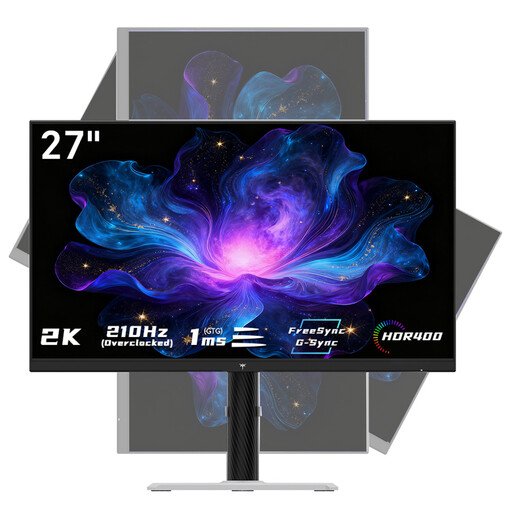 No image available
This model is worth considering if you’re looking for a QHD screen that you can adjust to suit your desk setup.
2560 × 1440 pixels; the product information lists a stand with height, tilt and swivel adjustment.
 No image available
This 27-inch QHD model suits a workspace where you want to view illustrations and reference images on a second screen.
2560 × 1440 pixels; IPS. The product information lists sRGB 114% and DCI-P3 92% gamut values; these are stated specifications, not independent measurements.
 No image available
The stated 4K UHD resolution is worth considering if you want to view fine façade details on your second screen.
3840 × 2160 pixels; IPS; HDMI and DisplayPort; height-adjustable stand.
 No image available
This 27-inch QHD model is an option for viewing drawing windows and façade references on a second screen.
2560 × 1440 pixels; the product information lists 99% sRGB and a stand with height, tilt, swivel and pivot adjustment. These are stated specifications, not independent measurements.
For colour checking, the active colour setting needs to match the ICC profile in your operating system. Adobe cautions that factory calibration alone doesn’t guarantee accurate colour throughout your entire workflow.
No, it depends on the ports and compatibility of both devices. Check that your computer supports video through the USB-C port you plan to use and that the exact monitor’s stated Power Delivery output is suitable for your laptop.
Where possible, position the screen so that windows don’t cause distracting reflections, and check that you can adjust the monitor to suit you. Arboportaal includes adjustability and avoiding reflections among the considerations for setting up a screen workstation.
When you buy online from a business, you’re generally entitled to a 14-day cooling-off period, although there are exceptions, according to the Dutch government. For a faulty product, there isn’t automatically a standard statutory warranty period of two years: ACM ConsuWijzer explains that you should raise the issue with the retailer, based on what you could reasonably expect from the product.
Not simply because you illustrate. Arboportaal’s information about requirements for screen-based work applies to the working situations it describes; it isn’t a general requirement for every individual buyer.