Choose a second monitor based on what you want to see at the same time during your broadcast and which video output your computer supports. An adjustable screen of around 24 inches may suit a compact mixing desk. A larger QHD screen gives you more room for windows, but takes up more space. USB-C docking will only work as intended if both your laptop and monitor support the necessary video and power features.
Who can benefit from a second monitor?
Creator with a compact mixing desk
You want to be able to read your running order or messages alongside the mixer without rearranging the desk. Arboportaal recommends positioning a screen directly in front of you, so remember to measure the space for the stand and check that it’s adjustable.
Creator using a laptop as a studio computer
You want to connect a second screen without assuming that every USB-C port supports video output. Check your laptop’s video output and the monitor’s features. Lenovo explains that USB-C video depends on support from both devices.
Creator who needs several windows on screen
You may want to view programme windows, your running order and messages all at once. OBS documentation explains that, if you use OBS, you can project image sources onto another connected screen.
What should you look for when choosing?
Compact screen with HDMI or DisplayPort
Choose this when: you mainly want to put a running order, chat or meters next to your main screen, and your computer has a suitable video output.
Trade-off: check the cable and ports on both devices. According to Dell, the USB-C port on the Dell P2425H is a data output, not a confirmed video input.
Screen with USB-C docking
Choose this when: your laptop supports USB-C video and you also want features such as charging your laptop through the monitor.
Trade-off: a USB-C port alone doesn’t guarantee video output or the charging power you need. LG lists 65 W Power Delivery for the 24BA750-B.
Larger QHD screen
Choose this when: you want to arrange several windows at once and have enough room on your desk.
Trade-off: a larger screen takes up more space. Also check your computer’s video output and any scaling settings.
| What to consider |
What should you check? |
Who is this important for? |
| Connection |
Check your computer’s available video output, the monitor’s video input and the right cable. Assess USB-C video and Power Delivery separately. |
I want a working second desktop during the broadcast, without any connection surprises. Around 36% of consumers put a reliable connection first. |
| Room for windows |
Think about which windows need to be open at the same time, then compare the screen size and resolution with the space available on your desk. |
I want to see my running order, messages and programme windows at a glance. Around 29% of consumers start by considering their need to view several windows at once. |
| Set-up |
Measure the space for the screen and stand; check the height adjustment, tilt and any mounting requirements for the exact model. |
I want to position the screen to suit where I sit and the equipment on my mixing desk. For around 21% of consumers, placement and adjustability come first. |
| Features you need |
Check which features you’ll actually use and whether the required cables or mounting parts will work with your set-up. |
I want to choose features that work with my computer and the way I work, rather than assume that connection options will be compatible. Around 14% of consumers focus mainly on the features their own set-up needs. |
Common mistakes
-
Assuming a USB-C port is a video input
According to Dell, the USB-C port on the Dell P2425H is for data; LG lists USB-C with Power Delivery for the 24BA750-B. So the same connector shape doesn’t guarantee the same features.
Check your computer’s video output, the monitor’s video input and the charging power required separately.
If your planned USB-C set-up isn’t supported, you may need a separate adapter or dock.
-
Treating almost identical model codes as the same screen
The AOC Q27E4CV and U27E4CV have different model codes. The specifications for one model don’t automatically apply to the other.
Before choosing, compare the full model code and the key specifications of the exact screen.
-
Choosing based only on screen size or resolution
The stand, adjustability and available video outputs also determine whether a screen will fit on your mixing desk and work with your computer.
Measure the space available and check the ports, cables and adjustment options for the exact model.
-
Assuming a set number of years of statutory guarantee
The Dutch government explains that there is no fixed statutory guarantee period in the Netherlands; your statutory rights and any manufacturer’s guarantee are not the same thing.
Keep your proof of purchase and product specifications, and contact the seller if there’s a fault.
Brands and models to consider
Dell
The P2425H and P2425 are examples of Full HD at 23.8 inches and 16:10 at 24.07 inches, respectively.
- Dell lists adjustability, HDMI and DisplayPort connections for these models.
- The USB-C downstream port on these models is for data; don’t assume it’s a video input for docking.
LG
The 24BA750-B is a 23.8-inch Full HD model to consider if you’re looking for an adjustable screen with laptop docking.
- LG lists USB-C with 65 W Power Delivery and an adjustable stand.
- Single-cable use depends on your laptop’s video and charging support.
Philips
The Business Monitor 24B2G5301/00 is a 23.8-inch Full HD model with USB-C docking.
- Philips lists a dock and LightSensor.
- According to Philips, PowerSensor 2 only works with Windows 11.
AOC
The Q27E4CV is a larger QHD model to consider if you’re looking for more screen space and USB-C docking.
- For this model, AOC lists a 27-inch screen, 2560 × 1440 pixels, height adjustment and 90 W Power Delivery.
- Check the full model code: a different code may refer to a different screen.
iiyama
The ProLite XUB2493HS-B6 is an example of a compact, adjustable monitor that the manufacturer describes as suitable for multi-screen use.
- The manufacturer lists HDMI, DisplayPort and 150 mm of height adjustment for this model.
- iiyama marks the XUB2493HS-B6 as end of life and names the XB2491HS-B1 as its successor, so don’t treat older availability information as current.
Monitors at Joybuy
This Joybuy selection includes 24- and 27-inch screens, with resolutions ranging from Full HD to 4K. Compare the space available on your desk, the window layout you want and the connections explicitly listed for each model.
 No image available
AOC Gaming Q27G42XNE 27-inch Quad HD monitor
The 27-inch QHD format is an option if you want more room for your running order and windows, and have space for a larger screen.
27 inches; 2560 × 1440 pixels; 2 × HDMI 2.0 and 1 × DisplayPort 1.4.
Joybuy
 No image available
LG UltraFine 27U711B-B 27-inch 4K IPS monitor
This larger screen may suit you if you’re looking for more screen space and have enough room on your desk.
27 inches; 4K; IPS panel.
Joybuy
 No image available
Philips Evnia 27M2N3500NF 27-inch QHD monitor
The 27-inch QHD format is worth considering if you want extra room for windows and have space for the screen on your desk.
27 inches; 2560 × 1440 pixels; HDMI 2.0 and DisplayPort 1.4.
Joybuy
 No image available
Philips 27E1N1800AE/00 27-inch 4K UHD IPS monitor
A larger 4K screen may be a good fit if resolution and screen space matter to you and you have enough room on your desk.
27 inches; 3840 × 2160 pixels; IPS; 60 Hz; 4 ms; HDMI and DisplayPort; height-adjustable stand.
Joybuy
 No image available
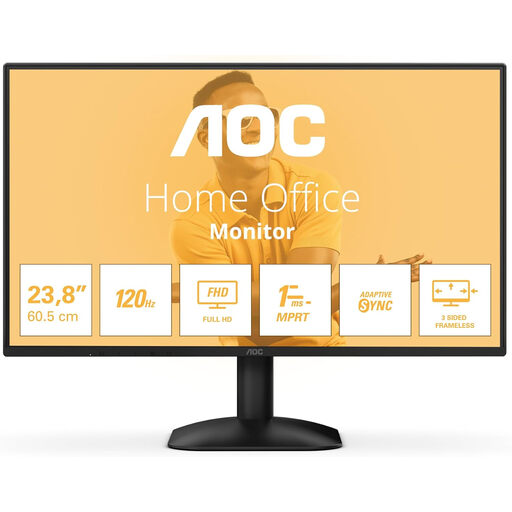
AOC 24B31H 24-inch Full HD monitor
The 24-inch size may be a good choice if you want to place a smaller screen next to the mixer; measure the space available first.
24 inches; 1920 × 1080 pixels; HDMI and DisplayPort; headphone output.
Joybuy
Frequently asked questions
Does my second monitor have to show the same image as my main screen?
No. If your computer supports multiple screens, you can set them up as separate workspaces and arrange their positions. Microsoft Support explains how to set up screens in Windows; also check the capabilities of your own computer and operating system.
Can I show the programme preview on a second screen?
Yes. If you use OBS Studio and your computer supports the extra screen, OBS documentation says you can project scenes, the programme, the preview or Multiview onto another screen, among other things. This doesn’t automatically tell you anything about the features of other software.
How should you set up a second screen for extended use?
Arboportaal recommends placing the screen directly in front of you, with the top just below eye level and your gaze angled slightly downwards. If you use two screens, position the one you work on most favourably. Specific workplace regulations apply to employees who work at a screen for more than two hours a day; these rules for employers don’t automatically apply to every volunteer.
What guarantee and cooling-off period apply to an online purchase in the Netherlands?
When you buy as a consumer, you’re entitled to a product that meets your reasonable expectations; the Dutch government states that there is no fixed statutory guarantee period. For a standard online consumer purchase from a professional seller, you’ll generally have a 14-day cooling-off period from delivery, subject to legal exceptions and possible return costs. Consumer rules don’t automatically apply to business purchases.
Does a CE mark prove that a monitor is high quality?
No. A CE mark isn’t a quality mark or independent approval. Dutch government information describes it as the manufacturer’s declaration that the product complies with the applicable EU rules. Don’t assume that a particular item complies simply because of its brand name.


