For code on one screen and terminal output or documentation on the other, a monitor that fits on your desk and is easy to read at your usual text size is a sensible first choice. Also check that your computer, cables and monitors support the setup you want: a DP output alone doesn’t guarantee that daisy-chaining will work. TNO recommends arranging your screens to suit how much time you spend working on each one.
Who is this buying guide for?
Developers who split their work between code and test output
You mainly use one screen for your current task and the other for terminal output or documentation. TNO recommends arranging your screens to suit how much time you spend working on each one.
Developers using a laptop with an external monitor
You want more workspace without having to keep swapping connections. Check the video and power capabilities of your specific laptop before relying on USB-C or daisy-chaining; Dell Support explains the requirements for daisy-chain connections.
Developers with limited desk space
You want two easy-to-read work areas, but need to balance screen size and adjustability against the space available on your desk. Samsung Netherlands also highlights the available desk space and the type of work when choosing a screen size.
What should you look for when buying?
Start with readability and space for two screens, then check the connections and options for setting up your workspace properly.
| What to consider |
What should you check? |
Who is this important for? |
| Readable space for code and terminal work |
Try your usual text size and window layout; compare both the resolution and screen size of the exact model. |
If I want to read code and output at the same time without constantly moving windows, readability comes first. Around 33% of consumers put readable workspace at the top of their list. |
| Connections between the computer and screens |
Check your computer model, the number of external screens it supports and the video connection required. For daisy-chaining, also check that both monitors support it. |
If I use a laptop, I want to know in advance whether it can run both screens and whether the intended connection will work. Around 33% of consumers prioritise certainty about connecting two screens. |
| Adjustability and desk layout |
Measure the available space and check the adjustment options of the exact model. Also decide which screen will be directly in front of you. |
If space is limited or I use one screen much more often, I want to be able to set up the screens accordingly. Around 25% of consumers put positioning and adjustability at the top of their list. |
| Total purchase and running costs |
Look at the cost of the complete setup and compare the energy labels and product information for the specific models. |
If I want to keep total spending under control, I also factor in any cables I need and the energy consumption of the screens I choose. Around 9% of consumers prioritise total costs. |
Buying pitfalls
-
Assuming a DP output guarantees two working screens
A daisy-chain setup depends on the computer, connection and monitors working together. Dell Support sets out specific requirements; a port on the monitor alone doesn’t prove that your setup will work.
Check your computer’s documentation and the complete signal path before relying on a single cable.
You may need a different connection method or a suitable adapter. Check before buying cables.
-
Comparing only the screen diagonal or pixel count
The 23.8-inch and 27-inch QHD models mentioned have the same pixel dimensions, but differ in physical screen size. So the way an image appears depends on more than just the number of pixels.
Assess text at your usual viewing distance and scaling setting, and check whether two screens will fit on your desk.
-
Assuming a two-year warranty is the limit of your rights
According to ACM ConsuWijzer, the statutory guarantee in the Netherlands depends on what you could reasonably expect from the product with normal use; the law does not set one fixed two-year period.
Keep your proof of purchase and contact the seller if a product develops a fault too soon.
Brands to consider
Dell
The Pro Plus P2425DE and P2725DE offer a choice of 23.8-inch or 27-inch QHD screens with USB-C hub features.
- The model specifications make it easy to compare screen size, resolution and connections.
- Dell Support explains the requirements for daisy-chaining; having a port alone doesn’t guarantee that the setup will work.
Lenovo
The ThinkVision T27h-30 is a 27-inch QHD option with USB-C docking, DP out and an adjustable stand.
- Lenovo lists this model’s connections and adjustment options.
- The stated benefits of daisy-chaining are manufacturer claims; check that it works with your computer.
LG
The UltraFine 27UP850K-W is a 27-inch 4K option with USB-C and pivot adjustment.
- LG lists a resolution of 3840 × 2160 pixels, along with height, tilt and pivot adjustment.
- These specifications don’t show whether your computer supports two 4K screens or your preferred scaling setting.
Philips
The 27E1N5600AE/00 is a 27-inch QHD USB-C option for a laptop with a compatible video connection.
- Philips describes video, data and power over a single cable for compatible devices.
- Don’t assume this applies to every laptop or daisy-chain setup without checking.
Products at Joybuy
This selection ranges from portable extra screen space to 27-inch QHD and 4K monitors, as well as a wider screen. Check whether your computer supports the screens and connections you want for each model.
 No image available
Portable Monitor PM14R, 14-inch IPS, 1920 × 1200
A portable extra screen to give you more workspace alongside your laptop screen.
The title lists a 14-inch IPS screen, 1920 × 1200 pixels, a 16:10 aspect ratio, and Type-C and Mini-HDMI connections. Video and power over a single cable depend on support from the connected device.
View at Joybuy
 No image available
MSI Modern MD272UPHG, 27-inch 4K
A 27-inch 4K option if you want to view text and windows on a larger screen.
The product title lists 3840 × 2160 pixels and 4K Ultra HD. Check whether your computer supports the resolution you want alongside your other screen.
View at Joybuy
 No image available
Dell Pro Plus P2425DE, 24-inch QHD
A compact QHD option to add workspace alongside an existing screen.
The product title lists 2560 × 1440 pixels. Assess readability at your own viewing distance and text size.
View at Joybuy
 No image available
Dell Pro Plus P3425WE, 34.1-inch Wide Quad HD
A wider screen for viewing several windows side by side; remember to consider the space available on your desk.
The product title lists 3440 × 1440 pixels, a USB-C dock and a KVM switch.
View at Joybuy
 No image available
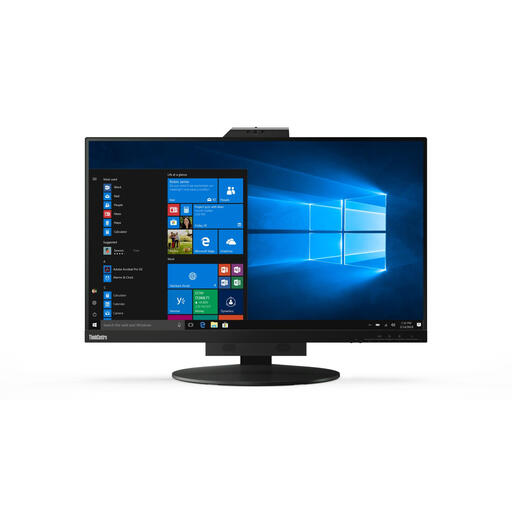
Lenovo ThinkCentre Tiny-In-One 27, 27-inch Quad HD
A 27-inch QHD option to consider as a more spacious second workspace.
The product title lists 2560 × 1440 pixels. USB-C DisplayPort Alt Mode is not supported; check which video connection your computer and screen can use.
View at Joybuy
Frequently asked questions
How should you arrange an editor and terminal across two screens?
If you mainly use one screen for active work, TNO recommends placing it directly in front of you, with the less-used screen slightly angled beside it. If you use both screens equally, TNO recommends arranging them in a shallow V, with the join directly in front of you. This ergonomic advice does not recommend a specific monitor model.
Can you daisy-chain two monitors using HDMI?
Not using HDMI daisy-chaining, according to the connection guide from Dell Support. Before setting up a daisy-chain, check that your computer, connection and both monitors support it; you can also connect the screens separately if your computer supports this.
What can you do if a monitor isn’t suitable or develops a fault?
For a typical online consumer purchase, you generally have a statutory 14-day cooling-off period from delivery, with some exceptions; ACM ConsuWijzer explains the rules. In the Netherlands, the statutory guarantee is not automatically limited to two years: if a product does not meet what you could reasonably expect with normal use, contact the seller.
What should you bear in mind when working from home with two screens for long periods?
For employees, Dutch government guidance states that employers are responsible for providing a good and safe home-working environment. Arboportaal outlines considerations for screen-based work, including breaks or varying tasks and setting up your workspace. What applies depends on the employment context; this is not a general legal obligation for every private monitor buyer.
How do you compare the energy consumption of two monitors?
Compare the energy label and product information for the exact models. The European Commission describes an A-to-G scale for electronic displays; don’t use the rating alone to estimate your annual costs.


