
Editor who assesses colour
You want to view interview footage on the second screen and match its display to your chosen output colour space.


If you use the second screen to assess interview footage, start by choosing a monitor with a colour mode suited to your SDR or HDR output. For a timeline or a separate preview, a general-purpose 4K screen may be enough. Choose a USB-C or Thunderbolt model only if its video connection and charging power are compatible with your computer. Adobe explains how to display video on a second monitor in Premiere.
You want to view interview footage on the second screen and match its display to your chosen output colour space.
You’re looking for a second 4K screen that can also charge your laptop through a compatible connection. The video connection and charging power you need will determine which models are suitable.
You want to spread your timeline, editing panels or full-screen preview across two screens, and prioritise positioning and connections over specialist colour features.
First decide whether the second screen is for assessing colour or mainly for extra workspace. Then check that its connection, any laptop charging and physical setup are compatible with your equipment.
| What to consider | What to check before buying | For shoppers who prioritise this |
|---|---|---|
| Colour reproduction for your final output | Match the screen mode to your SDR or HDR output and check the colour settings in your editing software. A 4K or HDR label alone doesn’t guarantee suitable colour reproduction. | If I’m assessing the colour of interview footage, I want to be able to match the screen mode to my final output. Around 36% of shoppers put colour reproduction first. |
| Connection and charging | Check that your computer can output video through the relevant USB-C or Thunderbolt port, and that the stated charging power is suitable for your laptop. | If I want to connect my laptop with a single cable, I also check that it receives enough power. Around 29% of shoppers prioritise connectivity and, where needed, charging. |
| A practical 4K workspace | Check the resolution and inputs of the exact model. Don’t assume it’s suitable for colour work unless this is supported by information about that model. | If I mainly want a timeline or separate preview on a second 4K screen, I’m looking for a practical workspace without unnecessary features. Around 21% of shoppers make this their main priority. |
| Positioning two screens | Check the model’s dimensions, adjustability and, if applicable, VESA mounting, then compare them with the space available on your desk. | If I use two screens side by side, I want to be able to position and align them comfortably. Around 14% of shoppers prioritise positioning and ergonomics. |
Resolution and an HDR label alone don’t tell you whether the colour reproduction is suited to your edit’s output colour space.
Choose your SDR or HDR workflow first, then check the corresponding screen mode and software settings. Don’t use a general-purpose second screen as a colour reference without checking it first.
The monitors reviewed list different connections and charging capacities. The connection needs to support both your video output and your laptop’s power requirements.
Check the video output, supported protocol, power required and cable for the exact model.
Hardware calibration can be useful for regular colour-critical work, but it isn’t necessarily needed if your second screen is mainly for editing panels.
Decide in advance whether you’ll use the screen to assess colour or mainly as extra workspace. Check what tools your intended calibration workflow requires.
The Creative Pro PD2725U is a 27-inch 4K option for anyone looking for a dedicated interview preview and a specified Rec.709 mode.
According to ASUS, the ProArt PA279CRV combines a 27-inch 4K screen with colour presets and USB-C.
The UltraFine 27UP850K-W is a 27-inch 4K option with USB-C and an adjustable stand.
The 27E1N1800AE/00 is a general-purpose 27-inch 4K option when your second screen is mainly for extra workspace.
The ColorEdge CS2740 is a specialist 4K option for regular colour-critical work where you want to use hardware calibration.
This selection includes 4K monitors for a second preview or workspace, plus one USB-C to HDMI cable. The cable is an accessory, not a monitor.
 No image available
An option if you’re looking for a larger second 4K workspace; check that it will fit on your desk.
32 inches, VA, 3840 × 2160 pixels and 60 Hz. The product name also lists HDMI, DisplayPort and a tilt-adjustable stand.
 No image available
A 27-inch option for a second 4K workspace; check the connections on the exact version to make sure they’re compatible with your computer.
The product name lists a 4K IPS screen.
 No image available
A 32-inch 4K option; before buying, check that its connections and setup suit your computer and desk.
The product name lists 120 Hz and QD-OLED.
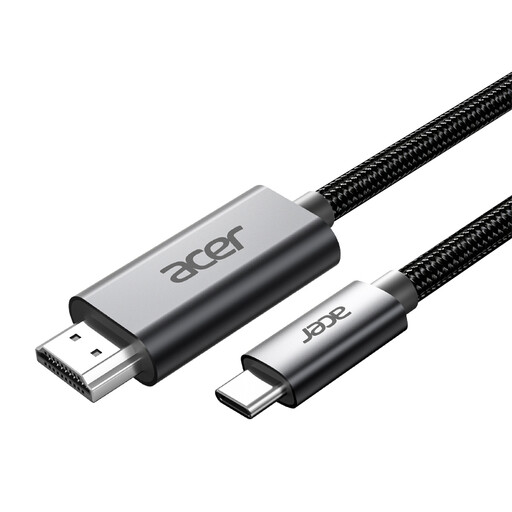 No image available
This is a cable, not a second monitor. Consider it only if your setup requires a USB-C to HDMI connection.
The product name lists 4K at 60 Hz and a length of 2 m (6.6FT).
 No image available
A 27-inch option for a separate 4K preview or extra workspace; check your computer’s connections.
The product name lists 3840 × 2160 pixels, 60 Hz, HDMI, DisplayPort and a height-adjustable stand.
Adobe explains that you can display video on a second monitor by selecting ‘Enable Mercury Transmit’ under Playback. Then select the connected monitor as the output for the Program Monitor. Whether your computer can drive two screens also depends on the computer and its connections.
Not just because it has 4K resolution. First decide whether you’re delivering in SDR or HDR: Adobe describes separate colour settings and a Rec.709 SDR output. An HDR label alone doesn’t prove that a monitor is suitable for assessing your HDR footage.
No. Check that your laptop supports video through the relevant USB-C or Thunderbolt port and how much charging power it needs. BenQ lists 65 W power delivery via Thunderbolt 3 for the PD2725U; LG lists up to 96 W charging via USB-C for the 27UP850K-W.
When you buy as a consumer in the Netherlands, you’re entitled to a product that works properly, and the seller is your point of contact for a solution. According to the Dutch government, there is no fixed statutory guarantee period in the Netherlands; a manufacturer’s guarantee is in addition to your statutory rights.
The European Commission states that computer monitors are covered by the energy label for electronic displays. The label uses a scale from A to G and includes information about energy use in SDR and HDR. Check the label and product information sheet for the exact model.
According to ACM ConsuWijzer, ordinary online consumer purchases generally come with a statutory cooling-off period of up to 14 days after delivery. Exceptions apply, so check these and the returns policy before you order.