Who is this guide for?

Writer who keeps reference materials alongside the script

You want to keep your research, a transcript or notes visible while you write. Choose a monitor based on both the usable window space and the width of your desk; Samsung Netherlands and LG Netherlands identify the type of work and the space available as factors when choosing a screen.

Writer who works for long stretches

You read and rewrite for extended periods and want to be able to adjust the monitor’s position at your workstation. Taking breaks and setting up your workstation properly matter too. Arboportaal offers advice on posture and breaks when working with screens.

Scriptwriter with a laptop

You want to connect an external screen and possibly some peripherals. Check that the monitor’s video connection and any charging function are compatible with your laptop’s ports and charging requirements.

What should you look for when choosing?

What to consider What should you check? Who should bear this in mind?
Viewing your script and reference materials at the same time Compare the screen size, resolution and aspect ratio with the windows you want to use side by side. If I want to view my script and research at the same time, I want to spend less time switching between windows. Around 33% of consumers prioritise having enough space to read several things at once.
Readability and adjustability View text at your usual scaling setting and check the height adjustment, reflections, and the position of the screen and keyboard. During long writing sessions, I want text to be comfortable to read and the screen position to be adjustable. Around 27% of consumers prioritise reading comfort.
Desk space Measure the usable space, including the monitor stand, and leave room for your keyboard and documents. With limited desk space, I want to know first whether the screen and stand will fit, even if that means I can see fewer windows at once. Around 20% of consumers prioritise a compact setup.
Connecting a laptop and peripherals Compare your laptop’s output, the monitor’s input, the cable and your charging requirements; USB-C ports can have different functions. If I want to connect my laptop and peripherals, I want to know in advance whether the connection supports video, data and, if required, charging. Around 20% of consumers prioritise laptop connectivity.

What to consider before buying

  • Assuming a USB-C port is a full laptop dock

    USB-C doesn’t offer the same functions on every model. Dell lists the P2425 as having a USB-C downstream port for data only; BenQ lists the GW2790QT as having USB-C with DisplayPort Alt Mode and 65 W Power Delivery.

    Check the port functions on both your monitor and laptop, and make sure the cable and charging capacity suit your setup.

    Depending on your laptop and existing accessories, you may need a separate video cable, power adapter or dock.

  • Choosing an ultrawide without measuring your setup

    Extra room for windows also calls for more desk width. LG lists the 34WR55QC-B as 809 mm wide, including its stand.

    Measure the usable width of your desk and leave enough room for your keyboard and documents.

    A wide screen may require you to rearrange your desk or use a monitor stand.

  • Confusing high resolution with larger text

    A higher resolution won’t automatically set the text scaling or screen position correctly. Microsoft Support explains how to adjust scaling and display layout in Windows.

    Try your usual document layout at the recommended resolution and adjust the text scaling if needed.

  • Assuming an extended warranty replaces your statutory rights

    ACM ConsuWijzer distinguishes between the legal guarantee and any additional seller or manufacturer’s warranty.

    Check what extra cover an extended warranty offers in addition to your existing statutory rights.

Brands to consider

Dell

The Dutch Pro Plus models mentioned include a compact 24.07-inch 16:10 version and a 27-inch QHD model with a USB-C hub.

  • Dell specifies that the P2425 has a USB-C downstream port for data only, while the P2725DE is a USB-C hub monitor with 90 W power delivery.
  • These details apply to these specific models; they are not an independent performance test or a statement about the entire range.

LG

The LG 34WR55QC-B is an ultrawide model for anyone who wants to view several windows side by side.

  • LG lists this model as having a resolution of 3440 × 1440 pixels, a height-adjustable stand and USB-C with 65 W power delivery. Its stated width, including the stand, is 809 mm.
  • These specifications apply to the 34WR55QC-B and don’t indicate what other LG monitors offer.

BenQ

The GW2790QT is a 27-inch QHD model to consider for a laptop setup with USB-C.

  • According to BenQ’s European datasheet, this model has a height-adjustable stand and USB-C with DisplayPort Alt Mode and 65 W Power Delivery.
  • BenQ uses its own terms to describe eye comfort; these aren’t an independent comparison of perceived eye strain.

Philips

The Business Monitor 24B2N4200/00 is a compact 23.8-inch Full HD option for working with documents.

  • Philips lists a resolution of 1920 × 1080 pixels and a SmartErgoBase for this model.
  • Philips’ claims about smoother working or reduced visual fatigue haven’t been independently verified here.

Monitors at Joybuy

These product options range from compact monitors to wide screens for anyone who wants to view their script and reference materials at the same time. Choose a size to suit your window layout and desk space; keyboard shortcuts themselves depend on your writing software and keyboard.

Dell Pro Plus P2725D, 27 inches, 2560 × 1440 pixels

Dell Pro Plus P2725D

An option to consider if you want to view your script and reference materials side by side. 27 inches; 2560 × 1440 pixels; Quad HD.

View at Joybuy

Dell Pro Plus P3425WE, 34.1 inches, 3440 × 1440 pixels

Dell Pro Plus P3425WE

A wide-screen option if you want to view several work windows at once. 34.1 inches; 3440 × 1440 pixels; Wide Quad HD.

View at Joybuy
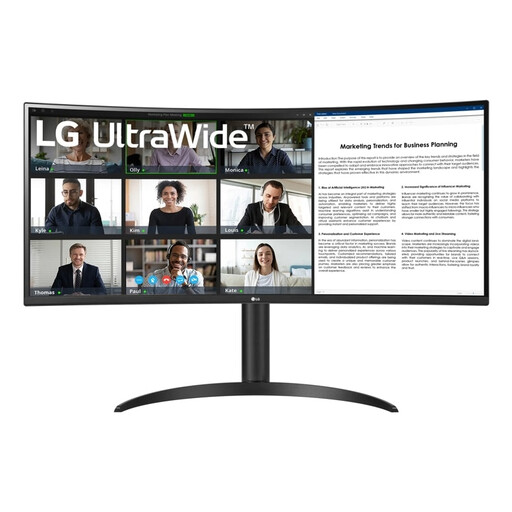
LG 34WR55QK-B, 34 inches, 3440 × 1440 pixels

LG 34WR55QK-B

Worth considering if you want to keep your script and research side by side. 34 inches; 3440 × 1440 pixels; Wide Quad HD.

View at Joybuy

Dell UltraSharp U4924DW, 49 inches, 5120 × 1440 pixels

Dell UltraSharp U4924DW

An extra-wide screen to consider if you want to keep lots of work windows open at once. 49 inches; 5120 × 1440 pixels; 5K Ultra HD.

View at Joybuy
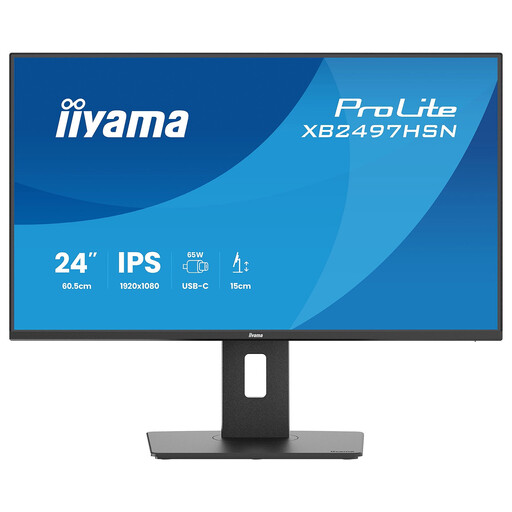
iiyama ProLite XB2497HSN-B1, 24 inches, Full HD, 100 Hz, IPS

iiyama ProLite XB2497HSN-B1

A compact option to consider if you mainly work on a single script. 24 inches; Full HD; 100 Hz; IPS.

View at Joybuy

Frequently asked questions

Does a monitor make your keyboard shortcuts faster or change how they work?

No. Keyboard shortcuts are functions of your writing software and keyboard; Final Draft, for example, explains how Enter and Tab work in its software. So choose a monitor based on the visible workspace and your workstation layout, and check the shortcuts in your own software.

How do you set up a new screen for comfortable script reading?

In Windows, check the recommended resolution and adjust the scaling for text and apps if needed. Microsoft Support explains where to find these settings. For extended periods of screen work, Arboportaal also recommends varying your posture and looking away from the screen regularly.

Does a monitor’s USB-C port always provide both video and power to your laptop?

No, this varies by model. Dell lists the P2425 as having a USB-C downstream port for data only; BenQ’s European datasheet lists the GW2790QT as having USB-C with DisplayPort Alt Mode and 65 W Power Delivery. Compare these features with your laptop’s port and charging requirements.

What are your rights when buying a monitor online in the Netherlands?

According to ACM ConsuWijzer, online consumer purchases generally come with a statutory cooling-off period of up to 14 days after delivery; check the applicable exceptions and returns policy too. The legal guarantee is separate from any manufacturer’s or extended warranty. If a product is faulty, the seller is responsible for providing an appropriate solution.

Do Dutch workplace rules apply if you write scripts for work?

Arboportaal explains the obligations for employers relating to screen work. If employees work with screens for more than two hours a day, the screen and keyboard must not be attached to each other, according to the portal. These rules concern working conditions for employees and aren’t automatically product requirements for every private buyer.
