What should you consider when choosing?
Start with how you want to draw: on an existing monitor or directly on a display. Then check the space available, the connections and your software workflow.
Screenless drawing tablet
A good fit if: you can draw on an existing monitor and want to put the tablet away after use.
The trade-off: you look at the monitor while drawing on a separate surface, and you’ll still need the computer and monitor.
Pen display
A good fit if: seeing the line directly beneath the pen tip matters, for example when adding hand-drawn details.
The trade-off: the display takes up space, and its video and power connections need to be compatible with your work computer.
| What to consider |
What should you check? |
Who will find this important? |
| Workspace and screenless drawing |
Compare the overall dimensions and active area. Check whether the tablet will fit next to your keyboard and monitor, and whether you can put it away after use. |
At a shared desk, I want to clear my drawing space quickly when I’m finished; around 33% of consumers give workspace and storage top priority. |
| A clear view of details |
Check the screen size and positioning, the video and power connections available, and which cables are included. |
When I’m adding lots of hand-drawn map details, I want to see the line directly beneath the pen; around 27% of consumers prioritise a direct view of the image. |
| Illustration and mapping software |
Check the operating system, driver permissions and pen input in your own applications. Also test the editing tools you need for map geometry. |
If I edit map geometry as well as illustrating, I want pen input to work in my own programmes; around 20% of consumers give their software workflow top priority. |
| Changing workspaces and connections |
Check the USB ports, whether Bluetooth pairing is permitted, driver permissions and what’s included in the bundle you choose. |
When I work at different desks, I want to connect the tablet without having to figure everything out again; around 20% of consumers give changing workspaces top priority. |
Joybuy products
This Joybuy selection includes devices with different ways of drawing. Compare each model’s intended use, dimensions and connections with your shared workspace and mapping software.
 No image available
Wacom One Pen Display 14.0"
A pen display for anyone who wants to see the line directly beneath the pen tip.
Active area: 309 × 174 mm. Overall dimensions: 336 × 201 × 10 mm. Pen included.
View at Joybuy
 No image available
Wacom Intuos Pro Medium
A screenless tablet for drawing while looking at a separate monitor.
Active area: 263 × 148 mm. The product description lists USB-C, Bluetooth, ExpressKeys and a touch ring.
Listed weight: 400 g; thickness: 7 mm.
View at Joybuy
 No image available
Wacom Intuos Pro Large – Pro Pen 3
A screenless tablet for drawing while looking at a separate monitor.
Active area: 349 × 195 mm. Overall dimensions: 377 × 253 × 7 mm; listed weight: 660 g.
The product name lists 8.192 pressure levels, Bluetooth and USB-C.
View at Joybuy
 No image available
Wacom Intuos Pro Small
A screenless tablet for drawing while looking at a separate monitor.
Active area: 187 × 105 mm. Overall dimensions: 215 × 163 × 7 mm; listed weight: 240 g.
The product description lists USB-C, Bluetooth, ExpressKeys and an included Pro Pen.
View at Joybuy
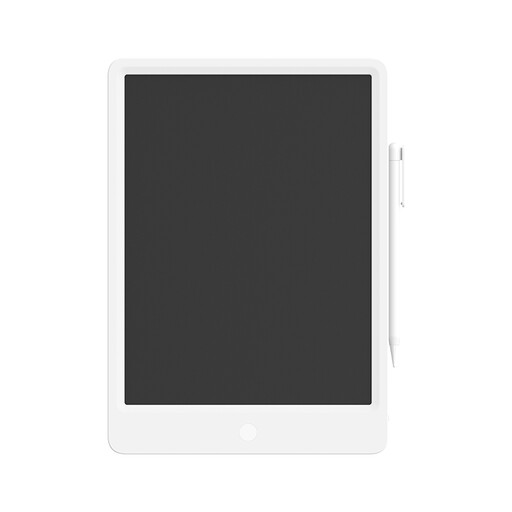 No image available
Mi LCD Writing Tablet 13.5″ Digital, Stylus, Reusable
The product name describes this as an LCD writing tablet; check whether its functionality suits your map illustrations and software.
Active area: 152 × 95 mm. The product description lists a battery-free pen, four ExpressKeys and a USB connection.
View at Joybuy
Frequently asked questions
Can you create accurate map layers without using your software’s editing settings?
No, don’t assume you can. The QGIS documentation describes features including snapping and vertex tools for precise vector editing; a drawing tablet doesn’t replace them. Test the pen in the application you use.
What should you check when installing on a shared office computer?
Check that you’re allowed to install the driver you need and that pen input works in your drawing programme. Wacom recommends installing a driver for the Intuos Pro; the Krita manual notes that tablet functionality also depends on the driver and the input protocol being used.
Should you consider replaceable parts and the warranty?
Check which pen nibs, cables and pens are included with the exact version and whether they’re available to buy. Consumers in the Netherlands have statutory guarantees alongside any manufacturer’s warranty; ACM ConsuWijzer explains that the statutory guarantee period isn’t automatically exactly two years for every product.
Do you have a cooling-off period when buying online in the Netherlands?
As a consumer, you generally have a statutory cooling-off period of up to 14 days after delivery when buying a product online, subject to applicable exceptions. ACM ConsuWijzer explains this rule for consumers; don’t automatically assume it applies to a purchase made on behalf of a business.
What product rules apply to an electric or wireless drawing tablet sold in the Netherlands?
According to Business.gov.nl, electrical and electronic equipment must comply with the applicable European rules, including CE marking and an EU declaration of conformity where required. Equipment with Bluetooth may also be subject to rules for radio equipment. These general requirements don’t, by themselves, establish that a specific model or offer is compliant.


