What should you look for when choosing one?
Start with how you read information: through speech, residual vision or braille. Then check that the keyboard layout, connection, screen reader and route website all work together. The keyboard alone won’t fix problems with the website.
| What to consider |
What to look for when buying |
Who is this most important for? |
| Keyboard navigation |
Try using your own screen reader to navigate input fields, route information and text editing. Also check that you can use the route website with a keyboard. |
If I mainly use speech to go through route information and edit text, I want navigation to work comfortably with my screen reader. Around 36% of consumers put keyboard control and typing first. |
| Braille input and output |
Check compatibility, connection, layout and braille settings with your own devices and screen reader. |
If I want to read or enter place names and route instructions by touch too, compatibility with my braille display matters. Around 29% of consumers give braille access the highest priority. |
| Easy-to-read key labels |
Check whether the size and contrast of the labels work for you. Make sure any special keyboard shortcuts work with the software you use. |
If I still look at the keys, I want to be able to recognise the labels without relying on shortcuts that aren’t compatible with my software. Around 21% of consumers put visible key labels first. |
| Switching between devices |
Check which devices and operating systems are supported, and how to set up the keyboard connection. |
If I work on my route guide across different devices, I want to know whether one keyboard will suit the way I work. Around 14% of consumers prioritise switching between devices. |
Keyboards at Joybuy
These Joybuy products are keyboards for text input, including wired and wireless models. Check each model to make sure its layout and connection suit your screen reader and the way you work.
 No image available
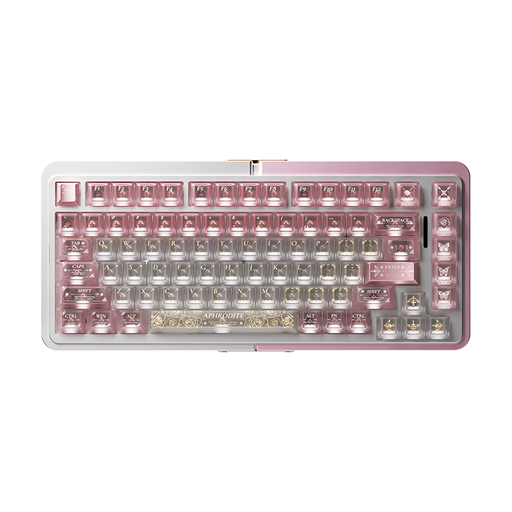
Royalaxe E75 Custom 75% Hall Effect Mechanical Keyboard
A keyboard for text input; check that the layout suits your route work and screen reader.
The product name lists a 75% layout, Hall Effect switches, hot-swappable keys and a wired mode.
View at Joybuy
 No image available
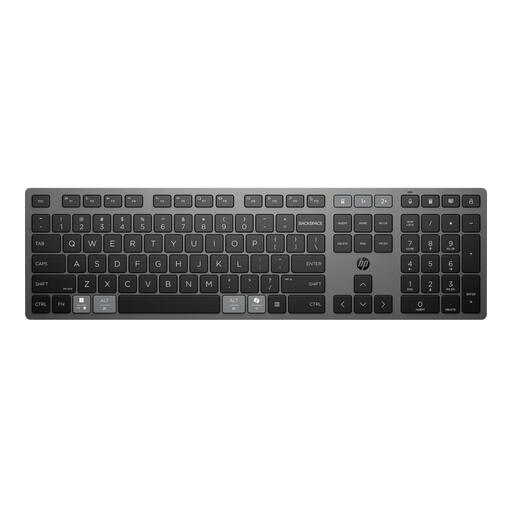
HP 725 Multi-Device Rechargeable Wireless Keyboard
Worth a look if you’re after a wireless keyboard for your route work.
The product name describes a rechargeable wireless keyboard for multiple devices.
View at Joybuy
 No image available
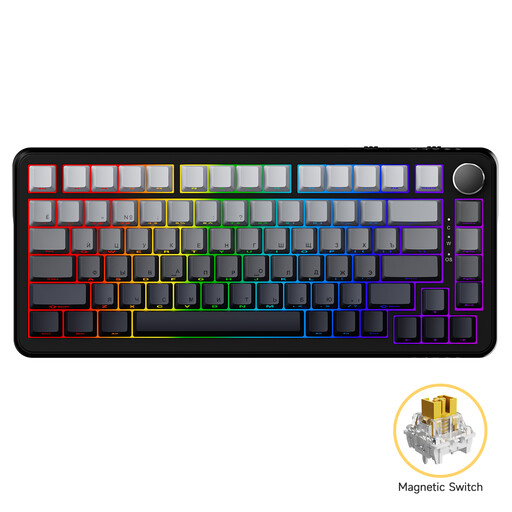
AJAZZ AK820 MAX Magnetic Axis Wired Gaming Mechanical Keyboard
This is a wired keyboard; check that the key layout feels comfortable for entering and editing route instructions.
The product name lists magnetic switches and a wired connection.
View at Joybuy
 No image available
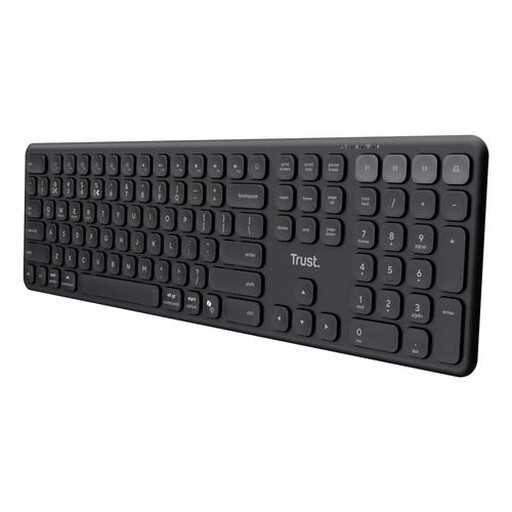
Trust Vaiya Wireless Keyboard Full-Size QWERTY US
Consider this model if you’re looking for a wireless keyboard with a numeric keypad.
This version has a US QWERTY layout; check that the key positions and characters suit the way you use it. The product name lists scissor keys.
View at Joybuy
 No image available
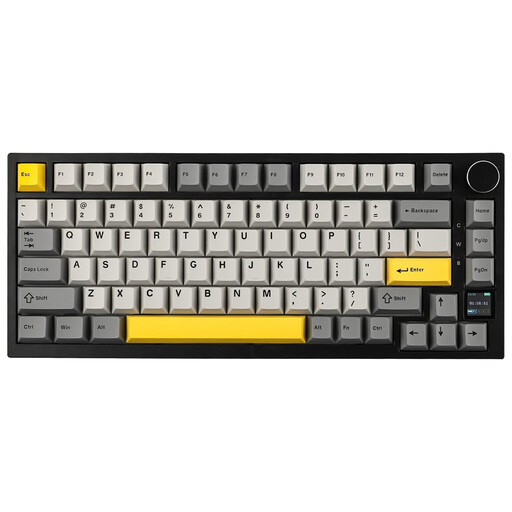
Ajazz AK820 Pro 75% Mechanical Tri-Mode Keyboard
A keyboard to consider if its listed connection options suit your work setup.
The product name lists a US QWERTY layout and wired, Bluetooth and 2.4G modes. The name also lists compatibility with Win, Mac and PC.
View at Joybuy
Frequently asked questions
Do I need a special keyboard to create a walking route guide with a screen reader?
Not necessarily. First, try using a standard keyboard that suits you with your screen reader to navigate input fields, route information and text. Replacing the keyboard alone won’t make an inaccessible website accessible.
How can I test the setup before writing a route guide?
Open your route-planning software with your own screen reader, enter a starting point and destination, then navigate the information using the keyboard. Google provides documentation on specific browser and screen reader combinations for Google Maps on a computer, so check your own setup and the features you need too.
Can I easily connect a braille display to all my devices?
That depends on the compatibility and settings of your devices and screen reader, so test the setup before relying on it. Koninklijke Visio explains that connecting devices can sometimes be complicated, particularly when you use several devices.
Will an adapted keyboard be covered by insurance in the Netherlands?
Don’t assume it will be. According to Zorginstituut Nederland, visual aids may be covered by the basic insurance package under certain conditions, and a treating doctor assesses whether someone is eligible. Ask your health insurer to confirm whether the specific aid is covered under your policy.
What cooling-off period and warranty apply when buying a keyboard online?
According to ACM ConsuWijzer, online consumer purchases generally come with a cooling-off period of up to 14 days after delivery; check which exceptions apply. Separately, the seller is responsible for the statutory guarantee if a product doesn’t meet what you’re entitled to expect from it.


