
Developer who mainly listens
You rely on a screen reader and keyboard as your main tools and want to know whether an extra monitor would genuinely help your workflow. The W3C describes screen readers as tools that read web pages aloud.


Choose based on what you look at on screen: extra pixels won’t automatically add anything if you mainly use a screen reader and keyboard, while magnification or several visible windows place different demands on scaling and workspace. The W3C stresses that a monitor is no substitute for accessibility testing, so try your own editor, scaling and example page before choosing QHD, 4K or a larger screen.
You rely on a screen reader and keyboard as your main tools and want to know whether an extra monitor would genuinely help your workflow. The W3C describes screen readers as tools that read web pages aloud.
You combine speech with enlarged text or a preview. Readability at your chosen scaling is then more important than resolution alone; Microsoft describes both display scaling and Magnifier.
You keep code, a browser or testing tools open side by side and discuss how the festival website looks. The W3C points out that accessibility also requires human evaluation.
A screen reader doesn’t automatically make extra screen space useful: first decide whether you mainly need speech, magnification, multiple windows or a laptop connection.
| Consideration | What to look for | Relevant consumers |
|---|---|---|
| Added value alongside a screen reader | Try your screen reader, keyboard and usual editor with your current monitor before choosing a larger model. Adjustability may be useful at a fixed workstation. | If I mainly use speech and a keyboard, I want to know what an extra screen would add to my tasks. Around 36% of consumers say this added value is their main buying priority. |
| Readability with magnification | Check text at your chosen scaling, magnification and viewing distance, and consider how much workspace will remain. | If I enlarge text and controls, I want to be able to read them without losing my entire workspace. Around 29% of consumers put readability with magnification first. |
| Room for code and checks | Open your editor and example page at the intended scaling. Compare the visible workspace, not just the number of pixels. | If I want to see code, a browser and testing tools side by side, I need a layout that works at my chosen scaling. Around 21% of consumers give the highest priority to space for development and visual checks. |
| Connecting and powering a laptop | Check your laptop’s video output and power requirements against the exact monitor variant, and find out which cable you’ll need. | If I connect my laptop at a fixed workstation, I want to know in advance whether the chosen connection will handle both the picture and power. Around 14% of consumers say laptop connectivity is their main buying priority. |
Your scaling settings and any magnification affect how large text appears and how much workspace remains. More pixels don’t automatically mean larger text.
Try QHD or 4K with your own scaling, editor and example page before making a choice.
A screen’s specifications don’t tell you whether keyboard navigation works well or how visitors using assistive technology will experience it.
Plan separate keyboard and screen reader tests, and ask people to evaluate the website too.
Allow time for this separate evaluation of the website.
Your laptop’s video output and power requirements need to be compatible with the monitor and variant you choose.
Check your laptop’s ports and the monitor’s connections before buying. Depending on the combination, you may need a different cable or a separate laptop power supply.
The P2725DE is a 27-inch QHD USB-C hub monitor for anyone looking to combine workspace with connectivity.
BenQ positions the RD280U for programming; according to the manufacturer, it has a 28.2-inch 3:2 screen.
The 27UP850K-W is a 27-inch 4K model for anyone who also needs to check visual details.
The Series 5 Pro 527pu combines QHD with a USB-C workstation setup.
The 27E1N1600AE/00 is a 27-inch QHD model with USB-C for a typical desk setup.
These Joybuy monitors are suited to checking content visually, using windows side by side and, for some models, connecting a laptop at your workstation. Assess the screen scaling and connections with your own equipment and working environment.
 No image available
An option to assess with your own scaling and viewing position if you visually check enlarged text or a preview.
27 inches; 3840 × 2160; 60 Hz; 4 ms.
HDMI and DisplayPort; EasyRead; height-adjustable stand.
 No image available
A 27-inch screen to include in your comparison if you also check visual details alongside screen reader output.
27 inches; 3840 × 2160; 4K UHD.
USB-C with DP Alt Mode and KVM are listed; the stand is height-, tilt- and swivel-adjustable. Check that your laptop’s USB-C video output and power requirements are compatible.
 No image available
The larger screen size may be useful if you want to view code and a preview side by side; assess the layout at your chosen scaling.
31.5 inches; 3840 × 2160; 4K IPS.
USB-C power delivery of up to 90 W and Ethernet are listed; the stand is height-adjustable. Check your laptop’s connection and power requirements.
 No image available
An option to compare if you want a large visible workspace for code or a preview.
31.5 inches; 3840 × 2160; 4K UHD IPS.
USB-C with 90 W power delivery and a KVM switch are listed; the stand is adjustable. Check that the laptop connection and power requirements are compatible.
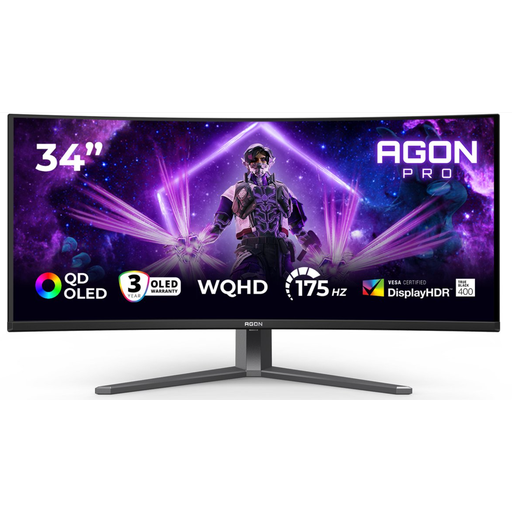 No image available
The widescreen format is worth considering if you want to view multiple windows side by side; try your own layout and scaling.
34 inches; 3440 × 1440.
HDMI and DisplayPort; the stand is height-, swivel- and tilt-adjustable.
No, a monitor won’t make a website accessible to screen reader users by itself. The W3C recommends evaluating accessibility during development and states that no single testing tool can determine on its own whether a site is accessible. So test the website and the tasks visitors need to complete too.
In Windows, first try changing the scaling setting and, if needed, using Magnifier when text is too small. Microsoft warns that using a resolution lower than the native resolution can make text look blurry; check how it looks with your own apps and preferred scaling.
This depends, among other things, on the service and the organisation. According to the Netherlands Authority for Consumers and Markets, online purchases or bookings by consumers, including concert tickets, fall under e-commerce services. The ACM says the accessibility requirement applies, among other cases, to organisations with 10 or more employees or an annual turnover of more than € 2 million. Whether a specific festival website sells tickets and meets those conditions therefore also affects whether the requirement applies; it does not mean you have to buy a particular monitor model.
According to the Netherlands Authority for Consumers and Markets, the seller is responsible for the statutory guarantee if a product doesn’t meet what you could reasonably expect under normal use. This is separate from any voluntary commercial manufacturer’s warranty.