For loose newsletters that fit on A4, a compact A4 flatbed scanner is an obvious choice. Check that its software can also organise multiple pages and create searchable files. For larger pages, the scanning area is what matters, while a combination of a flatbed and automatic document feeder suits a mixed collection of fragile originals and sturdy loose sheets. Before sharing the archive, also consider copyright and personal data.
Who is this for?
Collector of loose A4 newsletters
You want to capture pages clearly for a school project without setting up a large scanning station. Measure your largest original first, then check whether the software suits the way you want to manage your files. Canon and Epson both describe A4 flatbed models for this format.
Keeper of fragile issues
You want to handle old or bound newsletters with care, and would rather place them manually on a flatbed than feed them through an automatic document feeder. The KB describes the preservation and digitisation of fragile paper heritage.
Creator of a searchable archive
You want to find issues in the right order and are choosing between manual scanning with text recognition and automatic feeding for suitable loose sheets. Plustek lists OCR software for the OpticSlim 1180, while HP describes an automatic document feeder for the ScanJet Pro 2600 f1. The National Archives of the Netherlands explains how digitisation can make archives more accessible.
What should you look for in a newsletter scanner?
Start by measuring the largest page and assessing how fragile the originals are. Then consider how you want to organise and find your scans.
| What to consider |
What should you look for? |
Who is this important for? |
| Loose standard pages |
Measure the largest page in both directions and compare those dimensions with the scanning area and the connection to your computer. |
I want to scan loose pages without a large set-up. Around 36% of consumers prioritise scanning standard-sized pages above all else. |
| Fragile or bound issues |
Assess the condition and binding of the paper; choose a scanning method that doesn’t require you to feed the original through a document feeder. |
If preservation comes first, I want to be able to place an issue carefully on the flatbed. Around 29% of consumers prioritise handling originals with care. |
| Larger pages |
Compare both the width and height of the unfolded original with the stated scanning area. |
I want to capture a larger newsletter page in a single scan, without having to join sections together. Around 21% of consumers say a larger scanning area is their main requirement. |
| Organising and finding files |
Check whether the software creates searchable multi-page files, and whether text recognition and page order suit the way you work. |
When I’m processing lots of pages, I want to be able to find issues and text easily later. Around 14% of consumers prioritise being able to find files again or processing large numbers of suitable loose sheets. |
Common scanning pitfalls
-
Relying on ‘A4’ or ‘A3’ alone
A scanning area has limits in both width and height. An unfolded page may exceed one of those dimensions.
Measure a fully unfolded example and compare both dimensions with the specifications for the exact model.
Pages that exceed the scanning area may take extra work: you’ll need to capture each section separately and then join them together.
-
Assuming scan speed equals the time needed for the whole archive
The stated speed may apply only to a specific scanning method. Canon, for example, excludes transfer to the computer from its quoted scan time; HP’s feeder speed refers to its automatic document feeder.
Test a complete issue, including naming, organising and checking the files, before processing the whole collection.
Remember to allow time for placing, checking, organising and saving your scans, too.
-
Assuming a scan file means you have permission to publish
Digitising a newsletter does not, in itself, give you permission to make its contents publicly available. Copyright and identifiable personal data need to be considered separately.
Decide who can view the archive, and check the rights to its contents and any personal data before sharing it.
Brands to consider
Canon
The CanoScan LiDE 300 and LiDE 400 are A4 flatbed options for loose pages; more detailed specifications are available for the LiDE 400.
- Canon specifies a 216 × 297 mm scanning area, USB power and PDF buttons for the LiDE 400.
- Check that the A4 scanning area is large enough for your fully unfolded newsletter page.
Epson
The Perfection V39II is an A4 photo and document scanner for a compact scanning set-up.
- Epson lists USB power, an integrated stand and text enhancement for the V39II.
- Check that the software workflow for the exact model creates searchable files in the format you need for your archive.
Plustek
The OpticSlim 1180 is a larger-format option for newsletters whose pages need more space than an A4 scanning area can provide.
- Plustek specifies a maximum scanning area of 297 × 431,8 mm and bundled OCR software.
- The stated width is 589 mm and the model has a separate power supply; check that you have a suitable space for it.
HP
The ScanJet Pro 2600 f1 combines a flatbed with an automatic document feeder, making it suitable for collections with different types of original.
- HP specifies a 60-page duplex document feeder and a speed of up to 25 pages per minute under the stated test conditions.
- The feeder speed doesn’t tell you how quickly or carefully a fragile original can be scanned on the flatbed.
Scanners at Joybuy
This selection focuses on flatbed scanners with automatic document feeders, for collections containing a mix of fragile or bound originals and suitable loose sheets.
 No image available
Canon imageFORMULA DR-F120
The combination of a flatbed and feeder gives you separate scanning options for fragile items and loose sheets.
A4; 600 × 600 dpi; duplex scanning; 50-sheet feeder; scan to editable PDF.
View at Joybuy
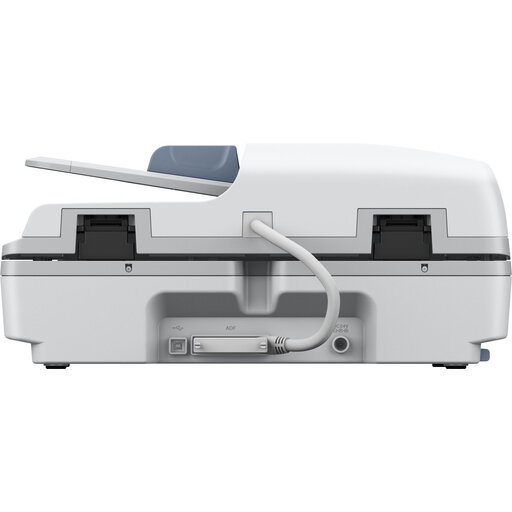 No image available
Epson WorkForce DS-6500 Power PDF
The flatbed and automatic feeder are designed for items placed by hand and loose sheets. The stated searchable PDF output can also make it easier to find text.
Duplex scanning; 100-sheet feeder; searchable PDF output.
View at Joybuy
 No image available
Epson WorkForce DS-1660W
The flatbed offers an option for pages placed by hand or delicate pages, while the automatic feeder is designed for loose sheets.
A4; 1200 × 1200 dpi; duplex scanning; wireless and USB connectivity.
View at Joybuy
Frequently asked questions
How can I tell whether A4 is large enough?
Measure the widest and longest newsletter page you want to preserve in full, then compare both dimensions with the scanning area of the exact model. Canon lists a maximum of 216 × 297 mm for the LiDE 400; Plustek lists a maximum of 297 × 431,8 mm for the OpticSlim 1180.
How should I set up scanning so I can research the archive later?
Keep issues and pages in order, check every scan and test text recognition on a sample issue before processing the whole collection. Plustek lists OCR software for the OpticSlim 1180; according to the National Archives of the Netherlands, digitisation can make archives more accessible.
Can I put scanned newsletters online for the school project?
Not automatically. The Dutch Government states that a copy made for personal use must not be distributed or made publicly available; educational exceptions may apply to the use of protected work, subject to certain conditions. According to the Dutch Data Protection Authority, permission is needed to create and publish identifiable images of pupils: from pupils themselves once they are 16, or from their parents for younger pupils. Consider the content and intended access separately before publishing.


