For individual certificates that fit entirely within A4, an A4 flatbed scanner is a suitable option; Epson and Canon describe models in this category. If your certificates are bound, compare a book-oriented flatbed with an overhead scanner. Check the clearance at the spine, the capture area and whether you can place the page on the glass. Always make a test scan and check that it is legible and that any personal information is safe before sharing the files.
Which type of scanner is right for you?
For scanning individual certificates
If you want to capture individual certificates in full and make sure they’re legible, first check that they fit on the scanning bed. An A4 flatbed scanner is one option to compare; Epson and Canon describe models as A4 flatbed scanners.
For scanning certificates in a bound album
If your certificates are fixed inside a book or album, check how the scanner handles text near the spine and whether you can place the original on the glass. Plustek lists a 6 mm book edge for the OpticBook 3800L; overhead scanners capture images from above.
For creating a shareable project archive
If you want to find your scans later or use them in a project, decide whether an image will be enough or whether you need searchable text. Also check which personal details are visible before sharing files; the Dutch Data Protection Authority highlights the importance of protecting personal data in shared documents.
What should you look for when choosing a scanner?
First, work out whether your certificates are loose or bound. Then compare the scanning area, the file format you need and the space required to use and store the scanner.
| What to consider |
What to look for |
Who is this most important for? |
| Scanning loose certificates in full |
Measure your largest original and compare both its width and height with the scanning area. Check a test scan for cropped edges, names and stamps. |
If I want to capture loose certificates in full and make sure they’re legible, I need to know that the original will fit in a single scan. Around 36% of consumers say this is their top priority. |
| Scanning bound certificates |
Check whether the book can lie open, how close the text is to the spine and whether it falls within the scanning area. An overhead scanner captures images from above; a book-oriented flatbed still uses a glass plate. |
If my certificates are in an album, I want to check the text near the spine without putting unnecessary pressure on the binding. Around 29% of consumers say this is their top priority. |
| Finding text in project files |
Choose between an image file and a searchable PDF. Test one of your own certificates to see whether you can find the text you need after processing. |
If I want to search for information in my project files later, I need to know whether an image will be enough or whether I need searchable text. Around 21% of consumers say this is their top priority. |
| Setting up and storing the scanner |
Compare the space needed while scanning with the way the device can be stored. Also check that it connects to the computer you use. |
If my workspace is limited, I want to know in advance how much room the scanner needs in use and where I can store it afterwards. Around 14% of consumers say this is their top priority. |
Common pitfalls when choosing a scanner
-
Choosing a book scanner when all your certificates are loose
A4 flatbed scanners for loose documents and scanners for bound originals solve different placement problems. You don’t automatically need a book-oriented feature for loose certificates.
First decide whether your originals are loose or bound, then measure the largest one before comparing models.
-
Assuming A4 or A3 guarantees that the whole original will fit
A size label alone doesn’t tell you whether the entire image you need will fit within the scanning bed or capture area, especially with an unusual certificate size or an open book.
Compare both the width and height of the original with the specifications for the exact model.
-
Sharing a searchable PDF without checking its contents
A searchable PDF option doesn’t prove that text on every original will be recognised correctly. Names and other personal details may also remain visible in the shared file. The Dutch Data Protection Authority warns about personal data in shared documents.
Check both the scan and the recognised text. If you’re working on a school project, ask what rules apply to the material and how it can be shared.
Scanner brands to consider
Epson
Epson describes the Perfection V39II as an A4 flatbed scanner for loose documents.
- Epson lists USB power and a built-in stand for the V39II.
- Check that the whole certificate fits within A4; these features apply to the V39II.
Canon
Canon describes the CanoScan LiDE 400 as an A4 flatbed scanner for loose certificates.
- Canon lists USB-C power, PDF controls and a Z-lid for this model.
- A Z-lid alone doesn’t prove that text near the spine of a bound certificate will be fully legible.
Plustek
The Dutch model specifications position the OpticBook 3800L as an A4 flatbed scanner designed for books.
- Plustek lists a 6 mm book edge for this model.
- The listed scanning area is 216 × 297 mm, which determines what fits in one scan. You still place the book on the glass plate.
IRIS
IRIS describes the IRIScan Desk 6 Pro as an overhead scanner for books and documents.
- IRIS lists A3 capture and output options including searchable PDF for this model.
- The listed output option doesn’t guarantee that text on every certificate will be recognised accurately; check a test scan.
CZUR
CZUR describes the Shine Ultra as a foldable overhead scanner for documents and books.
- The overhead setup captures material from above without needing to loosen the binding.
- CZUR excludes glossy photos from its description of suitable material, so check how a glossy certificate scans with a test scan.
Joybuy scanners for documents and certificates
These product picks focus on scanning loose documents, with a flatbed option also included for books and delicate material.
 No image available
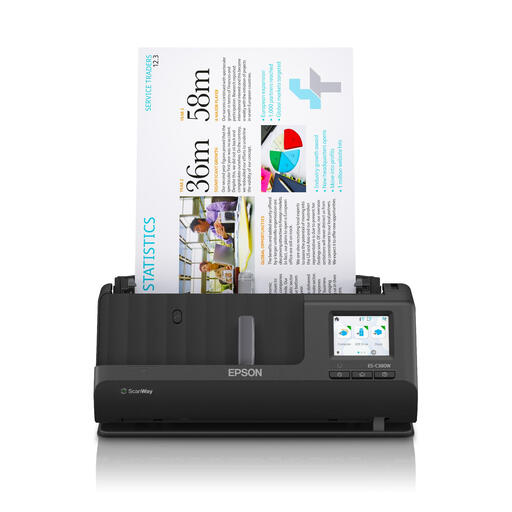
Epson ES-C380W ADF + Sheet-Fed Scanner
An A4 sheet-fed scanner to compare for loose documents.
Listed features: 600 × 600 dpi and A4.
Joybuy
 No image available
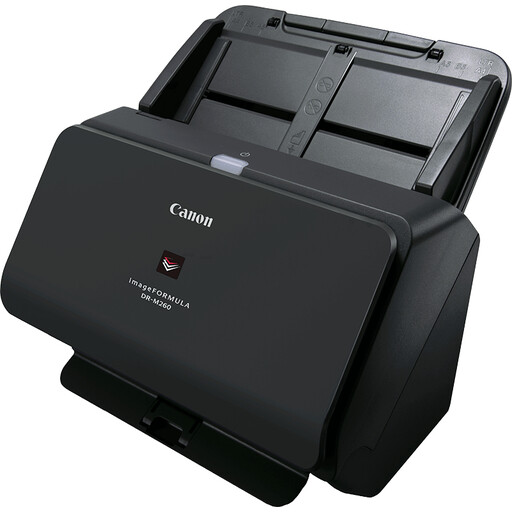
Canon imageFORMULA DR-M260 Sheet-Fed Scanner
An A4 sheet-fed scanner to compare for digitising loose documents.
Listed features: 600 × 600 dpi and A4.
Joybuy
 No image available
Canon imageFORMULA DR-F120 Flatbed & ADF Scanner
The flatbed function makes this model worth comparing for bound material; the ADF offers a second way to feed documents.
Listed features: A4, flatbed and ADF.
Joybuy
 No image available
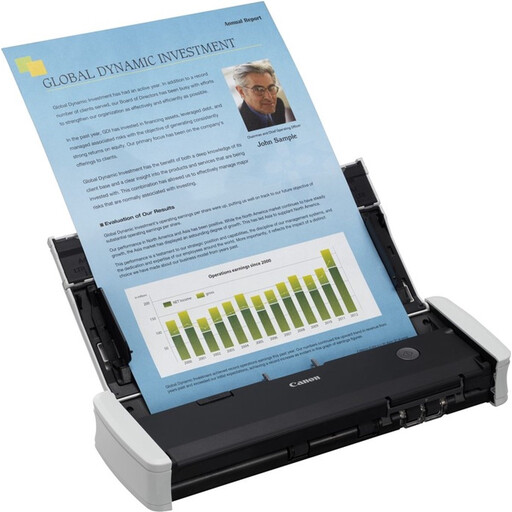
Canon imageFORMULA R10 Sheet-Fed Scanner
An A4 sheet-fed scanner to compare if you want to scan loose documents in different places.
Listed features: 600 × 600 dpi and A4.
Joybuy
 No image available
Epson DS-C330 ADF + Sheet-Fed Scanner
An A4 sheet-fed scanner to compare for loose certificates; the product name also mentions ADF.
Listed features: 600 × 600 dpi and A4.
Joybuy
Frequently asked questions
Do I need a book scanner for loose school certificates?
Not necessarily: if the entire original fits on the glass, an A4 flatbed scanner is a suitable option. Measure certificates in unusual sizes first; an A4 label in a product description doesn’t prove that every certificate will fit.
How can I check a scan before using it in my project?
Make a test scan and check the full edges, small print, names and stamps on screen or at the print size you plan to use. If you need to search the text, test the output file too. IRIS lists searchable PDF as an option for the Desk 6 Pro, but that doesn’t tell you exactly how your original will be recognised.
What are my warranty rights in the Netherlands if the scanner doesn’t work properly?
According to the Dutch government, you’re entitled to a product that works properly when you buy it, and there’s no fixed statutory warranty period in the Netherlands. If a product is faulty, contact the seller; a manufacturer’s warranty is separate from these statutory rights.
Can I share scans containing pupils’ names in my school project?
There isn’t a straightforward yes-or-no answer without knowing the context. The Dutch Data Protection Authority reminds schools of their GDPR obligations regarding pupils’ data and warns about personal data in shared documents. Ask what rules apply to the material and how you intend to share it, and check for hidden data before sharing a file.


