What should you consider when choosing?
First decide how addresses will be supplied and who will print them. Then check whether the label size and compatible rolls are suitable for your school’s post.
| Consideration |
What to look for |
Who is this important for? |
| Printing addresses in batches |
Check that the address file, operating system and printing software are supported on the school computer. Brother explains how to use Excel data with P-touch Editor 5.x for Windows. |
If I regularly process addresses from a file, I want to print them without having to type them in each time. Around 33% of consumers put batch printing first. |
| Legible address size |
Test a complete, preferably long address on the label you intend to use. PostNL recommends a 10–12-point sans-serif font for printed addresses; Brother lists the DK-11201 label size as 29 × 90 mm. |
For long names or addresses, I want to avoid lines becoming too small or not fitting. Around 27% of consumers put address legibility first. |
| Printing from multiple workstations |
Check which connections the school supports and agree who can access address files and print jobs. The Dutch Data Protection Authority recommends appropriate protection and access limited to what is necessary. |
If several staff members need to print, I want both the chosen connection and access to pupils’ addresses to be properly managed. Around 20% of consumers prioritise shared printing that can be managed. |
| Rolls and consumables |
Compare the exact printer model, roll code, label size and number of labels per roll. DYMO states that the LabelWriter 550 works only with DYMO labels. |
For regular use, I want to know in advance which suitable rolls I can buy and how many labels they contain. For around 20% of consumers, roll choice and ongoing costs matter most. |
Joybuy products for address and office labels
These Joybuy products include portable label makers for mobile use and a USB desktop printer for address and office labels. For each model, check that the software, labels and workflow are suited to the school’s needs.
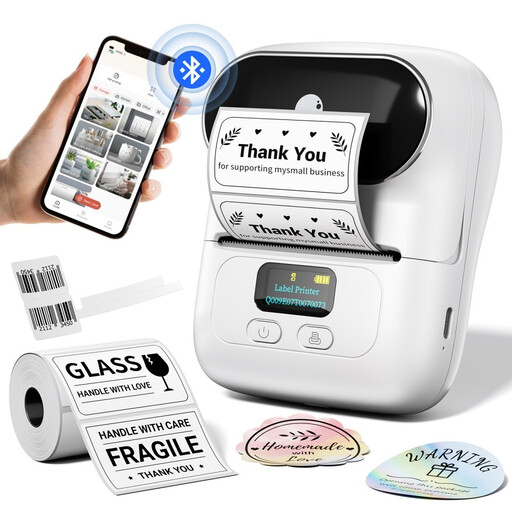 Image unavailable
Phomemo M110 portable label printer with one label roll
A portable option if you want to create address labels from a mobile device and process addresses in batches.
The product description lists Bluetooth, support for label widths of 20–50 mm, and Excel import and batch printing via the app.
View at Joybuy
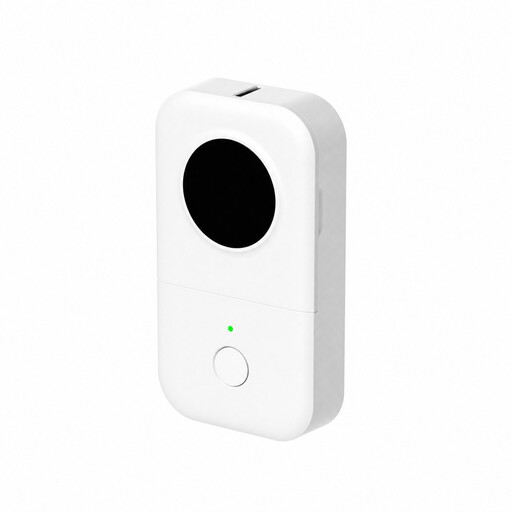 Image unavailable
Phomemo D30 portable label maker
A portable model for text labels and Excel imports from a phone or tablet.
The product name lists a label width of 0.59 inches; the description mentions Bluetooth and a built-in rechargeable battery.
View at Joybuy
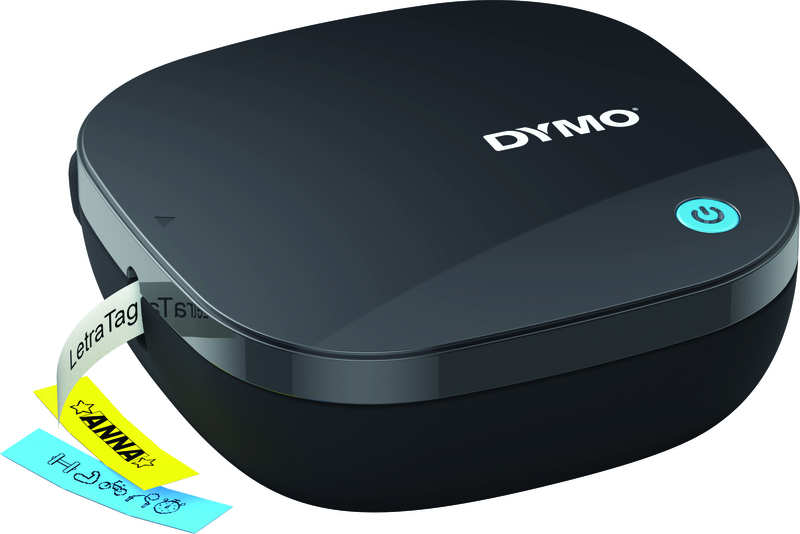 Image unavailable
DYMO LetraTag 200B Bluetooth label maker with a roll of white paper labels
A portable label maker for creating labels using a smartphone or tablet app.
The product name lists Bluetooth connectivity with iOS and Android devices; the pack includes one roll of white paper labels.
View at Joybuy
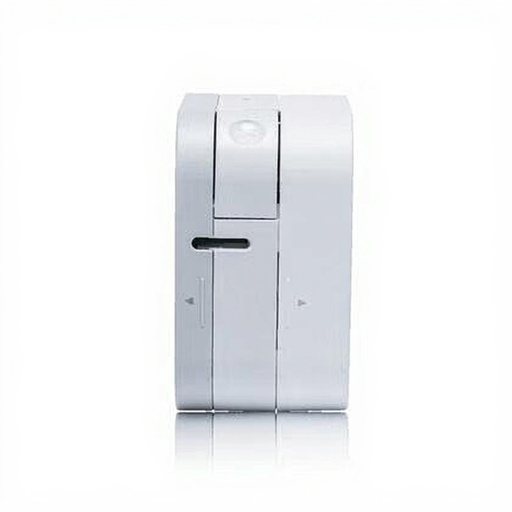 Image unavailable
Brother PT-P300BT Bluetooth label printer
A portable option for labels created using an app. Check that the available tape is suitable for the address size you need.
The product description lists TZe tapes in widths of 3.5, 6, 9 and 12 mm. It also says that the model runs on AAA batteries.
View at Joybuy
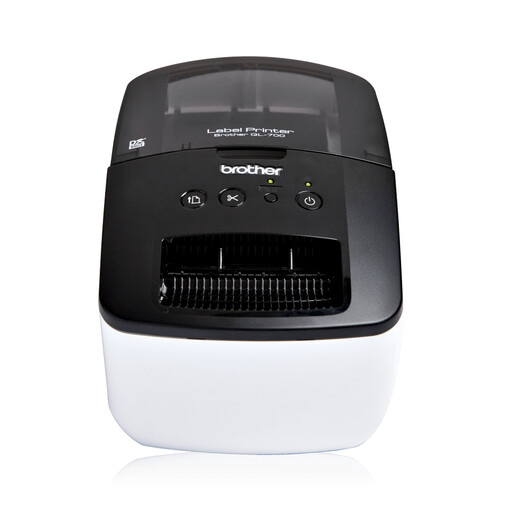 Image unavailable
Brother QL-700 USB label printer
A desktop option for address labels if a fixed computer with USB is used to handle the post.
The product description lists USB, P-touch Editor for Windows and Mac, and an automatic cutter. The product name specifies direct thermal printing, 300 × 300 DPI, 150 mm/sec and DK labels.
View at Joybuy
Frequently asked questions
How do you create an address label suitable for Dutch letter post?
Follow the address order set out by PostNL: name, street and house number, followed by postcode and town. For a printed address, PostNL recommends a 10–12-point sans-serif font. Print a test label to check that the address fits the size you’ve chosen. These are addressing guidelines, not legal requirements for printers.
Can a school print addresses from Excel?
Brother provides instructions for using Excel data with P-touch Editor 5.x for Windows on the QL-700. Before buying, check that the software version, school computer and file format you use are compatible. These instructions don’t confirm compatibility with every model or operating system.
What should you check when replacing a roll?
Check the exact printer model, roll code and label size. Brother lists 400 pre-cut 29 × 90 mm address labels per roll for the DK-11201; DYMO says that the LabelWriter 550 uses DYMO labels only. Follow the manual for your chosen model when loading labels and cleaning the printer.
What arrangements should the school make if pupils’ addresses are printed on labels?
The Dutch Data Protection Authority recommends appropriate protection for pupils’ personal data and restricting access to what is necessary. If an external service processes personal data on the school’s behalf, the authority says a written data processing agreement is required. Buying a label printer alone doesn’t mean that any such external processing takes place.
How do you compare purchase costs and service options for a school?
Compare the printer with compatible rolls, and ask about the terms for sales, warranty and service when making a business purchase for a school. The Dutch government’s general information on statutory guarantees applies to consumers and doesn’t set a fixed Dutch warranty period. Don’t apply that information to a business purchase for a school without checking first.


