What should you look for when scanning receipts?
For business receipts, the priority is a complete digital copy: the Dutch Tax and Customs Administration allows digital storage if the scan is an accurate and complete representation of the original.
| What to consider |
What to check before buying |
Who is this important for? |
| Capturing individual or fragile receipts in full |
Check the size of the flatbed and make sure the edges and key details are readable on a sample scan. |
I want to position an individual or fragile receipt carefully and check the entire scan. Around 36% of consumers rank capturing individual receipts in full as their top buying priority. |
| Finding and correctly storing receipts |
Check that PDF and any OCR workflow are available for the exact model and your computer; open a sample file and check the result. |
If I want to find receipts later for my records, I need to know whether the scan contains an image or searchable text. Around 29% of consumers rank finding and storing receipts as their top priority. |
| Making the scanner work in your home office |
Measure the space available when the scanner is in use, and check the connection, power supply and software available for your computer. |
I want to fit and connect my scanner in a limited workspace without it getting in the way. For around 21% of consumers, the setup is their main buying priority. |
| Scanning stacks of standard documents too |
Check which documents are suitable for the feeder and compare this feature with the flatbed and the space available. |
If I regularly scan stacks of standard documents as well as receipts, I want to be able to use the scanner for that too. Around 14% of consumers rank this mixed use as their top priority. |
Joybuy products for receipts and documents
These models combine a flatbed with an automatic document feeder and are designed for anyone who wants to scan individual receipts as well as suitable stacks of documents.
 No image available
Canon imageFORMULA DR-F120, A4, 600 × 600 dpi
The combination of a flatbed and automatic document feeder is suited to individual receipts and suitable stacks of documents. Check which receipts can be safely fed through the feeder.
Check that the PDF workflow and software you want are compatible with your computer.
View at Joybuy
 No image available
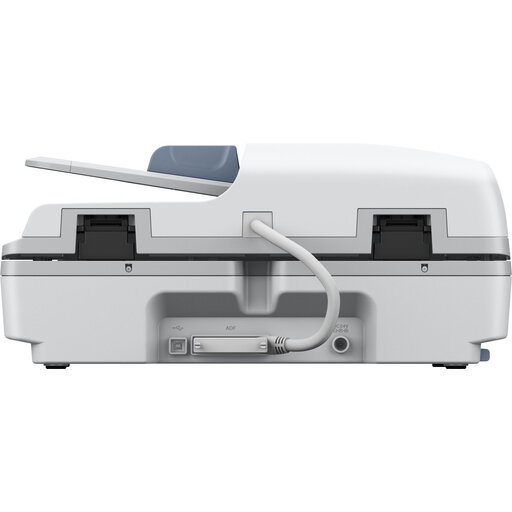
Epson WorkForce DS-6500 Power PDF
The combination of flatbed scanning and an automatic document feeder is a good fit if you want to scan individual items and stacks of documents.
Check that the PDF workflow and supporting software are compatible with your computer.
View at Joybuy
 No image available
Epson WorkForce DS-1660W, 1200 × 1200 dpi, A4
The flatbed and automatic document feeder give you the option of scanning both individual documents and suitable stacks. Check that the scanner suits your workspace and how you plan to use it.
Check that the PDF feature and software you need are available for your computer.
View at Joybuy
Frequently asked questions
Can I throw away paper business receipts after scanning them?
Only if the requirements for digital storage have been met. The Dutch Tax and Customs Administration allows scanned business receipts to be stored when the scan is an accurate and complete representation and the required authenticity features have been preserved. This doesn’t automatically apply to every personal shopping receipt.
How long do I need to keep my business receipts?
The Dutch Tax and Customs Administration generally sets a retention period of 7 years for businesses, and 10 years for records relating to immovable property and certain schemes. The period starts when the information loses its current value. Check which category applies to your records.
Do I need OCR to save a receipt as a PDF?
No. Saving a PDF and using text recognition are two different functions. A PDF can store an image of a receipt; OCR can make its text searchable if the software you use supports it. Check the features available for the exact model and your computer, and make sure important amounts have been recognised correctly.
What should I check when installing and maintaining my scanner?
Before buying, check the connection and select your operating system on the manufacturer’s support page to find the right downloads. Follow the manual when cleaning the flatbed and check a sample scan for missing edges or hard-to-read text.
Should I buy an extended warranty?
When you buy as a consumer, the Dutch government says you’re entitled to a product that works as it should; if something goes wrong, the seller must provide a solution. There is no fixed statutory warranty period in the Netherlands. Consider a paid warranty plan as an addition to these rights.


