What should you look for when buying?
First measure the map, then check whether it’s safe to place it on the flatbed. The University of Antwerp highlights the prevention of geometric distortion as an important consideration when digitising maps.
| What to consider |
What should you check? |
Who should pay extra attention? |
| Size of the original to be scanned |
Measure the map, including any relevant borders, and compare its dimensions with the scanning area of the exact model. |
If I want to capture the map in a single scan, I’ll first check that it fits on the flatbed. Around 36% of consumers prioritise having the right scanning size. |
| Handling fragile maps with care |
Before placing the map on the flatbed, check whether the glass and lid are suitable; don’t assume an automatic document feeder is appropriate. |
If the paper is fragile, folded or distorted, I’ll first want to know whether it can be placed safely. Around 29% of consumers prioritise preserving the original. |
| Legible detail and straight lines |
Compare the optical scanning resolution and assess a test file for text, colour differences, lines and curvature. |
For map research, I need to be able to assess labels and geometry, not just see a high dpi figure. Around 21% of consumers prioritise detail and geometry. |
| Ink and printing needs |
Check which replacement ink the model uses and choose accordingly based on your expected printing volume. |
If I also print regularly, I’ll want to take ink consumption for my own usage into account. Around 14% of consumers prioritise printing needs and ink consumption. |
Joybuy products
This Joybuy selection includes multifunction printers with scanning functions for home office use. Check that each model’s scanning area is large enough for your map.
 No image available
Canon PIXMA MG2556S A4 inkjet printer
An option for printing and scanning smaller documents at home. Check the scanning area before using it to digitise a map.
The product name lists A4 and 4800 x 600 dpi. The product information mentions printing, scanning, copying and USB 2.0.
View at Joybuy
 No image available
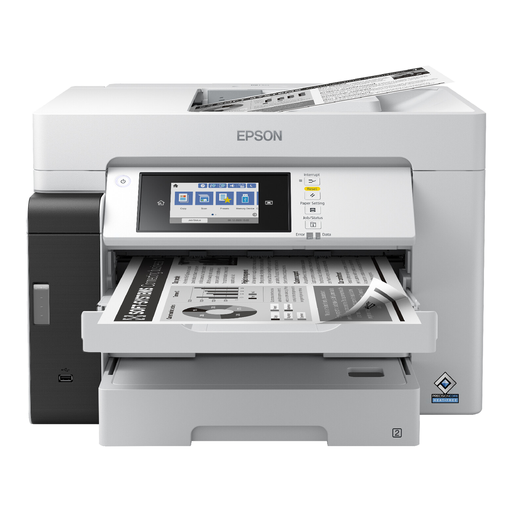
Epson EcoTank ET-M16680 A3 inkjet printer
The product information lists printing, scanning and copying for office work. Check this model’s scanning size before using it to scan a historical map.
The product name lists A3, 4800 x 1200 dpi and Wi-Fi. Scanning and copying functions are mentioned in the product information.
View at Joybuy
 No image available
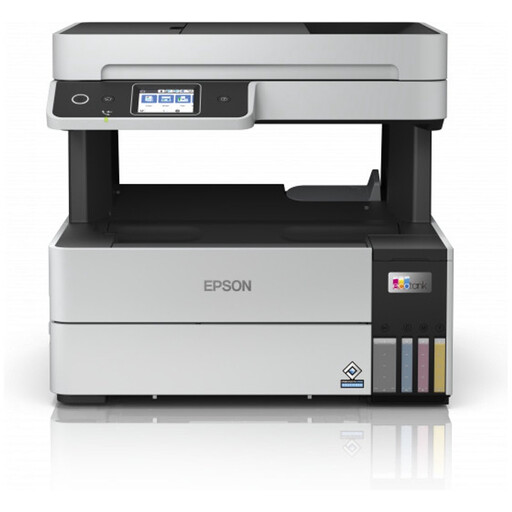
Epson EcoTank ET-5185 A4 inkjet printer with Wi-Fi
A multifunction option for printing and scanning in the home office. Check separately whether the scanning area is right for your map.
The product name lists A4, 4800 x 1200 dpi, 37 ppm and Wi-Fi. The product information also mentions Wi-Fi Direct, Apple AirPrint, and scanning and copying functions.
View at Joybuy
 No image available
HP Smart Tank 7305 wireless all-in-one colour printer
The flatbed scanner may suit smaller originals. Its stated scanning area won’t fit an A3 map in a single scan.
The stated scanning area is 216 × 297 mm and the stated optical scanning resolution is 1200 × 1200 dpi. The product information also lists double-sided printing, copying and scanning.
View at Joybuy
 No image available
HP Smart Tank 7005 wireless all-in-one colour printer
This flatbed scanner is designed for smaller originals. Check your map’s dimensions, as larger maps won’t fit in a single scan.
The stated scanning area is 216 × 297 mm and the stated optical scanning resolution is 1200 × 1200 dpi. The product name lists double-sided printing; the product information mentions scanning and copying.
View at Joybuy
Frequently asked questions
Is being able to print A3 enough to scan an A3 map in one go?
No. Check the maximum scanning size separately. HP lists an A3/Tabloid flatbed scanner for the OfficeJet Pro 9730. Canon lists A3 printing for the PIXMA TS9550a series, while Printerland specifies A4 scanning for the TS9550a.
How should I handle a folded or fragile map?
First check whether it’s safe to place the map on the glass and close the lid. The University of Antwerp describes contactless scanning as a way to avoid contact with the glass or lid, but also points out that curvature can cause distortion. Don’t assume it’s safe to feed a fragile original through a document feeder.
Should I take my printing volume into account too?
Yes. Choose replacement ink to suit how often you print, and check which ink the exact model uses. In one example calculation, the Consumers’ Association uses a five-year period that includes the purchase and standard refills; your own usage may differ.
Who should I contact if a printer bought in the Netherlands is faulty?
According to the Dutch government, the seller must provide a solution if there’s a problem with a product. A manufacturer’s warranty or additional cover is separate from your statutory rights.
Can I put a scan of a historical map online?
Not automatically. The fact that a map is historical doesn’t tell you whether you’re allowed to share the image. The Dutch government distinguishes between making a copy for personal use and distributing or making protected work publicly available. The National Archives provides specific reuse information for downloadable images marked ‘Public domain’ or ‘CC0’. Check the rights for the specific map before publishing it.


