
Teacher scanning individual report pages
Scans individual A4 pages from time to time and wants to keep desk space to a minimum.


For individual report pages that fit on A4, a compact flatbed scanner is a sensible choice, although you’ll need to place each page on it separately. If you regularly scan stacks of suitable loose sheets, consider a model with both a glass platen and an automatic document feeder. Bound or larger originals call for a suitable book edge or a larger scanning area. If your scans contain pupil data, the school must also manage storage and access: the Dutch Data Protection Authority highlights the need for appropriate security and access controls for pupil records.
Scans individual A4 pages from time to time and wants to keep desk space to a minimum.
Regularly processes suitable loose sheets, but sometimes needs a glass platen for individual originals too.
Needs to check whether reports are bound or larger than A4, and how files containing pupil data are managed in the school archive.
Suitable if: you mainly scan individual pages that fit on A4 and have limited workspace.
Trade-off: you place each original by hand, and an A4 scanning area cannot capture a larger document in a single scan.
Suitable if: you regularly process stacks of suitable loose sheets as well as individual originals.
Trade-off: the feeder won’t suit every original, and a network connection on its own doesn’t provide secure access to files.
Suitable if: reports are bound and the text runs close to the spine. Plustek lists a 6 mm book edge for the OpticBook 3800L.
Trade-off: you still need to place and turn the pages by hand; the scanning area is A4, 216 × 297 mm.
Suitable if: the original is larger than A4 but fits within the scanning area of your chosen model.
Trade-off: the Plustek OpticSlim 1180 has a maximum scanning area of 297 × 431,8 mm; the stated width and depth of the scanner are 589 × 407 mm.
| What to consider | What should you check? | Which consumers is this most relevant to? |
|---|---|---|
| Handling originals | Check whether pages are loose or bound, how large they are, and whether the book edge and scanning area suit the original. | If I need to scan fragile or bound pages, I want to place them carefully and capture the spine; around 29% of consumers put careful handling of originals first. |
| Processing stacks | Work out how often you scan stacks and whether the sheets are suitable for the feeder; also check whether the model has a glass platen. | If I regularly process stacks of loose report sheets, I don’t want to place every page on the glass platen separately; around 23% of consumers prioritise processing stacks. |
| Workspace | Measure the available desk and storage space, and leave room to position documents. | In a small classroom, I want to use the scanner without making the workspace impractical; around 18% of consumers put available space first. |
| Finding files again | Check the PDF and OCR options in the exact software version, and test file naming and storage with your own non-sensitive documents. | If I want to find reports again later, I want to check in advance that my software supports the file format and organisation I need; around 18% of consumers prioritise being able to find files again. |
| Managing pupil data | Have the school decide in advance where files may be stored and who can access them. The Dutch Data Protection Authority stresses the need for appropriate security and access controls for pupil records. | If scans contain pupil data, I want to know who is allowed to store and view them before I begin; around 12% of consumers prioritise managing these files. |
Canon lists an A4 scan speed for the LiDE 300 at 300 dpi and excludes transfer time. This type of manufacturer measurement is not a measure of the throughput you can expect when processing a school archive.
Compare the entire process: placing pages, turning them over, checking them and saving them.
Placing and checking pages by hand takes extra time, particularly when you’re handling lots of individual pages.
An A4 flatbed cannot capture a larger original in a single scan. Plustek lists a larger scanning area for the OpticSlim 1180, but the device also needs more desk space.
Measure your largest original in both directions and compare the dimensions with the scanning area before choosing a size.
If a document won’t fit in a single scan, you may need to take extra scans or combine them.
An output button or network connection doesn’t determine who is allowed to view a pupil record. The Dutch Data Protection Authority highlights the need for appropriate security and access controls.
Before scanning real pupil data, have the school confirm where files may be stored and who can access them.
If the storage location or access permissions aren’t right, you may need to move or reorganise the files afterwards.
Canon describes the CanoScan LiDE 300 and LiDE 400 as compact A4 flatbed scanners for individual documents.
Epson positions the Perfection V39II as a compact A4 scanner and the WorkForce DS-1760WN as a business scanner combining a glass platen with an automatic document feeder.
According to Plustek, the OpticBook 3800L is an A4 flatbed with a book edge, while the OpticSlim 1180 has a larger scanning area.
This product selection focuses on flatbed scanners for individual originals and workflows involving loose sheets. Measure both your originals and the available desk space before you buy.
 No image available
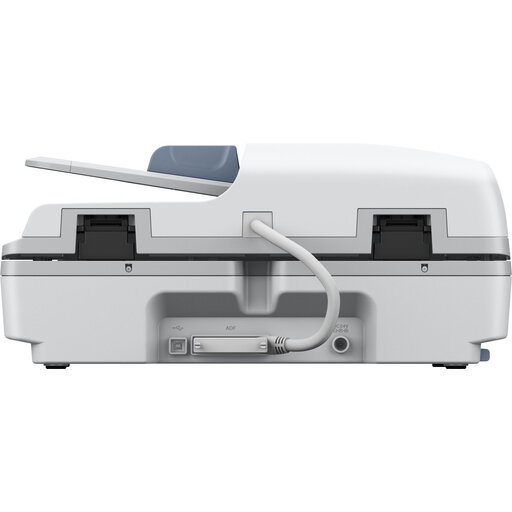
Could suit a workflow involving individual A4 pages and stacks of suitable loose sheets. Epson lists the DS-1660W as discontinued, so check before buying that this model and the support you need are right for you.
The product is described as an A4 flatbed scanner; its name lists a resolution of 1200 × 1200 dpi.
 No image available
Worth considering if you want to process individual originals and stacks of suitable loose sheets as part of one workflow; check that the feeder is suitable for your documents.
The stated dimensions are 495 × 360 × 217 mm. Measure your available workspace before deciding where to put the scanner.
Not if you mainly scan individual A4 pages from time to time; a compact flatbed is well suited to that kind of workflow. A model with a document feeder is most useful if you regularly process stacks of suitable loose sheets. Use the glass platen for originals you want to place individually.
Measure the available space and check the connections and compatibility with the school computer before buying. First, test your chosen scan destination, PDF output and file naming with a non-sensitive document. For scans containing pupil data, use only a destination that meets the school’s access and security requirements.
A school may process data needed for education and support in a pupil record, but under the GDPR it must address, among other things, necessity, security, restricted access and accountability. The Dutch government states that most data in a primary school pupil record must be kept for two years after the pupil leaves the school; different periods apply to certain types of data. Check which documents and type of school are involved before setting a retention period for scans.
No. The Inspectorate of Government Information and Heritage distinguishes between, among other things, public-law and private-law school types when determining whether the Archives Act applies. Check which archival and selection rules apply to the school’s legal status and the relevant types of documents. The Inspectorate’s information sheet was updated on 19 April 2023.