For individual school certificates, you don’t automatically need a book scanner. Choose one based on the size of your largest sheet, scan clarity and how much space the device takes up. An overhead scanner is useful if you also scan larger or bound documents and want to put the device away afterwards; an A4 flatbed is suitable for loose sheets that fit on the glass. If your certificates contain personal data, you’ll also need to decide who can access the scan files.
Who is this guide for?
Scanning individual certificates
You mainly handle loose sheets and want names, figures and stamps to be clearly captured. The largest sheet can determine whether A4 is enough; for example, Canon specifies a maximum size of 216 × 297 mm for the CanoScan LiDE 400.
Using a shared desk
You want to clear the workspace after scanning and check who can access files containing personal data. The Dutch Data Protection Authority stresses that organisations must take appropriate steps to prevent unauthorised access to personal data.
Scanning certificates and books
You also handle bound school documents. In that case, an overhead scan or a book edge may matter more than they would for loose sheets alone.
What should you look for when buying?
Foldable overhead scanner
Choose this if: you want to scan loose sheets flat, including those larger than A4, and put the device away after use.
Keep in mind: check that the software works with your computer and assess a test scan of small text, stamps and glossy paper.
More advanced overhead book scanner
Choose this if: you regularly handle bound documents or larger pages as well as certificates.
Keep in mind: book features, OCR or video only add value if you actually use them.
A4 flatbed scanner
Choose this if: your certificates fit on the glass and you can place them one at a time.
Keep in mind: a larger sheet won’t fit entirely within an A4 scanning area, and placing loose sheets by hand takes time.
Flatbed book scanner
Choose this if: you regularly scan bound documents and an A4 scanning area is sufficient.
Keep in mind: check that the model, delivery and software support suit your needs.
First, check the size of your largest document and whether you also scan bound material. Then consider the workspace and storage space available, as well as how files are handled on the shared computer.
| What to consider |
What should you check? |
Who should pay particular attention? |
| Clarity |
View a test scan to check small text, stamps, edges and colour in your preferred file format. |
If I need to check names, figures and stamps clearly, I want to know how my type of certificate looks in the scanned file. Around 33% of consumers give the clarity of certificate details top priority. |
| Access to files |
Check where the software saves scans and who can open files on the computer or shared storage. |
If scans contain personal data, I want to be able to control who can view the files. Around 27% of consumers put file protection at a shared workspace first. |
| Space and storage |
Measure the workspace while scanning and the place where you’ll store the device afterwards. |
If the desk needs to be clear again after use, I want to know how much space the scanner takes up while I’m working. Around 20% of consumers give workspace and storage top priority. |
| Size and bound documents |
Measure your largest loose document and decide whether you’ll also scan books or other bound material. |
If I handle bound school documents as well as certificates, I want a suitable way to scan those pages. Around 20% of consumers give bound material top priority. |
Common buying mistakes
-
Choosing an A4 model without measuring your largest certificate
A sheet larger than the scanning area won’t fit in a single scan. Canon lists a maximum of 216 × 297 mm for the CanoScan LiDE 400; CZUR says the Shine 800 A3 Pro supports sizes up to A3.
Measure your largest original and compare its dimensions with the maximum scan size of the exact model.
A scanning area that’s too small may mean extra steps or the need for another device to handle larger sheets.
-
Assuming OCR or the stated pixel count proves the scan will be clear
A resolution or OCR specification doesn’t prove that small text, stamps and details on your certificate will be clearly readable.
If possible, check a test scan of a similar document and inspect the details that matter to you.
If details aren’t clear enough, checking and rescanning will take extra time.
-
Assuming a shared scanner also takes care of secure file storage
The scanner doesn’t automatically control who can access files saved on a computer or shared storage. The Dutch Data Protection Authority reminds organisations of their responsibility to prevent unauthorised access to personal data.
Decide in advance where scans will be saved and who can open them.
You may need to set up user permissions and the storage location separately.
Brands to compare
CZUR
The Shine 800 A3 Pro is a foldable overhead scanner for loose documents up to A3.
- CZUR lists an 8-megapixel camera, PDF and searchable PDF export, and support for Windows and macOS.
- CZUR specifies 270 dpi at A4 and 205 dpi at A3. Assess a test scan at the size you intend to use.
IRIS
The IRIScan Desk 6 Pro is an overhead scanner for books and documents, including A3 pages.
- IRIS lists a camera resolution of 4160 × 3120 pixels and several output formats.
- Claims about speed and effectiveness come from the manufacturer and aren’t an independent comparison with other models.
Canon
The CanoScan LiDE 400 is an A4 flatbed scanner for loose sheets that fit on the glass.
- Canon specifies a maximum document size of 216 × 297 mm and USB power.
- A certificate larger than the scanning area can’t be placed entirely on the glass in one go.
Plustek
The OpticBook 3800L is designed for A4 book scans when you regularly handle bound school documents.
- Plustek lists a 2 mm book edge and Windows support for this model.
- Before buying, check the model, delivery and support available for your needs.
Joybuy products for loose documents
These product picks are intended for loose A4 documents at a shared workspace. They include models with sheet feeding and an option that combines a flatbed with document feeding.
 No image available
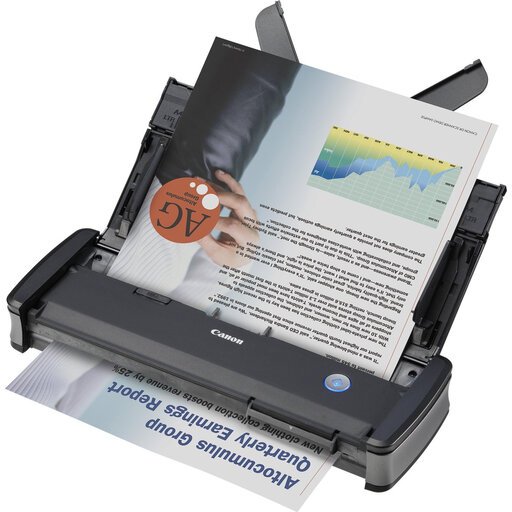
Canon imageFORMULA P-215II A4 sheet-fed scanner, 600 x 600 DPI, black and grey
An option for loose A4 certificates if automatic document feeding and duplex scanning suit the way you work.
The product description lists a 20-sheet feeder, USB power and support for Windows and Mac.
The stated scan resolution is 600 dpi.
View at Joybuy
 No image available
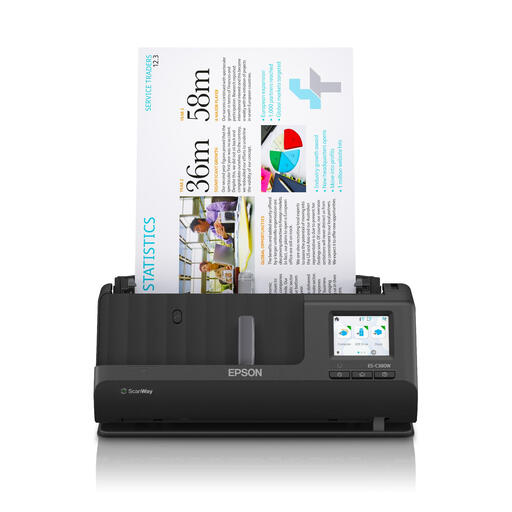
EPSON ES-C380W A4 sheet-fed scanner, ADF, 600 x 600 DPI, black
The product description calls this model compact, making it suitable for shared workspaces with limited desk space.
According to the product description, the scanner has a U-path, a touchscreen and a scan resolution of 600 × 600 dpi.
The description lists destinations for scans including folders, USB and cloud services. Check that these options fit your workplace’s storage arrangements.
View at Joybuy
 No image available
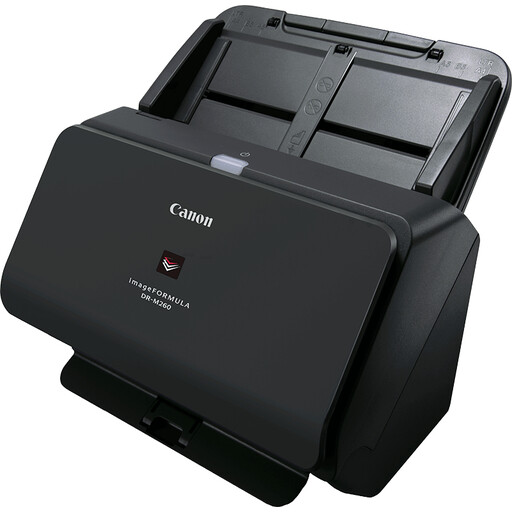
Canon imageFORMULA DR-M260 A4 sheet-fed scanner, 600 × 600 DPI, black
A sheet-fed model for loose documents; the product description lists an automatic document feeder for batches of paper.
The stated scan speed is up to 60 pages per minute. The same description also mentions double-feed detection.
The stated scan resolution is 600 × 600 dpi.
View at Joybuy
 No image available
Canon imageFORMULA DR-F120 A4 flatbed and ADF scanner, 600 × 600 DPI, black
A flatbed and document feeder combination for anyone who wants to scan both loose documents and bound material.
The product description lists a 50-sheet ADF and duplex scanning.
The stated scan resolution is 600 × 600 dpi. The description mentions output to editable PDF.
View at Joybuy
 No image available
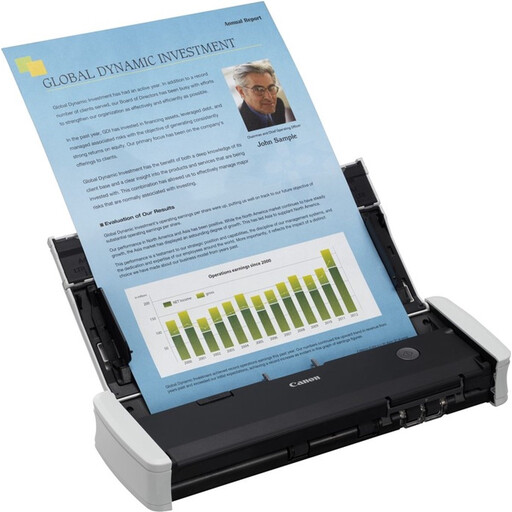
Canon imageFORMULA R10 A4 sheet-fed scanner, 600 x 600 DPI, white
An option for loose A4 certificates if USB connectivity and built-in scanning software on the shared computer suit your needs.
The product description lists USB power, duplex scanning and a 20-sheet capacity.
The stated scan resolution is 600 × 600 dpi.
View at Joybuy
Frequently asked questions
Do I need a book scanner for a loose A4 certificate?
No, not just for its book-scanning features. An A4 flatbed can scan a sheet that fits within the model’s maximum scanning area; an overhead scanner may be more suitable if you also scan larger sheets or want to put the device away.
What should I check when setting up a scanner on a shared computer?
Check that the software works with the operating system in use and where scans are saved. If the files contain personal data, the organisation must arrange appropriate access controls; the Dutch Data Protection Authority stresses the need to prevent unauthorised access.
How long can scanned certificates containing personal data be kept?
There is no general GDPR retention period that applies to all personal data. The organisation must decide what is needed for the purpose of processing and check whether a different statutory retention period applies to the specific documents. For secondary school diplomas, the Dutch Inspectorate of Education says they should only be destroyed after the period set out in an approved retention schedule; this rule doesn’t automatically apply to every certificate.
What warranty applies to a consumer purchase in the Netherlands?
As well as any manufacturer’s or seller’s warranty, you have a legal guarantee if the product doesn’t meet what you could reasonably expect under normal use. According to ACM ConsuWijzer, the seller is then responsible for providing an appropriate solution free of charge; there isn’t one fixed statutory warranty period for every scanner. Check separately which terms apply to a business purchase.
Is consent always needed to scan school certificates?
No, consent isn’t automatically the required legal basis under the GDPR. An organisation processing personal data must determine which applicable legal basis applies before processing begins. Buying a scanner alone doesn’t establish which legal basis is appropriate for a particular type of processing.


