
For occasional scanning
You digitise a few A4 pages from time to time and want a scanner that fits into your home workspace.


For loose or bound minutes that you scan one page at a time, a flatbed scanner with a scanning area that fits the original is a good choice. If you regularly process stacks of loose sheets, a model with both a flatbed and an automatic document feeder can reduce manual work. For originals larger than A4, you’ll need a scanner with a suitably larger scanning area. Also check how scans are combined into a single file and whether the software works with your computer.
You digitise a few A4 pages from time to time and want a scanner that fits into your home workspace.
You regularly scan loose reports and want to spend less time placing pages on the flatbed one by one, while still having a flatbed available for exceptions.
You work with bound, delicate or larger originals, so your first considerations are the scanning area and how the document fits on the flatbed.
First, choose based on the size and condition of your originals, then think about how often you’ll process loose pages. The percentages give a general indication of the main needs people have when choosing a scanner.
| Consideration | What to look for | Who is it important for? |
|---|---|---|
| A few A4 pages | Check the maximum scan size, PDF controls, connectivity and software support for your computer. | I mainly scan loose A4 sheets occasionally and want a simple set-up. For around 40% of consumers, occasional A4 scanning is their main reason for buying. |
| Stacks of loose sheets | Check whether the model has an automatic document feeder and whether it supports the paper sizes and file workflow you need. | If I regularly process stacks of loose pages, I want to spend less time turning pages by hand. For around 30% of consumers, processing stacks is the main need. |
| Bound or delicate documents | Measure the original and check that it fits on the flatbed and can be placed there without forcing it. | I want to place bound or delicate minutes on the flatbed rather than feed them through a document feeder. Around 20% of consumers say this is their main need. |
| Larger than A4 | Compare both the width and length of your largest original with the maximum scanning area. | If my appendices or registers are larger than A4, I want to scan them in one go. This is the main reason for buying for around 10% of consumers. |
Canon Netherlands quotes approximately 10 and 8 seconds respectively for an A4 colour scan at 300 dpi on the CanoScan LiDE 300 and LiDE 400, under its own test conditions. These times don’t tell you how long it takes to process a complete file.
Estimate the time based on the number of pages and whether you place them manually or process them through an automatic feeder.
Also allow time for turning pages, checking that files are complete and, if necessary, correcting text recognition.
Saving a scan as a PDF doesn’t automatically make the text recognisable or searchable. OCR, or optical character recognition, is a separate feature.
Check whether the software for the exact model supports searchable PDFs and Dutch text. If possible, scan a representative page as a test and check the result.
Canon Netherlands lists the maximum document size for the LiDE 300 and LiDE 400 as 216 × 297 mm. Plustek lists a scanning area of up to 297 × 431,8 mm for the OpticSlim 1180. A larger scanning area also takes up more desk space.
Measure your largest original and compare both sides with the scanning area. Then check that the scanner’s external dimensions will fit in your workspace.
Club meeting minutes may contain personal data. The Dutch Data Protection Authority says that organisations must decide which security measures are appropriate for their circumstances.
Check the contents before sharing a scan and restrict access appropriately for the club’s circumstances.
The CanoScan LiDE 300 and LiDE 400 are compact A4 flatbed scanners for individual pages.
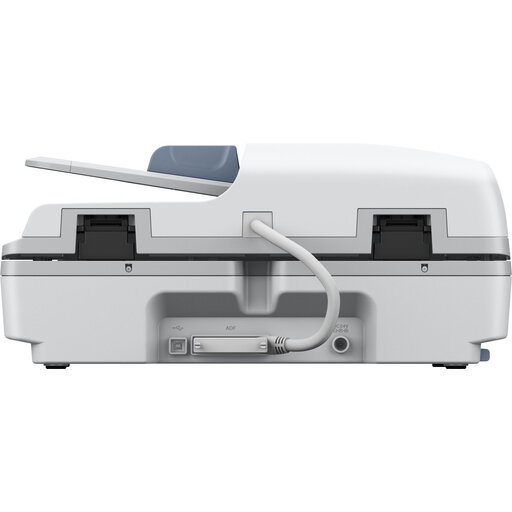
The Perfection V39II is an A4 flatbed scanner with a stand; according to Epson, the WorkForce DS-1730 combines an automatic document feeder with a flatbed.
The OpticSlim 1180 is a larger flatbed scanner for originals that don’t fit within an A4 scanning area.
This selection includes a model with a flatbed and automatic document feeder for regular batches, and an A4 flatbed scanner for loose, bound or delicate pages.
 No image available
An option if you want to process loose meeting minutes through the feeder and also need a flatbed.
The product information lists a 100-sheet feeder, single-pass two-sided scanning and 25 pages per minute. The stated dimensions are 495 × 360 × 217 mm and the weight is 9,8 kg, so make sure you have enough space.
 No image available
An option if you want to scan A4 meeting minutes or bound and delicate pages on a flatbed.
The product information lists wireless connectivity and automatic two-sided scanning. Check that the software and connection suit your computer and preferred file workflow.
Not necessarily. Use the flatbed for bound documents; if you regularly process suitable stacks of loose sheets, a model with both a flatbed and an automatic document feeder may be more convenient. Check the feeder functions of the exact model.
No. A PDF button on its own doesn’t confirm that the scanner has an OCR function. Check whether the software for the exact model can create searchable PDFs and works with your computer. Also review a test scan to see whether the text is recognised correctly.
Check the connection and current driver support for your operating system, then make a test scan to ensure the file is complete and readable. If the minutes contain personal data, restrict access appropriately. The Dutch Data Protection Authority says organisations should decide what security measures they need based on their circumstances.
Don’t assume that’s fine: names and other information that can identify someone may be personal data. Before sharing, review the contents and the applicable GDPR obligations. The appropriate measures depend on the content and context.
According to the Dutch Government, when you buy from a business at a distance, you generally have a 14-day cooling-off period in many cases, depending on the purchase and any exceptions. If a product is faulty, contact the seller. Check whether a purchase made on behalf of the club genuinely qualifies as a consumer purchase before applying consumer rights to the transaction.