If you regularly scan stacks of suitable loose forms, a compact scanner with an automatic document feeder and two-sided scanning is a good fit. For occasional sheets, a mobile scanner may be enough. Also consider how much space the paper takes up while scanning and whether the software can create searchable PDFs. A flatbed scanner is another option for bound or delicate originals, but it won’t process a stack of pages automatically.
Which scanner is right for you?
Scanning stacks of forms
If you regularly scan loose maintenance forms, some of which may be double-sided, an automatic document feeder can save you from feeding them in one sheet at a time. Brother and Canon list models with feeders and two-sided scanning.
Limited desk space
If you want to put your scanner away after use or have little room to spare, consider not just the device’s dimensions but also the space needed for the paper feed path. Epson describes a U-turn paper path for the ES-C320W and a battery-powered portable design for the ES-60W.
Finding forms later or protecting originals
To make text searchable, you’ll need a suitable OCR software workflow; Epson describes this capability for ScanSmart. Bound or delicate documents call for a different approach from loose sheets: Plustek lists open books as a suitable use for the OpticSlim 1180.
What should you look for when choosing?
Compact scanner with automatic document feeder
Best for: regularly scanning stacks of loose maintenance forms.
Bear in mind: check the paper feed path, paper size and whether the originals are suitable for feeding.
Mobile scanner
Best for: mainly scanning individual sheets and wanting to put the scanner away or take it with you.
Bear in mind: mobile doesn’t automatically mean a model can process a stack; compare the feeder and power options for each model.
Flatbed scanner
Best for: bound documents or originals you’d rather lay flat.
Bear in mind: you need to place pages on the scanner one at a time, and you’ll need space for the device.
| What to consider |
What should you check? |
Who should consider this? |
| Stack handling and two-sided scanning |
Check the feeder capacity, compatible paper types and whether both sides are scanned in a single pass. Brother lists a 20-sheet feeder and two-sided scanning for the ADS-1300. |
If you regularly scan stacks of loose, double-sided forms, you won’t want to feed each sheet separately; around 36% of consumers prioritise stack handling. |
| Desk space and storage |
Check where the paper goes during use, and for mobile use, make sure the power and connection options suit your needs. Epson describes a U-turn paper path for the ES-C320W and a battery for the ES-60W. |
If you also use your worktable for other hobbies, remember to factor in the space needed while scanning; around 29% of consumers prioritise limited space or portability. |
| Searchable PDFs |
Check whether the software for your chosen model and computer supports OCR and can create a searchable PDF. Epson describes this feature for ScanSmart. |
If you want to find a date, part or repair note in completed forms later, a suitable search workflow can help; around 21% of consumers prioritise searchable documents. |
| Paper condition and flatbed scanning |
Separate loose sheets from bound or delicate documents. For a feeder model, check which originals the manual says are suitable; Plustek lists open books as a suitable use for the OpticSlim 1180. |
If you’d rather lay originals flat than feed them through a scanner, the way they’re placed is crucial; around 14% of consumers prioritise delicate or bound documents. |
Common buying mistakes
-
Judging how compact a scanner is by its dimensions alone
The paper feed path takes up space too. Epson explains how the ES-C320W’s U-turn paper path reduces the footprint needed while scanning; this doesn’t automatically apply to every compact scanner.
Check how the scanner fits on your desk with paper loaded and ejected.
Paper sticking out during scanning can temporarily take up part of your work surface.
-
Assuming every mobile scanner automatically scans stacks double-sided
The mobile models reviewed vary. Canon lists a 20-sheet feeder and two-sided scanning for the imageFORMULA R10; the Epson ES-60W product information describes a mobile scanning workflow.
Compare the feeder and two-sided scanning features of the exact model you’re considering.
Feeding forms one at a time can take extra time if you regularly process batches.
-
Assuming a scan will automatically be searchable
You’ll need a suitable OCR and storage workflow to create searchable files. Epson describes this feature for ScanSmart.
Before buying, check compatibility with your model and computer, and whether the software can export searchable PDFs.
-
Assuming the manufacturer’s warranty covers all your statutory rights
According to the Dutch government, there is no fixed statutory warranty period in the Netherlands; if a product is faulty, the retailer is your point of contact.
Assess any paid extension based on the additional cover it actually provides.
A paid extension could be an unnecessary expense if it doesn’t add relevant cover.
Relevant brands to consider
Brother
The ADS-1300 is designed for compact feeder scanning of stacks of loose forms.
- Brother lists USB-C power, a 20-sheet feeder and two-sided scanning for this model.
- Check whether the adapter or output tray you need is included; Brother lists these as accessories.
Epson
The ES-C320W is designed for compact feeder scanning, with Wi-Fi and a U-turn paper path; the battery-powered ES-60W is a mobile option.
- Epson describes OCR in ScanSmart for creating searchable PDFs and lists the ES-C320W as a compatible product.
- Check how each model feeds paper; features of the ES-C320W don’t automatically apply to the ES-60W.
Canon
The imageFORMULA R10 combines USB power with feeder scanning for loose forms.
- Canon lists a 20-sheet feeder, two-sided scanning and built-in CaptureOnTouch Lite software for the R10.
- Check compatibility with your computer; the operating system versions listed don’t confirm support for every later version.
Plustek
The OpticSlim 1180 is a flatbed option for bound documents or larger originals.
- Plustek lists open books and A3 originals as suitable uses.
- According to the manufacturer, the model measures 589 × 407 × 68 mm and doesn’t have an automatic document feeder.
Ricoh ScanSnap
The iX1300 combines feeder scanning with a separate return-feed path for items such as cards and folded documents.
- Ricoh lists Wi-Fi and ScanSnap Home.
- According to Ricoh, ScanSnap Cloud availability may vary by region; check that it’s available for your needs.
Scanners at Joybuy
This Joybuy selection includes scanners for loose forms, limited desk space and combining a document feeder with a flatbed.
 No image available
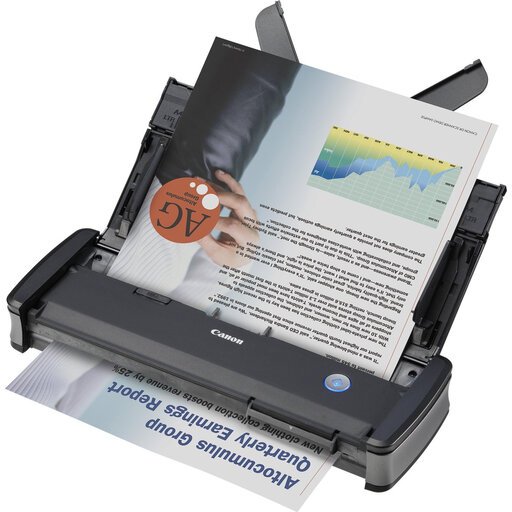
Canon imageFORMULA P-215II A4 sheet-fed scanner
Ideal if you want to scan loose forms and are looking for a mobile scanner.
Resolution: 600 × 600 DPI.
View at Joybuy
 No image available
Canon imageFORMULA DR-F120 A4 flatbed scanner with ADF
Ideal if you want to scan loose forms as well as bound or delicate originals.
Resolution: 600 × 600 DPI.
View at Joybuy
 No image available
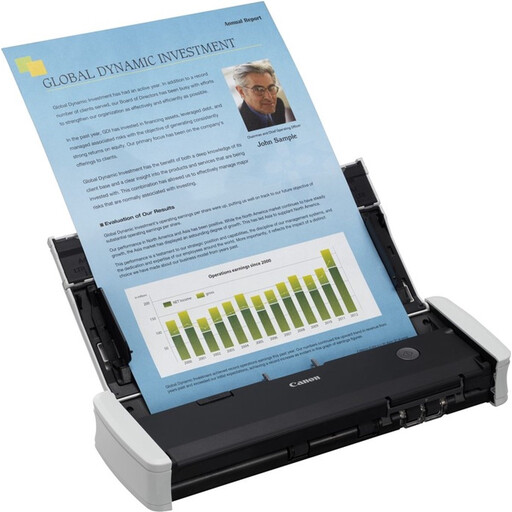
Canon imageFORMULA R10 A4 sheet-fed scanner
Ideal if you want to scan loose forms via USB; check that this connection suits your workspace.
Resolution: 600 × 600 DPI.
View at Joybuy
 No image available
Epson DS-C330 A4 scanner with ADF
Ideal if you want to feed loose forms and have considered the space available behind the scanner.
Resolution: 600 × 600 DPI.
View at Joybuy
 No image available
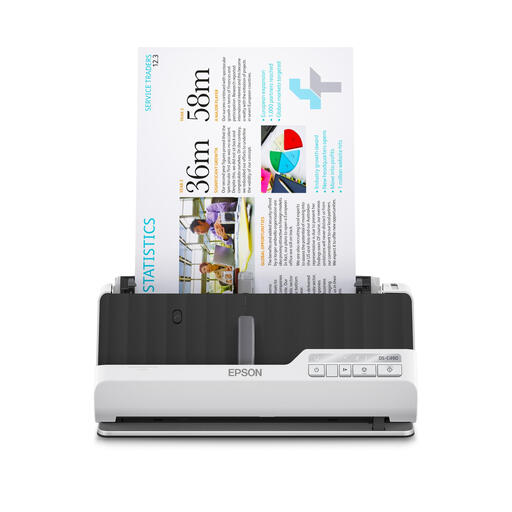
Epson DS-C490 A4 scanner with ADF
Ideal if you want to scan loose forms with an automatic feeder; check that the paper feed path suits your desk and originals.
Resolution: 600 × 600 DPI.
View at Joybuy
Frequently asked questions
Do I always need an automatic document feeder for double-sided maintenance forms?
No. An automatic document feeder is most useful when you scan stacks of suitable loose sheets. Check whether the model scans both sides in a single pass; Brother lists this feature for the ADS-1300 and Canon for the R10.
How can I keep a document feeder working well if forms bring in dust or dirt?
Follow the cleaning instructions for your specific model. The Epson ES-C320W user manual covers, among other things, cleaning the inside of the scanner and its sensor, as well as replacing the roller kit.
Should I buy an extended warranty if the scanner develops a problem after purchase?
Not necessarily. According to the Dutch government, there is no fixed statutory warranty period in the Netherlands, and the retailer is your point of contact if a product is faulty. Compare a paid extension with the additional cover it actually provides.
Can I scan forms containing personal data at home?
According to the Dutch Data Protection Authority, the GDPR doesn’t apply to processing carried out solely for personal or household purposes. Don’t assume this exception applies to business use or publication; check separately which GDPR rules apply to those uses.


