
Someone processing batches of forms
You scan several loose forms after maintenance visits and want to spend as little time as possible loading or turning over sheets by hand.


For regular batches of loose forms, a document scanner with an automatic feeder is a practical choice. Choose automatic duplex scanning if the reverse side is filled in too. A flatbed is worth considering for fragile or bound documents. If the scanner will be shared, also think about its connections, where scans will be stored and who will have access.
You scan several loose forms after maintenance visits and want to spend as little time as possible loading or turning over sheets by hand.
You want to be able to find scans later and agree on a permanent place to store them, especially if forms contain names or contact details.
You use the scanner in different places or share it with others, so power, connectivity and where scans are saved all matter.
| What to consider | What should you check? | Who is this important for? |
|---|---|---|
| Batches and double-sided forms | Compare the automatic document feeder (ADF) capacity with the number of pages you typically scan in one session, and check whether both sides are scanned automatically. | When we scan several forms in a row after maintenance visits, and the reverse side may be filled in, we want to reduce the amount of manual loading and turning over. Around 36% of consumers say batch processing and double-sided scanning are their top priorities. |
| Finding and storing scans | Make a test scan and check its legibility, page order, file format, storage location and access permissions. The Dutch Data Protection Authority stresses that personal data must not be accessible to unauthorised people. | When we need to find scans later and forms may contain names or contact details, we want legible files and an agreed place to store them. Around 29% of consumers prioritise being able to find files and store them appropriately. |
| Different work locations | Check the power supply, connection to the group’s devices and where scans will be saved. | When volunteers scan at different locations, we want to know how the scanner will be connected and where the files will end up. Around 21% of consumers prioritise portability and connectivity. |
| Fragile or unusual originals | Check which feeding method is suitable for your documents. A flatbed can be an alternative for items you do not want to feed through an ADF. | When we need to scan fragile, bound or unusual documents, we want to be able to position the original appropriately. Around 14% of consumers prioritise how these kinds of documents are handled. |
A quoted scanning speed does not tell you how long it takes to sort, load and check a batch of documents. The National Archives recommends checking for missing pages as part of careful digitisation.
Test a typical batch using your own forms, then check the page order and make sure nothing is missing.
Preparing, reloading and checking quality also take time during a scanning session.
Brother lists a 20-sheet feeder for the ADS-1800W. Larger batches may need to be reloaded more often.
Count how many sheets you typically scan per session, and check the feeder capacity, power supply and included accessories for the exact model.
Having to reload more often interrupts scanning. Also check that the power and output accessories you need are included with the version you choose.
Forms containing names or telephone numbers include personal data. The Dutch Data Protection Authority notes that unauthorised people must not be able to access it. If an external service provider processes data on the group’s behalf, the arrangements must be documented.
Agree in advance where scans will be stored, who can access them and when they will be deleted. If an external service provider processes the data, document the necessary arrangements.
The Canon models mentioned offer different ways to scan loose forms and originals.
The ADS-1800W is worth comparing if volunteers scan at different locations.
The DS-C330 and WorkForce DS-1760WN suit different space and scanning requirements.
The SmartOffice PS186 is worth comparing if searchable PDF files are important.
This selection includes ADF scanners for loose forms, as well as models that combine an ADF with a flatbed. Check each model to make sure its connection and scan destination suit the group’s way of working.
 Image unavailable
The combination of a flatbed and ADF is suitable if you want to scan both batches of forms and individual originals.
Listed features: A4, 600 × 600 dpi, black.
 Image unavailable
This ADF scanner is designed for loose forms. Epson Netherlands describes both U-turn and straight-through paper paths for this model.
Listed features: A4, 600 × 600 dpi, black and white.
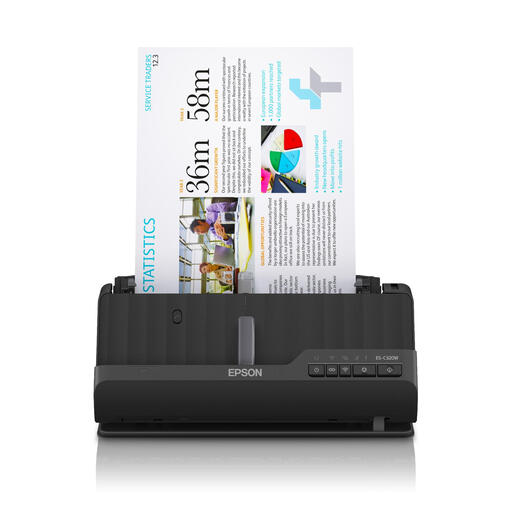 Image unavailable
This scanner is an option if a compact ADF model is important. Check in advance that its connection and scan destination suit the locations where it will be used.
Listed features: A4, 600 × 600 dpi, black.
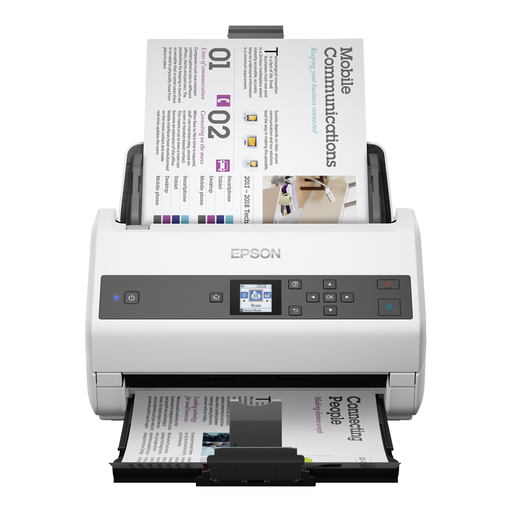 Image unavailable
An ADF model to consider if the group regularly needs to process larger batches of double-sided documents.
Listed features: A4, 600 × 600 dpi, grey and white.
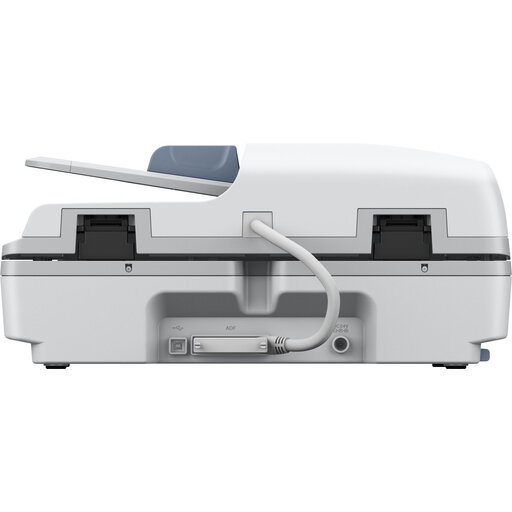 Image unavailable
The combination of a flatbed and ADF is suitable if you want to scan both batches of forms and individual items on a flatbed.
If maintenance forms are filled in on the reverse side too, a model that automatically scans both sides is a suitable option. Make a test scan to check that both sides are legible and saved in the correct order.
Check the document’s condition and the feeding guidelines for the exact model before putting it through an ADF. A suitable flatbed can be a good option for items you do not want to feed through a mechanism. Check the scans for missing pages.
Check which power supply and output accessories you need for your setup, and whether the software works on the group’s computers. Brother Netherlands lists separate accessories for mains power and output for the ADS-1800W.
Yes. Names and telephone numbers are personal data. The Dutch Data Protection Authority stresses that organisations must prevent unauthorised access. Agree who can access the scans and how long they need to be kept. If an external service provider processes personal data on the group’s behalf, the arrangements for that processing must be documented in writing.
The GDPR does not set a specific retention period that applies to all personal data. The Dutch Data Protection Authority advises organisations to decide for themselves how long they need the data. Set a period for each purpose and check whether any additional rules apply to your situation.