
Anyone who regularly scans piles of documents
You often handle loose, frequently double-sided handouts and would rather not feed in every sheet individually. Epson and Brother describe automatic document feeders for the models concerned.


If you often scan piles of loose handouts, a scanner with an automatic document feeder (ADF) is best suited to the job. A flatbed scanner is more suitable for bound or delicate originals. A portable model may be a good choice if you put the scanner away after use, but check the connection and feeder capacity. If you share the scanner, also check where scans are sent and how OCR works: Wi-Fi does not automatically make files private, and a scan is not automatically searchable.
You often handle loose, frequently double-sided handouts and would rather not feed in every sheet individually. Epson and Brother describe automatic document feeders for the models concerned.
You have limited shared workspace and want to send scans to your own destination. Think ahead about who can access the chosen storage folder and check where files are saved.
You also want to digitise bound or delicate pages without feeding them through an automatic feeder. Canon and Plustek describe flatbed and book scanner models for this purpose.
Start with the type of originals you scan most often. Then check that the feeder, connection and storage process suit your shared studio.
| What to consider | What to look for when buying | Who is this important for? |
|---|---|---|
| Piles of loose pages | Check for double-sided scanning, the ADF capacity and the types of paper the model can handle. Epson lists a 100-sheet ADF for the WorkForce ES-550W; Brother specifies 20 sheets for the ADS-1800W. | If I often handle piles of double-sided handouts, I want to spend less time feeding sheets in one by one. Around 40% of consumers mainly want to scan piles of loose handouts. |
| Shared workspace | Check the scanner’s dimensions when in use, its connection and how to choose a storage destination for each user. Wi-Fi or a touchscreen alone does not tell you how files are protected. | At a shared desk, I want to take up as little space as possible and send my scans to the right folder. For around 30% of consumers, a shared workspace is their main buying priority. |
| Finding files again | Check whether the software for the exact model supports OCR to create searchable PDFs, and test the feature with your own handouts. | If I want to search the text in my study files later, I need more than an image of a page. Around 20% of consumers mainly want searchable files. |
| Bound or delicate originals | Check the scanning area, the clearance around the lid and whether the page can be positioned flat without damage. A flatbed scanner requires you to place pages by hand. | For bound or delicate pages, I don’t want to feed the original through a feeder. Around 10% of consumers have this as their main need. |
A wireless connection does not automatically determine who can access saved scans. Documents may also contain personal information that is not immediately obvious.
Before scanning, check the selected destination and who can open the files. Review documents containing personal information before sharing them; the Dutch Data Protection Authority highlights the risks of sharing such documents.
Scan speed and ADF capacity are separate specifications. If a pile exceeds the feeder’s capacity, you will need to refill it.
Compare the capacity with the piles you usually scan, check whether you scan single- or double-sided documents, and see which paper types are supported.
A scan may simply be an image of the page. OCR is needed to make text searchable; Epson describes this feature for ScanSmart.
Check that the software is compatible with your computer, and test text recognition with your own study materials before scanning larger batches.
Epson lists the WorkForce ES-580W as discontinued. A product listing alone does not confirm that a product is currently available.
Check the exact model number, delivery terms and available support before making your choice.
The models reviewed include a compact scanner for a small workspace and one designed for larger piles of loose sheets.
The ADS-1800W was reviewed for shared use where space is limited; the ADS-1300 for a USB-based workflow.
The CanoScan LiDE 400 reviewed is a flatbed scanner for originals that you place by hand on the glass.
The OpticBook 3800L reviewed is designed for anyone who also wants to scan bound study materials.
These products are intended for digitising loose handouts with a scanner that has an automatic document feeder. Check that each model’s connection and workflow suit your studio.
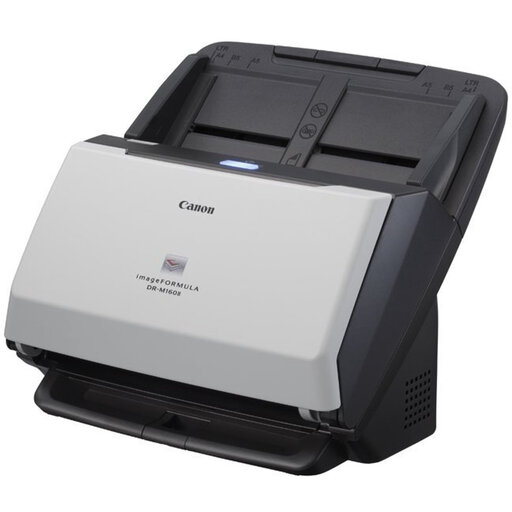 Image unavailable
An option for piles of double-sided A4 handouts that you scan using a computer.
A4 ADF scanner; the product name specifies 600 × 600 dpi.
 Image unavailable
An option for larger piles of loose handouts and for anyone who also wants to scan delicate documents.
A4 sheet-fed scanner; the product name specifies 600 × 600 dpi.
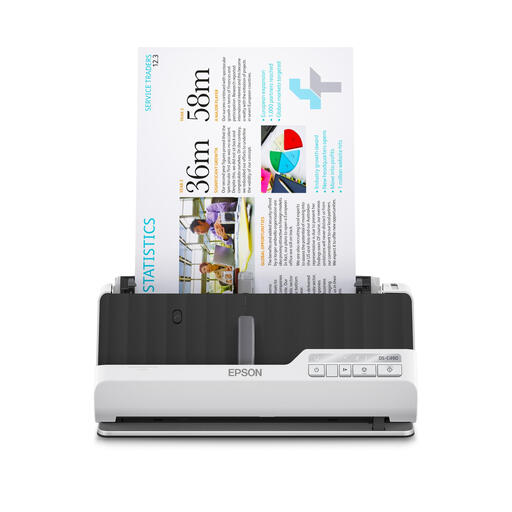 Image unavailable
An option for double-sided handouts and for anyone who also needs to handle unusual originals. Check that the paper path suits the size and thickness of your materials.
A4 sheet-fed scanner; the product name specifies 600 × 600 dpi.
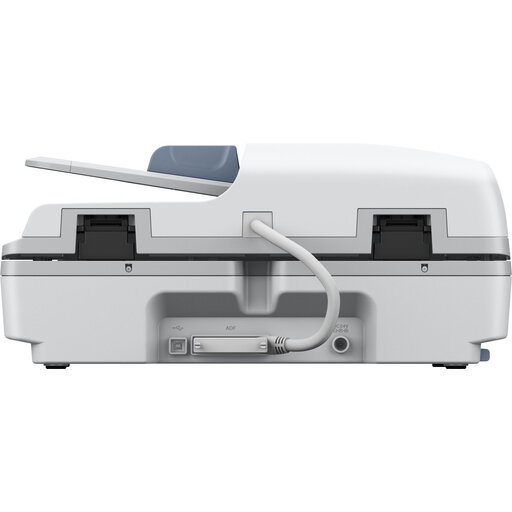 Image unavailable
An option if you want to scan both loose documents and originals that can be placed flat.
According to the product information, the network interface is optional for shared use; check whether you need it for your setup.
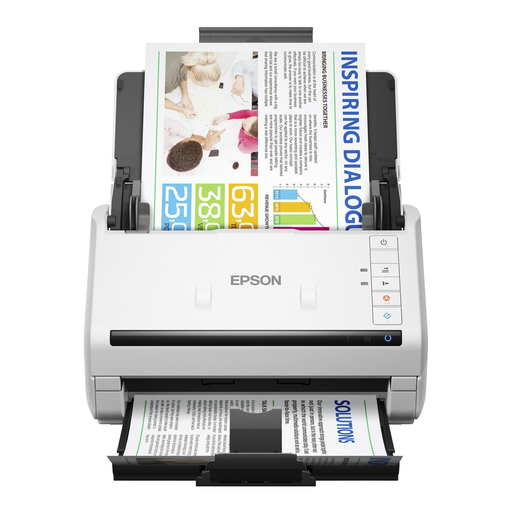 Image unavailable
An option for piles of double-sided handouts that you scan using a computer.
A4 sheet-fed scanner; the product name specifies 600 × 600 dpi.
Choose a model that supports double-sided scanning and check the capacity of its automatic document feeder. Epson says the WorkForce ES-550W captures both sides in one pass; compare the stated feeder capacity with the size of the piles you usually scan.
Use OCR software that can create a searchable PDF, and check the result using one of your own handouts. Epson lists this feature for ScanSmart and says the ES-C320W is compatible; this does not guarantee accurate recognition of handwriting.
Before scanning, check the selected destination and who can access the storage folder. Review documents containing personal information before sharing them; the Dutch Data Protection Authority highlights the risks of sharing documents with visible or hidden personal information. Whether user profiles provide sufficient protection depends on how your system is set up.
Not automatically. According to the Dutch government, you may make a copy of copyright-protected material for your own use, but you cannot freely distribute it or make it publicly available. Before sharing specific material, check the rights or get permission.
For a consumer purchase, the seller must offer a solution if the product is faulty. The Dutch government states that the Netherlands has no fixed statutory warranty period; the manufacturer’s warranty is in addition to your legal rights. Keep your proof of purchase and check the terms of any extra warranty separately.