
If you’re scanning a few original letters
You want to make a complete, legible copy without handling lots of paper. Compare the letter’s dimensions with the scanner’s scan area.


For a few appointment letters that you want to scan individually and flat, an A4 flatbed scanner is a good choice. A compact sheet-fed scanner is more suitable if you need to scan loose sheets in different places. An automatic document feeder and duplex scanning are particularly useful if you regularly scan several letters. Before sharing scans, check them for personal data and, if necessary, follow your school’s guidance on storage and use.
You want to make a complete, legible copy without handling lots of paper. Compare the letter’s dimensions with the scanner’s scan area.
You want to feed fewer sheets through by hand and may also need to capture the reverse sides. Look for an automatic document feeder and duplex scanning.
You want to save desk space and connect the scanner to a computer. Check the power supply and connectivity for the model you’re considering.
Choose this option: if you want to place a few letters on the glass individually and check each scan.
Bear in mind: you’ll need to position each page yourself and turn it over to scan the other side.
Choose this option: if space is limited and you scan loose letters in different places.
Bear in mind: check the connectivity, software and reverse-side scanning capabilities of the specific model.
Choose this option: if you regularly scan several loose sheets or double-sided letters.
Bear in mind: a sheet feeder may be unnecessary for a small, one-off project. Also check that your originals are suitable for feeding through the scanner.
First decide whether you want to scan a few originals carefully or regularly process batches. Then check the scan area, feeder and file workflow.
| What to consider | What should you look for? | Which consumers is this for? |
|---|---|---|
| Capturing the entire letter | Compare the letter’s dimensions with the scan area and check the edges of the scan. | I want to be sure that the date and text are fully visible in scans of a few letters. Around 42% of consumers prioritise capturing originals carefully. |
| Scanning batches and reverse sides | Check the automatic feeder’s capacity and whether the model scans both sides. | When I scan several letters, I want to feed fewer sheets through by hand and scan both sides if needed. Around 25% of consumers prioritise batch scanning. |
| Scanning in different places | Check the USB power supply, computer port and software compatibility. | I want to be able to use the scanner in different places, so I need a compatible computer. Portability is the top priority for around 17% of consumers. |
| Managing personal data | Check the scan and any hidden data before sharing it. Decide where to store it and follow your school’s guidance where necessary. The Dutch Data Protection Authority highlights the risk of personal data being left in shared documents. | When a letter contains personal information, I want to decide where the scan goes and who I share it with. Around 16% of consumers prioritise controlled storage and sharing. |
A flatbed scanner and a sheet-fed scanner suit different workflows. The stated speed doesn’t tell you how long your entire scanning process will take.
Before choosing a feeder, consider how many loose sheets you’ll scan in a row and whether there’s text on both sides.
According to Canon Netherlands, the Canon CanoScan LiDE 400 has a maximum scan area of 216 × 297 mm. If your letters are an unusual size, check that the entire page fits within the scan area.
Measure the letter and check the edges after scanning too, so important text isn’t cut off.
Personal data that isn’t immediately visible can still be left in a shared document. This matters when you scan a letter for a school project.
Check the final file and its recipients. Follow your school’s guidance on its use where necessary.
The CanoScan LiDE 400 is an A4 flatbed scanner for letters placed on the glass one at a time.
The WorkForce ES-50 is a compact mobile scanner for loose sheets. Epson also offers ScanSmart software.
The ADS-1300 is designed for portable scanning of multiple loose documents.
According to Plustek, the ePhoto Z300 is primarily a photo scanner that can also scan documents occasionally.
This selection at Joybuy includes models for loose A4 letters and models with automatic document feeders. Check which workflow suits your project for each model.
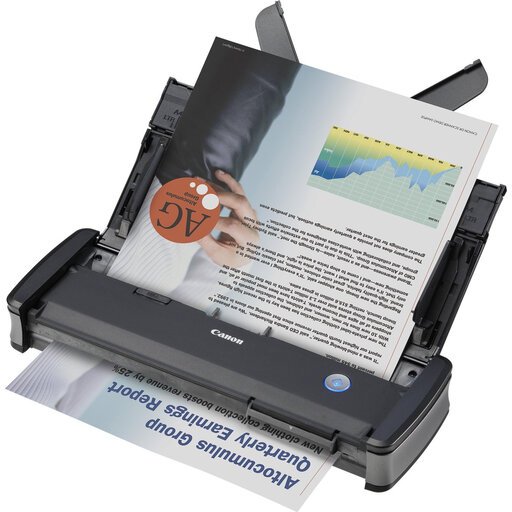 No image available
Suitable if you’re looking for an A4 sheet-fed scanner for loose documents. The product information lists an automatic feeder for multiple sheets and duplex scanning.
In the product name: A4 and 600 x 600 DPI.
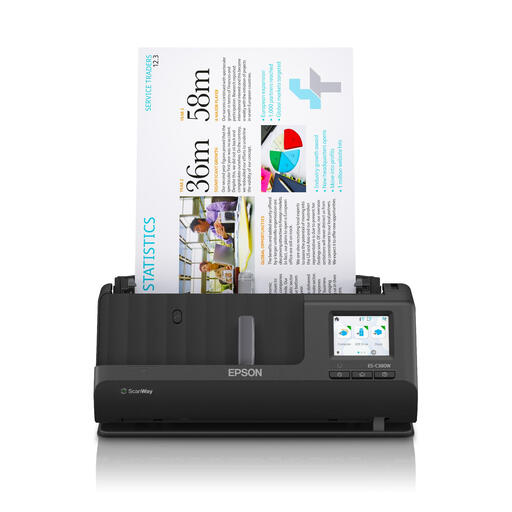 No image available
Suitable if you’re looking for an A4 scanner with an automatic feeder. Check that this model’s scanning workflow suits your letters and project.
In the product name: A4 and 600 x 600 DPI.
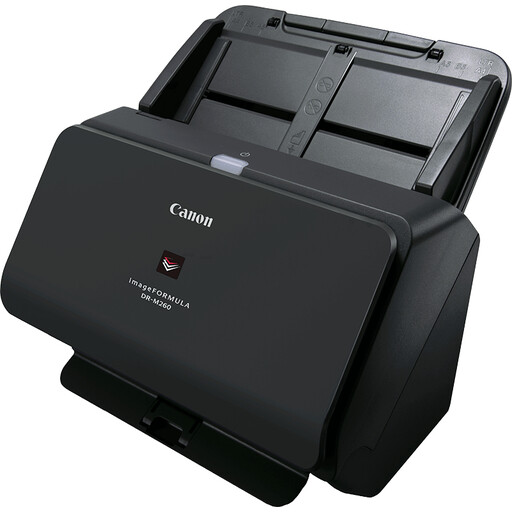 No image available
Suitable if you’re looking for an A4 sheet-fed document scanner. Check which feeder and file settings you need for your letters.
In the product name: A4 and 600 x 600 DPI.
 No image available
Suitable if you want to place individual letters on the glass but also feed in multiple sheets. The product information lists a flatbed and an ADF.
In the product name: A4 and 600 x 600 DPI.
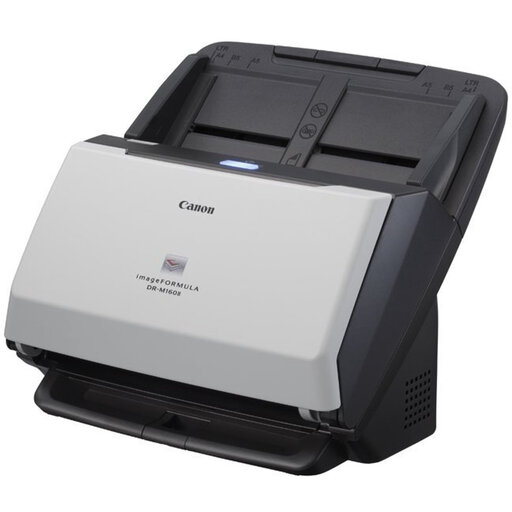 No image available
Suitable if you need to feed in multiple A4 sheets and scan printed reverse sides too. The product information lists automatic feeding and duplex scanning.
In the product name: A4 and 600 x 600 DPI.
Not necessarily. For a few individual letters, you could consider a suitable A4 flatbed scanner. An automatic document feeder is most useful when you’re scanning several suitable sheets in a row. If there’s text on both sides, also check whether the model scans both sides automatically.
Scan the entire letter, check that the date and any required text are legible, and choose a file format your project can use. Epson lists PDF export and OCR for searchable PDFs among ScanSmart’s features. Check the recognised text before using it.
That depends on the content, the purpose and who processes the data. Owning a scanner does not, in itself, give you permission to share personal data. The Dutch Data Protection Authority warns that hidden personal data can also remain in shared documents and sets out schools’ privacy obligations. Consider which information the project needs and follow your school’s guidance when the school processes the data.
According to the Dutch government, the seller must provide a solution if there’s a problem with a product. An extended warranty is only worthwhile if its terms offer something beyond your statutory rights, so check exactly what the additional cover includes.