Choose a portable SSD if you often take receipts with you; an external HDD may suit you if storage capacity is your main priority. In 2022, the Consumentenbond described SSDs as more compact and less vulnerable to knocks than traditional hard drives. The right choice also depends on the connection and capacity you need. Keep a separate, tested copy as well as the drive you use for the handover: the Digital Trust Center advises against relying on a single storage location.
Who is this choice relevant to?
If you hand receipts over to a client
You take a copy of scanned receipts with you and want to limit unauthorised access if the drive is lost. If the files contain personal data, an organisation must protect them properly under guidance from the Dutch Data Protection Authority. The appropriate measures depend on how the data is processed.
If you manage the original records
You want to be able to find or restore a usable copy after the handover. The Dutch Tax and Customs Administration says that administrative records must be retained in their original form. Check which retention requirements apply to your records.
If you transfer files between different computers
You want to be able to open the scans on both your own computer and the recipient’s. Check the connection, file format and any software or code needed to unlock the drive in advance.
What should you consider when choosing?
The Dutch Data Protection Authority stresses that organisations must protect personal data properly. The Digital Trust Center also advises against relying on a single storage location and recommends testing your backup.
Portable SSD
Suited to: taking your copy with you often or transferring files regularly.
Consider: the Consumentenbond says an SSD is more compact and less vulnerable to knocks than a traditional hard drive. Make sure the capacity and connection are right for you.
External HDD
Suited to: keeping a larger collection of documents on one portable device, when speed and frequent travel are less important.
Consider: according to the Consumentenbond, a mechanical drive is generally slower and more vulnerable to knocks than an SSD.
| What to consider |
What to look for |
Who should pay particular attention? |
| Access protection |
Check the security features of the exact model and set them up before copying files. Agree how the recipient will get access. |
If I take receipts containing personal data with me, I want to protect the copy being handed over while still giving the client access. Around 36% of consumers prioritise access protection. |
| Separate copy |
Copy the files rather than moving the only original. Open scans from the drive and test the separately stored copy too. |
I want to be able to restore a readable copy myself after the handover if anything goes wrong. Around 29% of consumers give recoverability their highest priority. |
| Compatibility |
Check the port and file format on both computers, and make sure in advance that the recipient can unlock the drive and open the files. |
If the client uses a different computer, I want to know in advance whether they can connect to and read the drive. Around 21% of consumers choose compatibility as their first consideration. |
| Capacity |
Check the size of the folder, including the files and versions you want to keep. Then compare the space you need with the connection on the exact model. |
I want enough space for the documents being handed over, without paying for speed I don’t need. Around 14% of consumers prioritise storage capacity. |
Common pitfalls
-
Using the handover drive as your only copy
If the drive fails, goes missing or leaves with the recipient, you may be unable to access the files if you don’t have a separate copy.
Keep a copy in another location or in another format, and test that you can restore it.
-
Assuming password protection is enabled automatically
You may need to set up a security feature first. Western Digital says that data cannot be recovered if you forget the password for WD Security.
Set up security before copying files, test that you can unlock the drive, and carefully manage and share access codes.
-
Checking only the plug or advertised top speed
The connection, file format and capabilities of the recipient’s computer all affect whether the drive will work. Advertised maximum speeds aren’t guaranteed on every device.
Check the recipient’s computer and test that a sample scan opens before handing over the drive.
Brands to compare
Samsung
The Portable SSD T7 is a compact SSD option for taking a copy with you.
- For the 1 TB T7 model sold in the Netherlands, Samsung lists USB 3.2 Gen 2, two types of cable and configurable AES-256 password protection.
- You need to set up the security feature. These specifications don’t guarantee that the drive is protected automatically or that it will reach the same speed on every computer.
Western Digital
My Passport is a range of portable HDDs for anyone who values storage capacity.
- Western Digital lists support for WD Security on My Passport.
- You need to set a password to use this feature. Western Digital says that data cannot be recovered if you forget it; also check the connection on the exact model.
Kingston
IronKey Vault Privacy 80 is an option to consider if you want separate user and administrator access; XS1000 is another product range.
- For the Vault Privacy 80, Kingston lists XTS-AES-256 and two types of cable.
- For the 960 GB model, Kingston quotes maximum read and write speeds of 250 MB/s. Don’t assume these specifications also apply to the XS1000.
Crucial
The X9 is a range of portable SSDs for transferring files between devices.
- Crucial lists a maximum read speed of 1.050 MB/s for the X9 and says it comes formatted as exFAT.
- Crucial says performance may vary between systems and reformatting deletes existing data. The stated product specifications don’t confirm built-in password protection.
Seagate
One Touch with Password is a range of HDDs with a security feature that needs to be set up separately.
- For the model described, Seagate lists password protection and an included USB-A cable.
- According to the manual, using USB-C requires a Micro-B-to-USB-C cable, which isn’t included. Check the model and set up the security feature.
Joybuy product picks
This selection includes portable SSDs and external My Passport HDD models for taking a copy of scanned receipts with you. Compare capacity and model variants, and check that the security features and connection suit your devices before handing over the drive.
 No image available
SanDisk Portable SSD 1 TB
A portable SSD option for a copy of the receipts you’re taking to a client.
Storage capacity: 1 TB.
View at Joybuy
 No image available
SanDisk Extreme Pro Portable SSD 1 TB
A portable SSD option for taking files to a client; check that the connection is compatible with the recipient’s computer.
Storage capacity: 1 TB.
View at Joybuy
 No image available
My Passport for Mac 2 TB, blue
An external HDD option if storage capacity is important; check that this Mac model suits both parties’ computers and workflow.
Storage capacity: 2 TB.
View at Joybuy
 No image available
My Passport 6 TB, white
An external HDD option for taking a larger collection of documents with you; set up any password protection and test it in advance.
Storage capacity: 6 TB.
View at Joybuy
 No image available
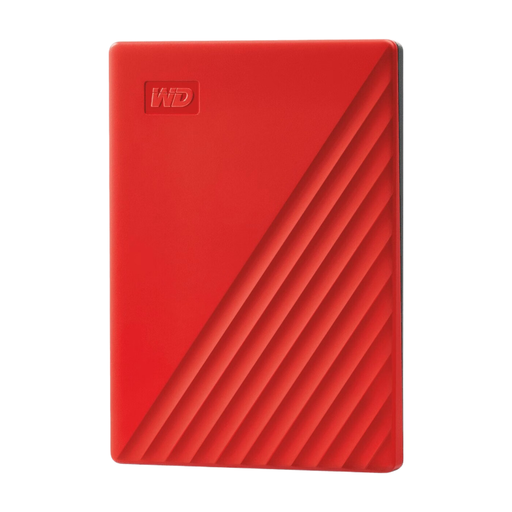
My Passport 4 TB, red
An external HDD option for a handover copy if its capacity suits your collection of documents; check in advance how to set up the security feature.
Storage capacity: 4 TB.
View at Joybuy
Frequently asked questions
Do you need an SSD for scanned receipts?
No. Choose based on how often you take the drive with you, how much space you need and which devices the scans need to open on. In 2022, the Consumentenbond described SSDs as more compact and less vulnerable to knocks; an HDD may suit you if storage capacity is your main priority. Whichever you choose, keep a separate, tested copy.
How do you check the drive before handing it over?
Copy the scans, open a few files from the drive and check that the recipient can read them using the agreed connection and file format, and any required unlocking method. Keep your recovery copy separate and test that it opens too.
Do scans containing personal data need to be protected in the Netherlands?
Yes. If an organisation processes personal data, it must protect it properly under guidance from the Dutch Data Protection Authority. The appropriate measures depend on the processing and the risks; this doesn’t mean everyone needs to choose the same type of drive or encryption feature.
Can you throw away the original receipts or invoices after scanning them?
Don’t assume you can without checking first. The Dutch Tax and Customs Administration says that administrative records must be retained in their original form. The rules that apply depend on the documents, the records and how they were converted. For invoices received or sent, the Dutch Tax and Customs Administration generally specifies seven years, and ten years for invoices relating to immovable property. Before destroying anything, check which rules apply to your situation.
Is a data processing agreement always needed when processing client data?
Not simply because you’re handing over a drive. The Dutch Data Protection Authority says a data processing agreement is required when an organisation processes personal data on behalf of another organisation as a processor. First establish which roles apply to your working relationship.


