
Keeping receipts on a small desk
You scan receipts at a single workstation and want a drive that fits the available port without taking up too much space.


Choose a USB flash drive that fits the port on your scanner or computer, and match its capacity to the size and expected growth of your scan folder. A compact model can save space around a USB-A port, while a drive with both USB-A and USB-C is handy if you switch between devices. Keep important scans in a second location too, and look for encryption if you’re storing sensitive data.
You scan receipts at a single workstation and want a drive that fits the available port without taking up too much space.
You transfer scans between, for example, a device with USB-C and a computer with USB-A, so the connections are an important consideration.
You need to consider confidentiality if your scans contain personal data. If they’re part of your business records, check the requirements for digital retention too; these don’t automatically apply to personal receipts.
First check the ports and where you want to store your files. Then choose the capacity and any security features to suit your own scan archive.
| What to consider | What to look for | Who is this important for? |
|---|---|---|
| A recoverable copy | Keep important scans in another location too, and check that you can restore a file from it. | I want to be able to find my scans if the drive is lost or stops working. Around 28% of consumers prioritise recoverability. |
| The right connection | Check the ports on the devices you use to scan and open files. Choose USB-A or a drive with both USB-A and USB-C. | I want to open scans on different devices without needing an extra adapter. Around 22% of consumers prioritise a suitable connection. |
| Space around the port | Check where the USB port is and whether a drive that sticks out could get in the way. According to Verbatim, the Store 'n' Stay NANO protrudes by around 5 mm when plugged in. | Every centimetre around my computer or hub matters on my small desk. Around 17% of consumers choose mainly to keep their workspace clear. |
| Confidentiality | Consider what’s on your scans, and check the connection and system requirements of any secure model. | I take scans with me or use them in a shared workspace and want to limit unwanted access. Around 22% of consumers prioritise confidentiality. |
| Space for your archive | Check the current size of your scan folder and allow for expected growth. | I want my archive to have room for future scans too. Around 11% of consumers choose mainly according to the storage space they need. |
A small model can be convenient to leave plugged in, but that doesn’t make it a separate backup. If the drive stops working or gets lost, your scans could be gone.
Keep important files in another location too, and check that you can restore them from there.
Samsung lists a sequential read speed of up to 400 MB/s for the 128 GB BAR Plus under its own test conditions. This figure doesn’t tell you how quickly your scans will be written to the drive.
If you regularly copy files, check write performance separately and look at the conditions used to obtain the stated figures.
A cap protects a connector; a casing doesn’t protect the files themselves. The Dutch Data Protection Authority cites the loss of a device containing unencrypted personal data as a possible example of a data breach.
Consider what data you’re storing, and check explicitly whether the model you choose offers encryption if you need it.
The Store 'n' Stay NANO is designed for a compact USB-A connection in a cramped workspace.
The Ultra Dual Drive Luxe is an option for transferring files between devices with USB-A and USB-C.
The DataTraveler Exodia is a standard USB-A option; the IronKey Locker+ 50 G2 is a separate model with hardware encryption.
The BAR Plus is a metal USB-A drive for storage if you don’t need encryption as a product specification.
These USB flash drives are designed for storing scans at a fixed USB-A workstation or transferring them between USB-A and USB-C devices.
 No image available
An option for storing scans on a computer with USB-A if you’re looking for 64 GB of storage.
64 GB; USB 3.0.
 No image available
Suitable for transferring scans between devices with USB-A and USB-C.
512 GB; USB-A and USB-C; stated read speed of up to 150 MB/s.
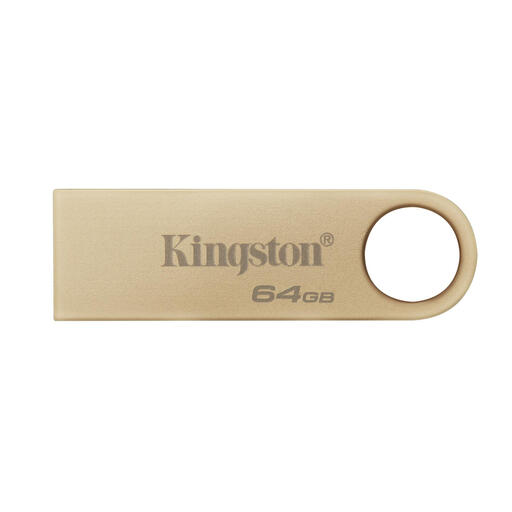 No image available
A compact USB-A drive for a workspace with little room around the port.
64 GB; USB Type-A; 39 × 12 × 4,6 mm.
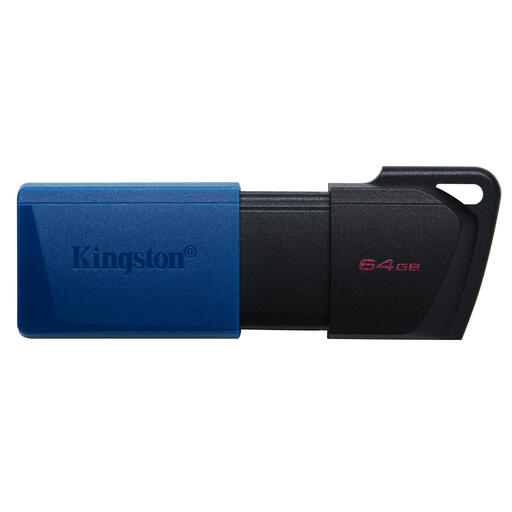 No image available
A USB-A drive with a sliding protective cap, for storing away scans after use.
64 GB; USB 3.2 Gen 1; sliding protective cap.
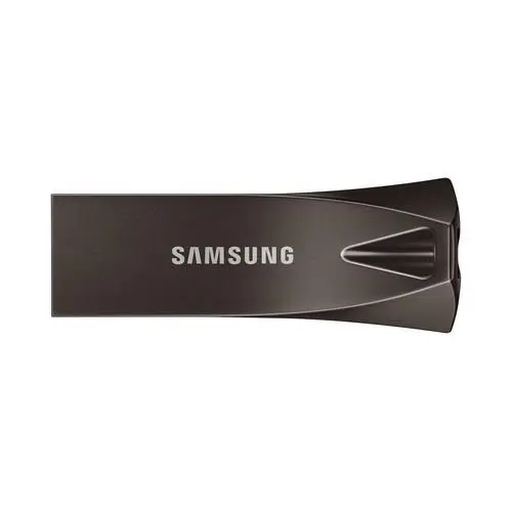 No image available
A USB Type-A option if you want to keep a larger scan archive on one drive.
256 GB; USB Type-A; USB 3.2 Gen 1 (3.1 Gen 1); metal casing and integrated lanyard loop.
Don’t use a drive as the only copy of important scans. Keep an up-to-date copy in another location too, and try restoring a file from time to time. The Digital Trust Center advises businesses not to rely on a single location.
Match the capacity to the size of your current scan folder and the new scans you expect to add. Check the folder size before choosing a version; without that information, it’s not possible to recommend a specific capacity for your archive.
That depends on the requirements for business records. According to the Dutch Tax and Customs Administration, the digital version must be accurate and complete, and authenticity features must be retained. You only need to keep the originals if these requirements aren’t met. You should also ensure that the digital records can be checked throughout the applicable retention period.
No. The periods specified by the Dutch Tax and Customs Administration relate to business records and aren’t a general retention requirement for personal till receipts. Seven years is standard for the business records discussed; the Dutch Tax and Customs Administration specifies ten years for records relating to property.
No. A metal casing or cap doesn’t, on its own, encrypt the files. If you store sensitive scans, check that the model explicitly offers encryption and that it works with your device’s connection and operating system.