What should you look for when choosing?
First, check which port your computer has and how much space your scans take up. Then decide whether a compact design or encryption matters for the way you’ll use it.
| What to consider |
What should you look for? |
Who it matters most to |
| Keeping your archive safe |
Open files after copying them, and keep a separate, up-to-date back-up. |
I don’t want to lose my scans if the stick is damaged or goes missing; around 29% of consumers prioritise keeping their archive safe. |
| Port |
Check the ports on the computer you use for scanning and on every device you use to share files. |
I share scans between devices with different ports and want to connect them directly; around 23% of consumers prioritise compatible ports. |
| Confidential letters |
Decide whether you want to encrypt your files, and check how to unlock the stick on your own computer. |
I take letters containing sensitive information with me or want to limit access if the stick is lost; around 18% of consumers prioritise privacy. |
| Usable storage space |
Check the size of your current scan folder and allow for files you may add later; compare it with the usable capacity of the model. |
I expect my collection of scans to grow and don’t want to rely on the figure on the packaging alone; around 18% of consumers prioritise room to grow. |
| Desk space |
Check the model’s dimensions and make sure the port remains accessible alongside other ports or objects. |
I have limited workspace and want to avoid a plugged-in stick getting in the way; around 12% of consumers prioritise desk space. |
USB sticks at Joybuy
These Joybuy products are designed for storing or transferring scans via USB-A, with an additional option that has both USB-A and USB-C.
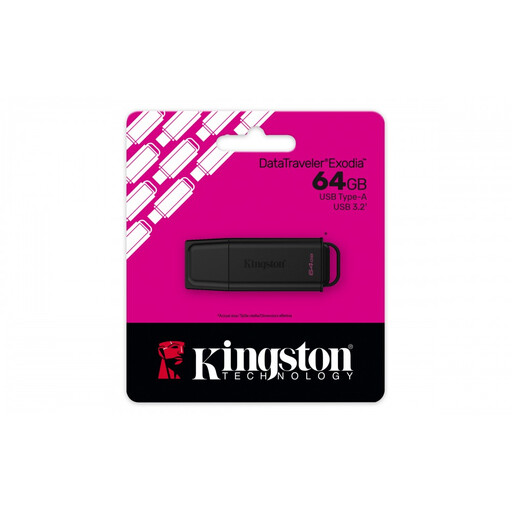 Image unavailable
Kingston DataTraveler Exodia, 64 GB
A USB-A option for storing and transferring documents.
USB-A connection; USB 3.2 Gen 1; 64 GB.
The product description calls this model compact and lightweight.
Joybuy
 Image unavailable
Kingston DataTraveler Exodia, 128 GB, USB Type-A
A document stick for a computer with USB-A, with an integrated loop for carrying it with you.
128 GB; USB Type-A; USB 3.2 Gen 1.
Joybuy
 Image unavailable
SanDisk Ultra Flair, 64 GB
A USB-A option for files; the product description also mentions software-based password protection.
64 GB; USB-A; USB 3.0. The description mentions software-based 128-bit AES encryption.
Check that the security software is compatible with the computer you want to use the stick with.
Joybuy
 Image unavailable
SanDisk Ultra Dual Drive Go, 512 GB
An option for transferring files between devices with USB-A and USB-C.
512 GB; USB-A and USB-C; retractable design, according to the product description.
Joybuy
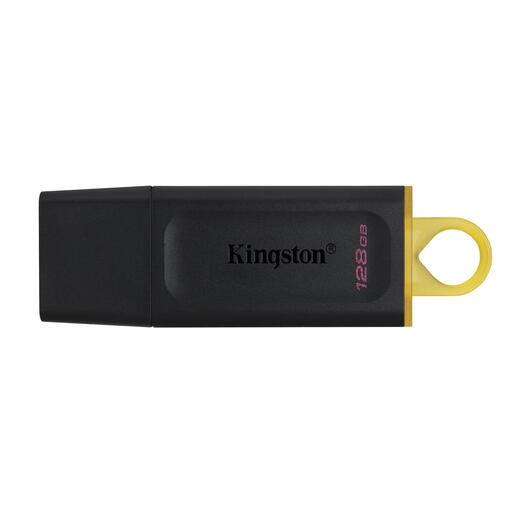 Image unavailable
Kingston DataTraveler Exodia USB 3.2
A USB-A option for storing and transferring documents.
USB Type-A; USB 3.2 Gen 1; protective cap and loop, according to the product description.
Joybuy
Frequently asked questions
Can I use the USB stick as the only archive for my letters?
Keep a separate copy too, as files on a damaged or lost stick can disappear. VeiligInternetten lists a USB stick as one possible place to store a back-up, but having only one copy won’t prevent you from losing your archive.
How can I use the same stick with a Windows PC and a Mac?
Check that the connection and any security software work on both computers. Kingston lists exFAT as one possible format for use in both environments and warns that formatting erases existing data, so make and check a copy first.
What can I do if my new stick is faulty?
According to the Dutch government, the seller must provide a solution if a product is faulty; a manufacturer’s warranty is in addition to your statutory consumer rights. A replacement stick won’t restore lost files, so keep your archive somewhere separate as well.
Do I need to buy an encrypted stick because of the GDPR?
Not simply because you keep personal letters for your own private or household use: the Dutch Data Protection Authority says the GDPR doesn’t apply to processing carried out exclusively for that purpose. The situation depends on how you use work documents; for working from home, the Dutch Data Protection Authority recommends using your work server and, if that isn’t possible, taking data with you on an encrypted USB stick.


