
Managing a growing scan archive
You’re storing more and more documents and want to choose a capacity that suits what you have now and what you’ll add in future.


Choose according to the current size of your scans, how much you expect the archive to grow and how often you’ll take the drive with you. A portable HDD suits an archive that mostly stays in one place; an SSD may be more convenient if you move scans around frequently. You should also keep important documents in a separate backup: extra space on one drive won’t protect you if that drive is lost.
You’re storing more and more documents and want to choose a capacity that suits what you have now and what you’ll add in future.
You want to be able to restore scans if a device or file goes missing, so you’re looking for a practical backup routine as well as storage.
You take your archive with you or use it on different computers, so connectivity, resistance to knocks and the file system all matter.
A good fit if: you mainly want extra space for a growing archive that usually stays in one place.
Bear in mind: in 2022, the Dutch Consumers’ Association described HDDs as more vulnerable and prone to wear than SSDs, so take care to protect the drive from knocks when carrying it.
A good fit if: you often take your archive with you or regularly move scans around.
Bear in mind: quoted speeds aren’t test results for your scan files, and an SSD won’t replace a separate backup either.
| What to consider | What should you check? | Who is this most relevant to? |
|---|---|---|
| Room to grow | Compare the current size of your folders with what you expect to add, and check the capacity of the exact model. | I don’t want to run out of space again soon, so I’m considering how my archive will grow. Around 36% of consumers put capacity for future growth first. |
| Restorable copies | Check which folders are included and try restoring a file. Microsoft Support explains that you can also add folders outside libraries to File History. | I want to be able to restore changed or lost scans, not just store extra copies somewhere. Around 29% of consumers prioritise restorable copies. |
| Confidentiality | Check whether the exact drive offers encryption and how you’ll store the access key. Samsung states that the T7 offers password protection with AES 256-bit encryption. | If my scans contain personal information, I want to restrict access to them. Around 21% of consumers put confidentiality first. |
| Portability and connections | Check the ports, cable and file format for your devices. Toshiba lists a Type-A-to-Micro-B cable for the Canvio Basics; you may need to reformat it for use with a Mac. | I use my scans in different locations and want to use the drive without connection problems. Around 14% of consumers prioritise portability and compatibility. |
More capacity helps prevent you running out of space, but it won’t protect you if you lose your only copy.
Before buying, decide where you’ll keep your working files and your separate, restorable copy.
Product variants within a range can differ in their connection and cable. Toshiba lists a Type-A-to-Micro-B cable for the Canvio Basics; Seagate lists USB-C for the Expansion Portable model described.
Check the full part number, port and included cable for the specific model you plan to buy.
Apple Support warns that reformatting a Windows-formatted drive erases its existing data.
Check what’s on the drive and, if necessary, make a copy elsewhere first. Only then set up the drive for Time Machine.
Toshiba’s European product information describes Canvio Basics as a range of portable HDDs available in 1 TB, 2 TB and 4 TB capacities.
Samsung describes the T7 and T7 Shield portable SSDs as different options for taking scans with you.
Seagate describes the Expansion Portable as a range of portable HDDs for everyday storage and backups, available in 2 TB and 4 TB capacities.
This selection includes portable SSDs for use in different locations and external HDDs for extra archive space. Check the capacity, connection and file format for each model.
 No image available
A good fit if your archive will stay within 1 TB and you’re looking for a portable SSD.
The product information lists read speeds of up to 800 MB/s, drop protection from up to 2 metres and an integrated rubber hook loop.
 No image available
A good fit if you regularly take scans with you and your current collection will stay within 1 TB.
The product information lists USB-C, AES 256-bit password protection, IP65 dust and water resistance, and an included USB-C cable with a USB-A adaptor. The quoted read speed of up to 2000 MB/s requires a compatible USB 3.2 Gen 2x2 device; actual speeds may vary.
 No image available
A good fit if your scans will stay within 1 TB and you want to use the drive with different devices.
The product information lists USB-C and read speeds of up to 1000 MB/s. Windows, macOS, iPadOS and Android are also listed as compatible systems.
It’s recommended that you safely eject the drive before disconnecting it.
 No image available
A good fit for a growing archive that mostly stays in one place and can make use of the extra 4 TB of space.
The product information lists USB 3.2 Gen 1 and an included Micro-USB-B-to-USB-A cable. The drive is preformatted for Windows; it needs to be reformatted for macOS.
The product information advises against moving or shaking the drive while it’s in use.
 No image available
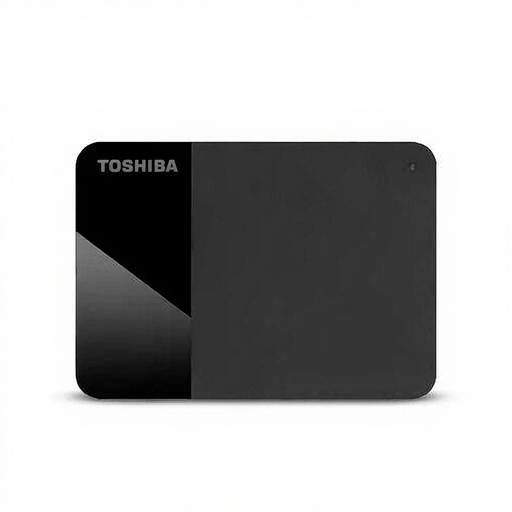
A good fit if your archive will stay within 1 TB and you’re looking for an external HDD.
The product information lists a 2.5-inch model, USB 3.2 Gen 1 and compatibility with Windows and Mac.
Handle with care to avoid physical knocks.
First, check the file format: Apple Support says Time Machine won’t save backups to a drive with a Windows file system, and recommends APFS or encrypted APFS. Reformatting erases existing data on the volume, so first make a copy elsewhere of any files you want to keep.
Check which folders your backup software monitors, then try restoring a scan. Microsoft Support says File History backs up libraries, and that you can add folders outside those libraries.
For a consumer purchase, the Dutch government says the seller must offer a solution if the product is faulty. The Netherlands has no fixed statutory warranty period; any manufacturer’s warranty is separate from your statutory rights. Keep important scans available elsewhere while your claim is being handled.
According to the Dutch Data Protection Authority, the GDPR doesn’t apply to processing carried out solely for personal or household purposes. If you use the same archive for professional or commercial activities, don’t automatically assume that this exemption applies to that use.
For household electrical appliances, the Dutch government lists options including handing them in when buying a similar appliance and taking them to your local council recycling centre. Before handing over the drive, make sure you’ve properly deleted any personal scans.