Who is this guide for?

Wide-dashboard user

You work frequently with wide tables and switch between data and dashboard views. A useful scrolling control and shortcuts could therefore be worth considering. Logitech describes horizontal scrolling with a thumb wheel, as well as controls that can be customised using software.

Long-hours screen user

You use a mouse for long periods and want to assess its grip, hand position and how your workstation is set up. Trust describes a vertical mouse grip; Arboportaal also emphasises the importance of a properly set-up workstation and varying your tasks.

Multi-computer user

You use more than one computer and may want to use the same mouse with those devices. Logitech describes models with multi-device features; check that the connection and switching method suit your computers.

What should you look for?

Horizontal thumb wheel and customisable buttons

Choose this if: you often navigate wide spreadsheets and use the same commands repeatedly.

Bear in mind: settings may require software, and the shape and button layout need to suit your hand.

Vertical mouse

Choose this if: you want to try a different grip during long data-entry and checking sessions.

Bear in mind: a vertical shape is not guaranteed to feel comfortable for every hand.

Conventionally shaped mouse

Choose this if: a familiar grip and a choice of connection types are important to you.

Bear in mind: check the fit, and don't assume it has a separate horizontal thumb wheel.

Stationary trackball

Choose this if: you have little room to move a mouse across your desk.

Bear in mind: using a ball and scroll ring is different from using a regular mouse and may take some getting used to.

What to consider What should you look for? Who is this important for?
Navigating wide datasets Check whether it has a separate horizontal wheel and whether you can set buttons to perform commands in your work application. I often work with wide tables and want to navigate sideways and carry out repeated tasks easily. Around 36% of consumers give top priority to navigating wide datasets.
Grip for long periods of use Consider whether the shape, size of your hand and button reach suit you; also take your workstation set-up and task variety into account. I use a mouse for long periods and want a grip that suits my hand, without assuming that a different model on its own will prevent discomfort. Around 29% of consumers prioritise hand comfort when working for long periods.
Connecting to computers Check for Bluetooth support or the required USB port and receiver. Switching is only relevant if you use more than one computer. I work with more than one computer or need to consider the connections available. Around 21% of consumers give top priority to connecting to the right computer or computers.
Ease of use Decide whether you mainly need a standard scroll wheel, or whether you also want horizontal controls, extra buttons and customisable settings. I mainly want to point and scroll vertically, without choosing features I'm unlikely to use. Around 14% of consumers give top priority to ease of use.

Common buying mistakes

  • Confusing two monitors with two computers

    A second screen does not automatically mean you need a mouse that switches between computers.

    First, work out how many computers you connect. Then decide whether switching is necessary.

    You could pay for a device-switching feature you never use.

  • Assuming an ergonomic shape guarantees comfort

    Hand fit and workstation set-up vary from person to person. A different mouse also doesn't replace the need to vary your tasks.

    Assess the grip and consider the positioning of your screen, keyboard and mouse at the same time.

  • Assuming extra buttons will automatically perform the right commands

    The MX customisations mentioned require software to customise the buttons and controls.

    Check your operating system and test whether the commands you want work in your work application.

    Allow time to configure the software and buttons.

Brands to consider

Logitech

Worth considering if horizontal scrolling and customisable controls are important for dashboard work.

  • Logitech describes a thumb wheel for horizontal scrolling and customisation through Logi Options+ on Windows and macOS.
  • Check that the features you want work with your grip, operating system and work application; customising the software requires set-up.

Trust

The Bayo+ is a vertical mouse option for anyone looking to try a different grip and wireless controls.

  • Trust specifies a 57-degree hand angle, side buttons and adjustable sensitivity of 800–2400 dpi for the Bayo+.
  • The angle stated by the manufacturer does not guarantee a good fit or comfort for every hand.

CHERRY

The MW 8C ERGO is a conventionally shaped wireless option that CHERRY recommends for medium to large right hands.

  • According to CHERRY, the mouse can connect via Bluetooth or a 2.4 GHz receiver and has four sensitivity settings ranging from 600 to 3000 dpi.
  • The stated shape is not designed to fit everyone; check whether the mouse suits your hand.

Kensington

The Expert Mouse Wireless Trackball is a stationary option when you have little room to move a mouse around.

  • Kensington specifies a scroll ring, four customisable buttons and use with either hand.
  • Check the software and operating system compatibility requirements, and whether trackball controls suit you.

Joybuy products

These mice suit different dashboard-work needs: horizontal scrolling, customisable controls, a vertical grip or a trackball for a compact workstation.
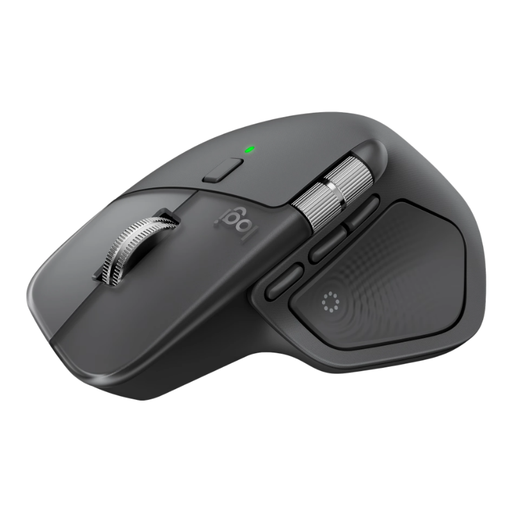
Logitech MX Master 4 Graphite

Logitech MX Master 4 Graphite

Suited to anyone who wants to navigate horizontally through wide spreadsheets and set up shortcuts for repeated tasks.

The product information lists MagSpeed scrolling, a horizontal thumb wheel and programmable buttons. Logi Options+ is required to customise the buttons; the stated shape is designed for right-handed use.

View at Joybuy
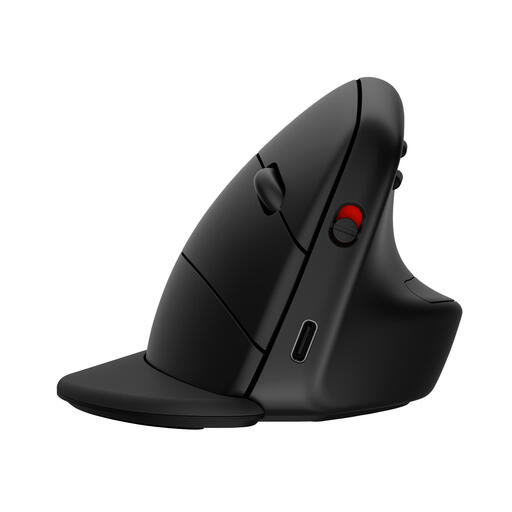
HP 925 Ergonomic Vertical Mouse

HP 925 Ergonomic Vertical Mouse

An option to consider if you want customisable controls for repeated dashboard tasks.

The product information lists four programmable buttons, an adjustable scroll wheel, Bluetooth and a USB receiver. An AA battery is also specified.

View at Joybuy
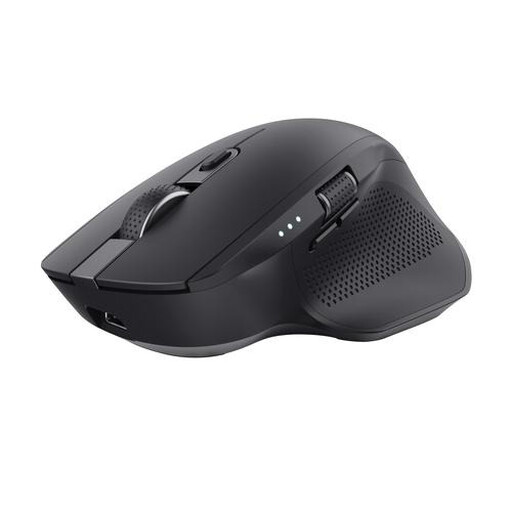
Trust Ozaa+ Optical Office Mouse, 3200 DPI, right-handed

Trust Ozaa+ Optical Office Mouse, 3200 DPI, right-handed

Suited to anyone who wants a side wheel for wide spreadsheets and uses multiple devices.

The product information lists a side wheel, adjustable DPI and connection via USB receiver and Bluetooth, with support for up to three devices. This model is designed for right-handed use.

View at Joybuy

Logitech ERGO M575S Graphite

Logitech ERGO M575S Graphite

A trackball option if you have little room to move a mouse across your desk.

The product information lists thumb control, three customisable buttons and Bluetooth or Logi Bolt connectivity. You control the cursor with the trackball instead of moving the mouse across your desk.

View at Joybuy

Logitech Lift Vertical Ergonomic Mouse Graphite

Logitech Lift Vertical Ergonomic Mouse Graphite

A vertical grip to consider if you want to try a different hand position.

The product information lists a 57-degree angle, a thumb rest, four customisable buttons and Bluetooth or USB receiver connectivity. The model is designed for small to medium right hands.

View at Joybuy

Frequently asked questions

Do you need a mouse that switches between devices for two screens?

No, not if both screens are connected to the same computer. Switching between devices is only relevant if you use different computers. If so, check the connection type and any software requirements too.

How do you set up a mouse for a wide dashboard?

Test the pointer speed and scrolling in your own spreadsheet. If you want to customise buttons, check what software you need and whether the commands work in your work application. Logitech provides the MX customisations mentioned through Logi Options+ on Windows and macOS.

Is an ergonomic mouse on its own enough for long working days?

No. As well as a properly set-up workstation, Arboportaal emphasises varying your posture and tasks, and taking enough breaks. So consider the mouse as part of your workstation, not as a guarantee against discomfort.

What rules apply to screen work in the Netherlands?

According to Arboportaal, screen work must be alternated at set intervals with other work or a break. If you work at a screen for more than two hours a day, the screen and keyboard must not be attached to each other. These are requirements for screen workstations, not a certification requirement for an individual mouse.

What rights do you have when buying a mouse online?

For an online consumer purchase, you generally have up to 14 days after delivery to change your mind, subject to statutory exceptions. You are also covered by the statutory guarantee: if the product does not perform as you could reasonably expect when used normally, the seller is responsible for providing an appropriate solution. ACM ConsuWijzer explains these rights.
