
Laptop user at a shared desk
You want to connect your laptop, monitor and peripherals quickly when you sit down. Check that your laptop’s USB-C port supports the features you want to use with the monitor.


Start with your dashboard layout and the space available on your desk. An adjustable 27-inch QHD monitor is a practical choice for a typical workstation. USB-C docking is especially useful if you regularly connect a compatible laptop; Dell Netherlands, Lenovo Netherlands and Philips Netherlands describe these features for specific models. A 34-inch ultrawide could work well if you want several windows open side by side, but it needs more desk space, as the model-specific information from Samsung Business Netherlands also makes clear.
You want to connect your laptop, monitor and peripherals quickly when you sit down. Check that your laptop’s USB-C port supports the features you want to use with the monitor.
You want to see charts, filters and source data side by side. Decide what screen layout you need and how much desk space is available for it.
You share the monitor with people who may need it positioned differently. So, look for adjustability and consider the setup of the whole workspace.
Decide which need matters most for your sales dashboard and shared workspace. Use that priority to compare screen space, connections and adjustment options.
| What to consider | What should you check? | Who is this important for? |
|---|---|---|
| Quick connection and switching | Check whether your laptop outputs video via USB-C, how much charging power it needs, and whether the monitor has the peripheral and network connections you want. | If I switch laptops often, I want to connect my display and peripherals with as few separate cables as possible. Quick connection is the top priority for around 36% of consumers. |
| Viewing the dashboard and source data together | Before comparing 27-inch QHD with ultrawide, consider your preferred window layout, the width of your desk and your computer’s scaling settings. | If I want to keep charts and source data side by side, the screen layout needs to suit my desk. Having space to view multiple things at once is the main priority for around 29% of consumers. |
| Screen position for different users | Check the height adjustment, tilt and swivel options, as well as how much space the monitor stand takes up. | When several people use the same workspace, I want to be able to adjust the screen position. Adjustability is the top priority for around 21% of consumers. |
| Running costs and extra features | Compare the energy label for the specific models and check the terms of any additional warranty. | I want to choose features I’ll actually use and take energy information into account. Running costs are the main priority for around 14% of consumers. |
A monitor’s docking features will only work as intended if your laptop supports the required USB-C functions. The charging power required can also vary between laptops.
Check your laptop port’s features, the charging power required and the cable you plan to use.
If the combination doesn’t meet your needs, you may need a separate connection or an additional dock.
A 34-inch ultrawide needs a different physical setup from the 27-inch QHD monitors mentioned here. At a shared desk, the screen also needs to work for the other users’ positions.
Measure the available space and check that the screen position and window layout work for everyone.
An extra warranty package is not the same as your statutory consumer rights. The package terms explain what additional cover it provides.
Before buying, read what extra cover the package provides and compare it with your existing rights.
The Dell Pro 27 Plus QHD USB-C Hub Monitor P2725DE is an example of a 27-inch QHD monitor with docking features for a laptop workstation.
According to Lenovo, the ThinkVision T27h-30 combines a 27-inch QHD screen with USB-C docking, a USB hub and ethernet.
The Philips 276B1/00 is an example of a QHD monitor with a USB-C dock and ethernet for a compatible laptop.
The 27BA45QB-B and 27BA65QB-B show two different combinations of 27-inch QHD, adjustability and USB-C from LG.
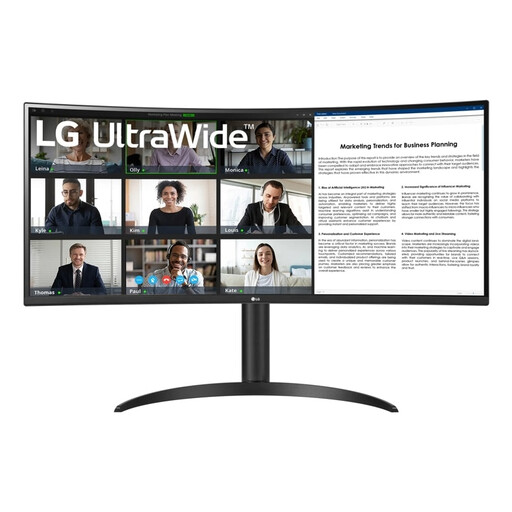
The Samsung LS34C650TAUXEN is an example of a 34-inch ultrawide for a wider window layout or use with multiple sources.
This selection includes adjustable 27-inch QHD monitors, a 27-inch QHD model with USB-C docking and ultrawide screens for a wider dashboard layout. Make sure you have enough space on the shared desk for the ultrawide models.
 No image available
An adjustable 27-inch QHD screen for viewing a dashboard and additional windows at a shared desk.
2560 × 1440 pixels; 120 Hz; HDMI, DisplayPort, USB-C and USB hub. The description lists 150 mm height adjustment and pivot.
 No image available
A docking option for a shared desk where you regularly connect a compatible laptop. Check the USB-C features and the charging power required before you buy.
QHD; USB-C for video, data and charging with 90 W Power Delivery; USB hub and RJ45. The description also mentions 100 Hz and an adjustable stand with height, tilt and swivel options.
 No image available
A wide-screen layout for viewing dashboard windows side by side, if your desk has enough space.
3440 × 1440 pixels; 21:9; Picture-by-Picture. Measure the space available on the shared desk before choosing this size.
 No image available
An option if you want a wide dashboard layout and the ability to connect a compatible laptop; bear in mind the desk width you’ll need.
3440 × 1440 pixels; USB-C with 65 W Power Delivery; height adjustment and tilt.
 No image available
A very wide option for a workspace with lots of dashboard space or two connected computers. Check carefully that the monitor will fit on the shared desk.
5120 × 1440 pixels; USB-C with 90 W Power Delivery; RJ45 and built-in KVM. The listed width is 121,49 cm.
No. Check that your laptop outputs video through the USB-C port you plan to use and that the charging power meets your needs. Dell Netherlands and Philips Netherlands describe docking for specific monitors and compatible laptops; also check which cable and peripherals you’ll need.
Choose a setup where you can adjust the screen position, and watch out for reflections and lighting. Arboportaal advises, among other things, that for employees who use a screen for more than two hours a day, the screen and keyboard must not be attached to each other. The employer must assess which workstation setup is appropriate.
No. The label alone doesn’t give you a complete comparison of the costs for your particular usage. The European Commission uses an A to G scale for electronic displays; compare the labels for the specific models and take your own usage into account.
Not necessarily. According to the Dutch government, you’re entitled to a product that works properly, and there’s no fixed statutory warranty period in the Netherlands. Read the terms of an additional package to find out what extra cover it provides.