Start by choosing a mouse that feels comfortable in your hand, then adjust the cursor speed to suit your screen and movements. A high maximum DPI isn’t, by itself, a reason to choose a particular model. Extra mouse buttons are most useful if you want to move RTS shortcuts to them and can reach them reliably. A wired mouse avoids battery management, while a wireless one gives you more freedom of movement but requires you to keep an eye on the connection and charging.
Who is this for?
RTS player who uses lots of shortcuts
You want to assign frequently used commands to mouse buttons you can reach easily, and are happy to spend time setting up and learning a layout. Age of Empires Support explains how to remap shortcuts in Age of Empires IV.
Player using a large screen
You want to keep cursor movement across your screen under control and adjust the sensitivity without being swayed by the highest DPI figure alone. Microsoft Support explains how DPI affects the speed at which the cursor moves across the screen.
Player who games for long sessions
You prioritise grip, button reach and freedom of movement, and weigh up whether a cable or battery management is more of a nuisance. The right choice depends on your hand, grip and playing style.
What should you look for?
Your choice mainly depends on how many commands you want to assign to the mouse. Extra buttons are only useful if you can reach them reliably and your game supports the assignments you want.
Simple mouse
Best for: you mainly use keyboard shortcuts and want to use the mouse for selecting and navigating.
Trade-off: fewer extra buttons to hit, but also fewer commands at your thumb.
All-round gaming mouse
Best for: you want to move a small number of frequently used commands to the mouse and can tailor the layout to your grip.
Trade-off: more customisation options than a simple mouse, without an extensive thumb grid.
Mouse with an extensive thumb panel
Best for: you want to assign lots of individual commands to your thumb and are willing to learn the layout.
Trade-off: more buttons don’t automatically mean faster or better gameplay; check that you can tell them apart and reach them.
| What to consider |
What to look for |
Who is this important for? |
| Shortcuts within easy reach |
Check the button positions, assignments and possible conflicts. Age of Empires Support explains how to remap shortcuts in Age of Empires IV. |
I want to assign frequently used commands to my thumb without hitting the wrong button. Around 36% of consumers put easily accessible shortcuts first. |
| Cursor movement |
Check your screen resolution and try adjusting the sensitivity in your game. Microsoft Support explains that a higher DPI moves the cursor across the screen more quickly. |
When moving across a large screen, I want to control the cursor and click small targets comfortably. Around 29% of consumers prioritise cursor control. |
| Grip and button reach |
Compare the shape, weight and button reach with your own grip; if possible, try holding the mouse. |
During longer gaming sessions, I want to reach the buttons without straining my grip. Around 21% of consumers prioritise grip and long-term comfort. |
| Wired or wireless |
Check the connection modes and charging requirements for each model. Corsair describes 2.4GHz, Bluetooth and USB use while charging for the SCIMITAR ELITE WIRELESS. |
I want freedom of movement without unexpected battery management, or I’d rather avoid a cable. Around 14% of consumers make the connection type their top priority. |
Avoiding common buying mistakes
-
Assuming the highest DPI is always best for a large screen
DPI affects cursor movement, but it doesn’t tell you whether the speed, grip and button layout will feel right for your RTS game. Screen resolution and physical screen size are also two different things.
Check the resolution and test the sensitivity in the game you play, including when clicking on small targets.
-
Buying lots of side buttons without trying the layout
An extensive thumb panel is only helpful if you can reach the buttons reliably and your game lets you assign the commands you want.
Start with a few frequently used commands and check for accidental clicks and shortcut conflicts.
Allow time to set up the button layout and get used to it.
-
Assuming two versions are identical because their model names are similar
The Basilisk V3 Pro and Basilisk V3 Pro 35K are listed as separate versions. The 35K product listing mentions both Focus Pro 35K and Focus Pro 30K.
Compare the full model name and specifications of the exact version before treating a product as the same model. The product listings are available at Joybuy Netherlands.
-
Assuming the manufacturer’s warranty covers all your legal rights
A manufacturer’s warranty is in addition to your statutory rights. If a product is faulty, the retailer is your point of contact, according to the Dutch government.
Check the manufacturer’s warranty terms and contact the retailer if you have a problem with a faulty product.
Brands to consider
Logitech G
The G502 X is a wired all-round mouse, while the G502 X LIGHTSPEED is a wireless version. Features vary by model.
- Logitech lists a weight of 89 g for the wired G502 X and a DPI switch button that can be reversed or covered.
- The controls and specifications of one G502 version don’t automatically apply to another.
SteelSeries
The Aerox 9 Wireless is worth considering if you want plenty of thumb buttons while keeping an eye on the stated weight.
- SteelSeries lists a weight of 89 g, 18 programmable buttons and a 12-button side panel for this model.
- The number of buttons doesn’t tell you whether their position will suit your hand or RTS game; try the layout if possible.
Corsair
The SCIMITAR ELITE WIRELESS is an option if you want plenty of thumb buttons with an adjustable position.
- Corsair lists 16 programmable buttons and a movable panel with 12 side buttons.
- The manual gives separate instructions for the 2.4GHz connection, Bluetooth, charging and securing the panel.
Razer
The Naga V3 Pro has interchangeable side panels, so you can choose between different button layouts.
- Razer lists three interchangeable side panels and up to 23 programmable buttons for this model.
- The product information shown is for the US market; check the exact version and product details for your market.
Gaming mice at Joybuy
This selection from Joybuy includes gaming mice with adjustable cursor movement, extra buttons and wireless connectivity. Check each model to make sure its layout, connection and sensitivity suit your hand, screen and game.
 No image available
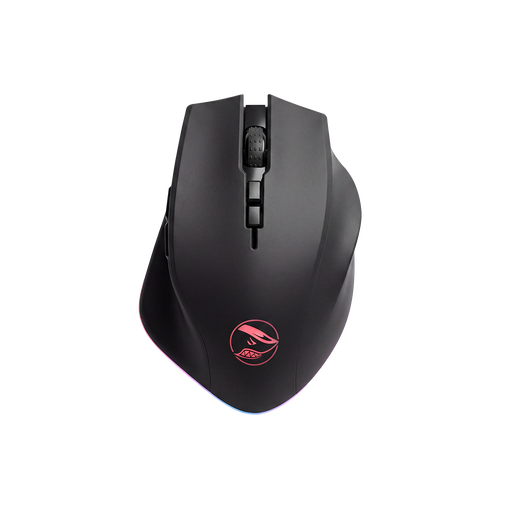
Shark Velocity M71 Wireless Gaming Mouse
For anyone looking for a wireless mouse with extra programmable buttons; check that you can reach the buttons comfortably with your grip.
PAW3335 sensor; 16,000 DPI; 8 programmable buttons; RGB lighting; black.
View at Joybuy
 No image available
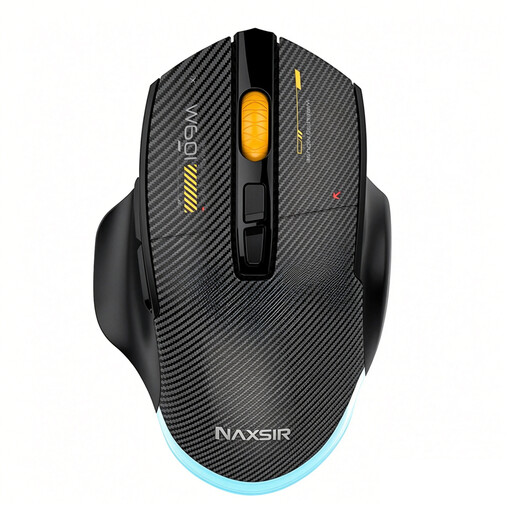
NAXSIR 3-in-1 Gaming Mouse
For anyone looking for different connection options and adjustable sensitivity; check which connection mode you want to use first.
Wired, 2.4G Wireless and Bluetooth; 12,800 DPI; 7 programmable macro buttons; RGB lighting; black.
View at Joybuy
 No image available
AJAZZ AJ159 PRO Wireless Gaming Mouse
For anyone who values wireless use and a lightweight design; check that the shape and controls suit your grip.
56 g; PAW3395 sensor; 26K DPI; 2.4G, USB-C and Bluetooth; 400 mAh battery; magnetic base; white.
View at Joybuy
 No image available
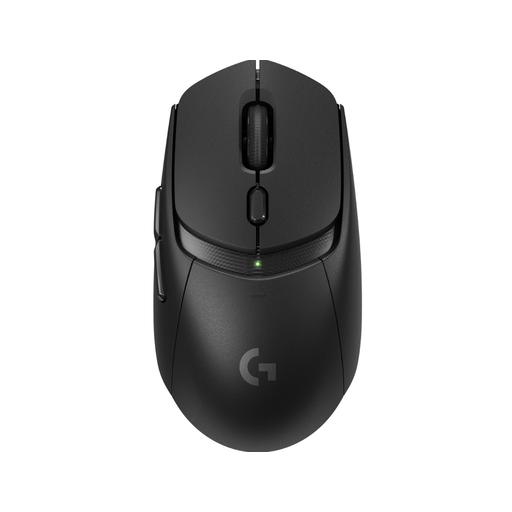
Logitech G309 LIGHTSPEED Wireless Gaming Mouse
For anyone looking for a wireless gaming mouse; check the product information to see whether the button layout and sensitivity settings suit the way you play RTS games.
View at Joybuy
 No image available
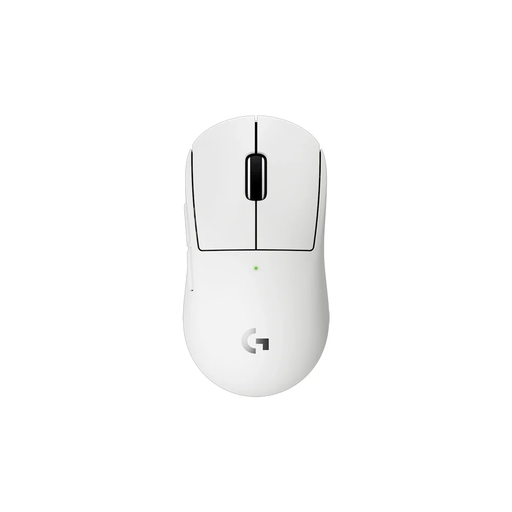
Logitech G PRO X Superlight 2c Wireless Gaming Mouse
For anyone looking for a wireless gaming mouse; consider whether its shape and control placement suit your hand and grip.
View at Joybuy
Frequently asked questions
Do I automatically need a mouse with a very high maximum DPI for a large screen?
No. Adjust cursor movement to suit your screen and game. Microsoft Support explains that a higher DPI makes the cursor move faster; also check your screen resolution and try a sensitivity that lets you click small targets comfortably.
How do I set up extra mouse buttons for an RTS game?
First choose the commands you use most, assign them to buttons you can reach easily and check for conflicts. Age of Empires IV supports a fully remappable shortcut layout, but conflicting commands can’t both be used at the same time. Check the options available in other games separately.
What should I check after connecting a wireless mouse?
Follow the instructions for your specific model for charging, the receiver and connection mode. For the SCIMITAR ELITE WIRELESS, Corsair gives separate instructions for the 2.4GHz receiver and Bluetooth, and recommends fully charging the mouse before using it for the first time.
What are my rights in the Netherlands when buying a gaming mouse online?
According to the Dutch government, a 14-day cooling-off period applies to many eligible distance purchases, although there are exceptions and these rules don’t apply to purchases from private individuals. You’re also entitled to a product that works as it should. The Dutch government states that the Netherlands has no fixed statutory warranty period; if a product is faulty, the retailer is your point of contact.


