What should you look for when choosing?
Keep your existing router
Choose this if: your backups are already taken care of and the Wi-Fi is weak mainly at your workspace; first try moving the router or using a network cable.
Trade-off: you avoid buying a router unnecessarily, but this won’t automatically solve every obstacle or add USB storage functionality.
Router with USB storage
Choose this if: local storage is allowed and you want to use a connected drive over your home network.
Trade-off: sharing a drive doesn’t automatically set up a backup schedule or a separate backup copy; assess Wi-Fi coverage separately.
Mesh system or extra access point
Choose this if: the connection is weak beyond the hallway and your backups are already covered by an approved solution.
Trade-off: extra equipment needs space and power. For a wired connection, both devices must support ethernet backhaul.
The Dutch Data Protection Authority advises keeping sensitive work documents on your work server. The percentages below show which purchasing need takes priority in each scenario.
| Consideration |
What should you check? |
Who is this most relevant to? |
| Approved and secure storage |
Check your employer’s policies, access settings and whether you can restore files. |
If I work with sensitive documents, I want to know which storage location is approved first. Around 31% of consumers put secure storage first. |
| Wi-Fi at your workspace |
Test the connection at your workspace; try moving the router and check where an additional access point can still connect to the main router. |
If Wi-Fi drops out beyond the hallway, I want a reliable connection at my workspace. Around 25% of consumers give coverage top priority. |
| Local backup functionality |
Check the exact model’s USB and file-sharing features, drive support, and how copying and restoring files work. |
If local storage is allowed for my work files, I want to be able to use a drive over my home network. Around 25% of consumers prioritise this option. |
| Connection and management |
Check that the model is compatible with your DSL, modem or fibre connection, and find out how firmware updates are installed. |
If I replace my router, I want to know that it will work with my internet connection and can be maintained properly. Around 19% of consumers make connection compatibility and management their main purchasing considerations. |
Joybuy product picks
These models focus on Wi-Fi coverage through mesh or expansion options. Assess an approved backup solution for work documents separately, and check the exact router model’s features if you need local storage.
 No image available
ASUS ZenWiFi BD4 dual-band Wi-Fi 7
Ideal if you want to improve Wi-Fi coverage with a mesh setup; the mesh feature described doesn’t replace a separately approved backup solution.
Wi-Fi 7 (802.11be); dual-band (2,4 GHz / 5 GHz); wired backhaul option listed.
Joybuy
 No image available
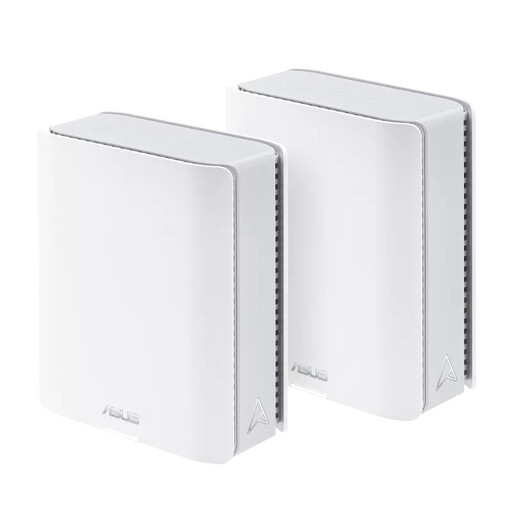
ASUS ZenWiFi BT10 2-pack tri-band Wi-Fi 7
A good option if you’re considering a mesh kit with two access points to improve Wi-Fi coverage; arrange an approved backup solution for work documents separately.
2-pack; tri-band (2,4 GHz / 5 GHz / 6 GHz); Wi-Fi 7 (802.11be).
Joybuy
 No image available
TP-Link Deco XE75 Pro 3-pack tri-band Wi-Fi 6E
A good fit if you’re looking for a multi-point mesh setup to improve Wi-Fi coverage; the kit doesn’t replace a separate backup solution for work files.
3-pack; tri-band (2,4 GHz / 5 GHz / 6 GHz); Wi-Fi 6E (802.11ax); Ethernet ports listed on each Deco unit.
Joybuy
 No image available
ASUS RT-AX52 AX1800 dual-band router
A good option if you want to consider a router with expansion options; according to the product description, AiMesh expansion requires another compatible router.
Wi-Fi 6; dual-band (2,4 GHz / 5 GHz); AiMesh, OFDMA and MU-MIMO listed.
Joybuy
 No image available
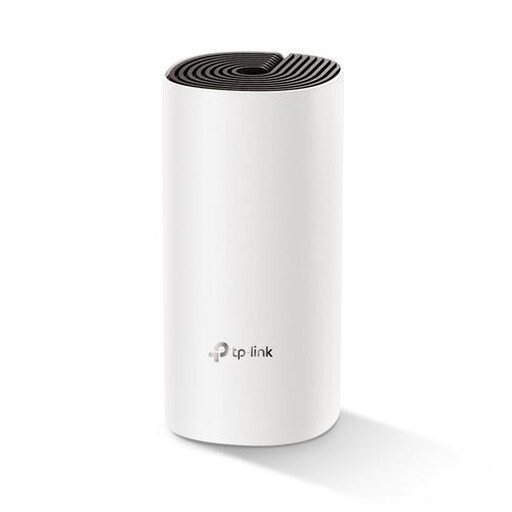
TP-Link Deco M4 1-pack dual-band Wi-Fi 5
A good option if you’re considering a Deco mesh setup and are happy with a one-unit pack; check separately whether your setup needs additional access points.
1-pack; dual-band (2,4 GHz / 5 GHz); Wi-Fi 5 (802.11ac); two Ethernet ports.
Joybuy
Frequently asked questions
Does a router with a USB port automatically back up my work documents?
No. A USB port or shared drive alone doesn’t mean that backups are made automatically. Check which software copies the files, when it does so and whether you can restore them. Only use a storage option approved under your workplace policies.
Where should you put an extra access point if the connection is weak beyond the hallway?
Choose a location where the access point still gets a reliable connection to the main router, and don’t place it directly behind an obstacle. For a wired connection, check that both devices support ethernet backhaul.
What extra equipment or ongoing maintenance might router storage require?
Depending on the approved process, you may need a suitable external drive as well as the router, and possibly a separate backup solution. Also check how to update the model you choose.
Can I connect my own router in the Netherlands?
Yes. According to ACM ConsuWijzer, you can choose your own device as long as it meets the same requirements as the provider’s device. A device that isn’t secure or could damage the network may be refused.
Should sensitive work documents be stored on a drive connected to my home router?
Not necessarily. The Dutch Data Protection Authority advises storing sensitive documents that are kept only on a USB stick or on paper on your work server. Check any local storage plans against your secure work environment and your employer’s policies.


